> ## Documentation Index
> Fetch the complete documentation index at: https://docs.zapier.com/llms.txt
> Use this file to discover all available pages before exploring further.
# Build with CLI
> Zapier is a platform for creating integrations and workflows. This CLI is your gateway to creating custom applications on the Zapier platform.
This doc describes the latest CLI version (**18.5.1**), as of this writing. If you're using an older version of the CLI, you may want to check out these historical releases:
* CLI Docs: [16.x](https://github.com/zapier/zapier-platform/blob/zapier-platform-cli@16.5.1/packages/cli/README.md), [15.x](https://github.com/zapier/zapier-platform/blob/zapier-platform-cli@15.19.0/packages/cli/README.md)
* CLI Command Reference: [17.x](https://github.com/zapier/zapier-platform/blob/zapier-platform-cli@17.9.1/packages/cli/docs/cli.md), [16.x](https://github.com/zapier/zapier-platform/blob/zapier-platform-cli@16.5.1/packages/cli/docs/cli.md), [15.x](https://github.com/zapier/zapier-platform/blob/zapier-platform-cli@15.19.0/packages/cli/docs/cli.md)
* Schema Reference: [17.x](https://github.com/zapier/zapier-platform/blob/zapier-platform-schema@17.9.1/packages/schema/docs/build/schema.md), [16.x](https://github.com/zapier/zapier-platform/blob/zapier-platform-schema@16.5.1/packages/schema/docs/build/schema.md), [15.x](https://github.com/zapier/zapier-platform/blob/zapier-platform-schema@15.19.0/packages/schema/docs/build/schema.md)
**Binary Name Update**: The CLI binary name has changed from `zapier` to
`zapier-platform`. While the old `zapier` command still works (marked as
deprecated throughout this documentation), we recommend using
`zapier-platform` for all new projects and documentation. Examples in this
guide show both versions where applicable. You can set
`ZAPIER_SUPPRESS_DEPRECATION_WARNING` environment variable to suppress the
deprecation warnings.
## Getting Started
If you're new to Zapier Platform CLI, we strongly recommend you to walk through the [Tutorial](/integrations/quickstart/cli-tutorial) for a more thorough introduction.
If you haven’t used Zapier before, learn the basics in our [Zapier quick-start guide](https://zapier.com/resources/guides/quick-start).
### Requirements
All Zapier CLI integrations are run using Node.js `v22`.
You can develop using any version of Node you'd like, but your eventual code must be compatible with `v22`. If you're using features not yet available in `v22`, you can transpile your code to a compatible format with [Babel](https://babeljs.io/) (or similar).
To ensure stability for our users, we strongly encourage you run tests on `v22` sometime before your code reaches users. This can be done multiple ways.
Firstly, by using a CI tool (like [Travis CI](https://travis-ci.org/) or [Circle CI](https://circleci.com/), which are free for open source projects). We provide a sample [.travis.yml](https://github.com/zapier/zapier-platform/blob/main/example-apps/trigger/.travis.yml) file in our template integrations to get you started.
Alternatively, you can change your local node version with tools such as [nvm](https://github.com/nvm-sh/nvm#installation-and-update). Then you can either swap to that version with `nvm use v22`, or do `nvm exec v22 zapier test` so you can run tests without having to switch versions while developing.
### Quick Setup Guide
First up is installing the CLI and setting up your auth to create a working "Zapier Example" integration. It will be private to you and visible in your live [Zap Editor](https://zapier.com/app/editor).
```bash theme={null}
# install the CLI globally
npm install -g zapier-platform-cli
# setup auth to Zapier's platform with a deploy key
# (deprecated) zapier login
zapier-platform login
```
If you log into Zapier via the single sign-on (Google, Facebook, or
Microsoft), you may not have a Zapier password. If that's the case, you'll
need to generate a deploy key, go to [your Zapier developer account
here](https://developer.zapier.com/partner-settings/deploy-keys/) and
create/copy a key, then run `zapier-platform login` command (or the deprecated
`zapier login`) with the `--sso` flag.
Your Zapier CLI should be installed and ready to go at this point. Next up, we'll create our first integration!
```bash theme={null}
# Create a directory with the minimum required files
# (deprecated) zapier init example-app
zapier-platform init example-app
```
`zapier-platform init` will show you a list of templates to start with. Pick
the one that matches a feature you'll need (such as "dynamic-dropdown" for an
integration with [dynamic dropdown
fields](/integrations/build-cli/dynamic-dropdowns)), or select "minimal" for
an integration with only the essentials. [View more example integrations
here](https://github.com/zapier/zapier-platform/tree/main/example-apps).
```bash theme={null}
# Go into the new directory
cd example-app
# Install all the libraries needed for your integration
npm install
```
Depending on the authentication method for your integration, you'll also likely need to set your `CLIENT_ID` and `CLIENT_SECRET` as environment variables. These are the consumer key and secret in OAuth1 terminology.
```bash theme={null}
# Setting the environment variables on Zapier.com
# (deprecated) zapier env:set 1.0.0 CLIENT_ID=1234
# (deprecated) zapier env:set 1.0.0 CLIENT_SECRET=abcd
zapier-platform env:set 1.0.0 CLIENT_ID=1234
zapier-platform env:set 1.0.0 CLIENT_SECRET=abcd
```
You should now have a working local integration. You can run several local commands to try it out.
```bash theme={null}
# Run the local tests
# the same as npm test, but adds some extra things to the environment
# (deprecated) zapier test
zapier-platform test
```
Next, you'll probably want to upload integration to Zapier itself so you can start testing live.
```bash theme={null}
# Push your integration to Zapier
# (deprecated) zapier push
zapier-platform push
```
Go check out our [full CLI command reference
documentation](https://github.com/zapier/zapier-platform/blob/main/packages/cli/docs/cli.md)
to see all the other commands!
## Creating a Local Integration
Creating an Integration can be done entirely locally and they are fairly simple Node.js apps using the standard Node environment and should be completely testable. However, a local integration stays local until you `zapier-platform register`.
```bash theme={null}
# make your folder
mkdir zapier-example
cd zapier-example
# create the needed files from a template
# (deprecated) zapier init . --template minimal
zapier-platform init . --template minimal
# install all the libraries needed for your integration
npm install
```
If you'd like to manage your **local Integration**, use these commands:
* `zapier-platform init myapp` (or deprecated `zapier init myapp`) - initialize/start a local integration project
* `zapier-platform convert 1234 .` (or deprecated `zapier convert 1234 .`) - initialize/start from an existing integration
* `zapier-platform scaffold resource Contact` (or deprecated `zapier scaffold resource Contact`) - auto-injects a new resource, trigger, etc.
* `zapier-platform test` (or deprecated `zapier test`) - run the same tests as `npm test`
* `zapier-platform validate` (or deprecated `zapier validate`) - ensure your integration is valid
* `zapier-platform describe` (or deprecated `zapier describe`) - print some helpful information about your integration
### Local Project Structure
In your integration's folder, you should see this general recommended structure. The `index.js` is Zapier's entry point to your integration. Zapier expects you to export an `App` definition there.
```
$ tree .
.
├── README.md
├── index.js
├── package.json
├── triggers
│ └── contact-by-tag.js
├── resources
│ └── Contact.js
├── test
│ ├── basic.js
│ ├── triggers.js
│ └── resources.js
├── build
│ └── build.zip
└── node_modules
├── ...
└── ...
```
### Local App Definition
The core definition of your `App` will look something like this, and is what your `index.js` should provide as the *only* export:
```js theme={null}
const App = {
// both version strings are required
version: require("./package.json").version,
platformVersion: require("zapier-platform-core").version,
// see "Authentication" section below
authentication: {},
// see "Dehydration" section below
hydrators: {},
// see "Making HTTP Requests" section below
requestTemplate: {},
beforeRequest: [],
afterResponse: [],
// See "Resources" section below
resources: {},
// See "Triggers/Searches/Creates" section below
triggers: {},
searches: {},
creates: {},
};
module.exports = App;
```
You can use higher order functions to create any part of your App definition!
### Zapier Platform Schema
The [Zapier Platform Schema](https://github.com/zapier/zapier-platform/blob/main/packages/schema/docs/build/schema.md) provides details for various schema components of a Zapier integration. Each schema outlines the required fields, data types, and configurations for features such as authentication, triggers, creates, searches, and HTTP requests. It's essential for integration developers to refer to this schema documentation when building their Zapier integrations, as it ensures that the correct structure is followed and the necessary components are used. The detailed examples, valid configurations, and anti-examples help guide integraton developers in creating reliable and functional integrations, avoid common errors, and ensure compatibility with the Zapier platform.
## Registering an Integration
Registering your Integration with Zapier is a necessary first step which only enables basic administrative functions. It should happen before `zapier-platform push` which is to used to actually expose an Integration Version in the Zapier interface and editor.
```bash theme={null}
# register your integration
# (deprecated) zapier register "Zapier Example"
zapier-platform register "Zapier Example"
# list your integrations
# (deprecated) zapier integrations
zapier-platform integrations
```
This doesn't put your integration in the editor - see the docs on pushing an
Integration Version to do that!
If you'd like to manage your **Integration**, use these commands:
* `zapier-platform integrations` (or deprecated `zapier integrations`) - list the integrations in Zapier you can administer
* `zapier-platform register "Integration Title"` (or deprecated `zapier register "Integration Title"`) - creates a new integration in Zapier
* `zapier-platform link` (or deprecated `zapier link`) - lists and links a selected integration in Zapier to your current folder
* `zapier-platform history` (or deprecated `zapier history`) - print the history of your integration
* `zapier-platform team:add `[`user@example.com`](mailto:user@example.com)` admin` (or deprecated `zapier team:add`) - add an admin to help maintain/develop your integration
* `zapier-platform users:add `[`user@example.com`](mailto:user@example.com)` 1.0.0` (or deprecated `zapier users:add`) - invite a user try your integration version 1.0.0
## Converting an Existing Integration
If you have an existing Zapier [legacy Web Builder integration](/integrations/manage/versions-legacy), you can use it as a template to kickstart your local integration.
```bash theme={null}
# Convert an existing Web Builder integration to a CLI integration in the my-app directory
# Integration ID 1234 is from URL https://zapier.com/developer/builder/app/1234/development
# (deprecated) zapier convert 1234 my-app
zapier-platform convert 1234 my-app
```
Your CLI integration will be created and you can continue working on it.
There is no way to convert a CLI integration to a Web Builder integration and
we do not plan on implementing this.
Introduced in v8.2.0, you are able to convert new integrations built in Zapier Platform UI to CLI.
```bash theme={null}
# the --version flag is what denotes this command is interacting with a Visual Builder integration
# zapier convert --version
zapier convert 1234 --version 1.0.1 my-app
```
## Authentication
Most integrations require some sort of authentication. The Zapier platform provides core behaviors for several common authentication methods that might be used with your integration, as well as the ability to customize authentication further.
When a user authenticates to your integration through Zapier, a "connection" is created representing their authentication details. Data tied to a specific authentication connection is included in the [bundle object](/integrations/build-cli/core#bundle-object) under `bundle.authData`.
### Basic
Useful if your integration requires two pieces of information to authenticate: `username` and `password`, which only the end user can provide. By default, Zapier will do the standard Basic authentication base64 header encoding for you (via an automatically registered middleware).
To create a new integration with basic authentication, run `zapier init [your_integration_name] --template basic-auth`. You can also review an example
of that code
[here](https://github.com/zapier/zapier-platform/tree/main/example-apps/basic-auth).
If your integration uses Basic auth with an encoded API key rather than a username and password, like `Authorization: Basic APIKEYHERE:x`, consider the [Custom](#custom) authentication method instead.
```js theme={null}
const authentication = {
type: "basic",
// "test" could also be a function
test: {
url: "https://example.com/api/accounts/me.json",
},
connectionLabel: "{{username}}", // Can also be a function, check digest auth below for an example
// you can provide additional fields, but we'll provide `username`/`password` automatically
};
const App = {
// ...
authentication,
// ...
};
```
### Digest
*Added in v7.4.0.*
The setup and user experience of Digest Auth is identical to Basic Auth. Users provide Zapier their username and password, and Zapier handles all the nonce and quality of protection details automatically.
To create a new integration with digest authentication, run `zapier init [your
integration name] --template digest-auth`. You can also review an example of
that code
[here](https://github.com/zapier/zapier-platform/tree/main/example-apps/digest-auth).
Limitation: Currently, MD5-sess and SHA are not implemented. Only the MD5
algorithm is supported. In addition, server nonces are not reused. That means
for every `z.request` call, Zapier will send an additional request beforehand
to get the server nonce.
```js theme={null}
const getConnectionLabel = (z, bundle) => {
// bundle.inputData will contain what the "test" URL (or function) returns
return bundle.inputData.username;
};
const authentication = {
type: "digest",
// "test" could also be a function
test: {
url: "https://example.com/api/accounts/me.json",
},
connectionLabel: getConnectionLabel,
// you can provide additional fields, but we'll provide `username`/`password` automatically
};
const App = {
// ...
authentication,
// ...
};
```
### Custom
Custom auth is most commonly used for integrations that authenticate with API keys, although it also provides flexibility for any unusual authentication setup. You'll likely provide some custom `beforeRequest` middleware or a `requestTemplate` (see [Making HTTP Requests](/integrations/build-cli/making-http-requests)) to pass in data returned from the authentication process, most commonly by adding/computing needed headers.
To create a new integration with custom authentication, run `zapier init [your
integration name] --template custom-auth`. You can also review an example of
that code
[here](https://github.com/zapier/zapier-platform/tree/main/example-apps/custom-auth).
```js theme={null}
const authentication = {
type: "custom",
// "test" could also be a function
test: {
url: "https://{{bundle.authData.subdomain}}.example.com/api/accounts/me.json",
},
fields: [
{
key: "subdomain",
type: "string",
required: true,
helpText: "Found in your browsers address bar after logging in.",
},
{
key: "api_key",
type: "string",
required: true,
helpText: "Found on your settings page.",
},
],
};
const addApiKeyToHeader = (request, z, bundle) => {
request.headers["X-Subdomain"] = bundle.authData.subdomain;
const basicHash = Buffer.from(`${bundle.authData.api_key}:x`).toString(
"base64",
);
request.headers.Authorization = `Basic ${basicHash}`;
return request;
};
const App = {
// ...
authentication,
beforeRequest: [addApiKeyToHeader],
// ...
};
```
### Session
Session auth gives you the ability to exchange some user-provided data for some authentication data; for example, username and password for a session key. It can be used to implement almost any authentication method that uses that pattern - for example, alternative OAuth flows.
To create a new integration with session authentication, run `zapier init [your integration name] --template session-auth`. You can also review an
example of that code
[here](https://github.com/zapier/zapier-platform/tree/main/example-apps/session-auth).
```js theme={null}
const getSessionKey = async (z, bundle) => {
const response = await z.request({
method: "POST",
url: "https://example.com/api/accounts/login.json",
body: {
username: bundle.authData.username,
password: bundle.authData.password,
},
});
// response.throwForStatus() if you're using core v9 or older
return {
sessionKey: response.data.sessionKey,
// or response.json.sessionKey if you're using core v9 and older
};
};
const authentication = {
type: "session",
// "test" could also be a function
test: {
url: "https://example.com/api/accounts/me.json",
},
fields: [
{
key: "username",
type: "string",
required: true,
helpText: "Your login username.",
},
{
key: "password",
type: "string",
required: true,
helpText: "Your login password.",
},
// For Session Auth we store `sessionKey` automatically in `bundle.authData`
// for future use. If you need to save/use something that the user shouldn't
// need to type/choose, add a "computed" field, like:
// {key: 'something': type: 'string', required: false, computed: true}
// And remember to return it in sessionConfig.perform
],
sessionConfig: {
perform: getSessionKey,
},
};
const includeSessionKeyHeader = (request, z, bundle) => {
if (bundle.authData.sessionKey) {
request.headers = request.headers || {};
request.headers["X-Session-Key"] = bundle.authData.sessionKey;
}
return request;
};
const App = {
// ...
authentication,
beforeRequest: [includeSessionKeyHeader],
// ...
};
```
For Session auth, the function that fetches the additional authentication data needed to make API calls (`authentication.sessionConfig.perform`) has the user-provided fields in `bundle.inputData`. Afterwards, `bundle.authData` contains the data returned by that function (usually the session key or token).
### OAuth1
*`Added in v7.5.0.`*
Zapier's [OAuth1](https://oauth.net/1/) implementation matches [X](https://developer.twitter.com/en/docs/tutorials/authenticating-with-twitter-api-for-enterprise/authentication-method-overview#oauth1.0a) (formerlly called Twitter) and [Trello](https://developer.atlassian.com/cloud/trello/guides/rest-api/authorization/#using-basic-oauth) implementations of the 3-legged OAuth flow.
To create a new integration with OAuth1, run `zapier init [your integration
name] --template oauth1-trello`. You can also check out
[oauth1-trello](https://github.com/zapier/zapier-platform/tree/main/example-apps/oauth1-trello),
[oauth1-tumblr](https://github.com/zapier/zapier-platform/tree/main/example-apps/oauth1-tumblr),
and
[oauth1-twitter](https://github.com/zapier/zapier-platform/tree/main/example-apps/oauth1-twitter)
for working example integrations with OAuth1.
The flow works like this:
1. Zapier makes a call to your API requesting a "request token" (also known as "temporary credentials").
2. Zapier sends the user to the authorization URL, defined by your integration, along with the request token.
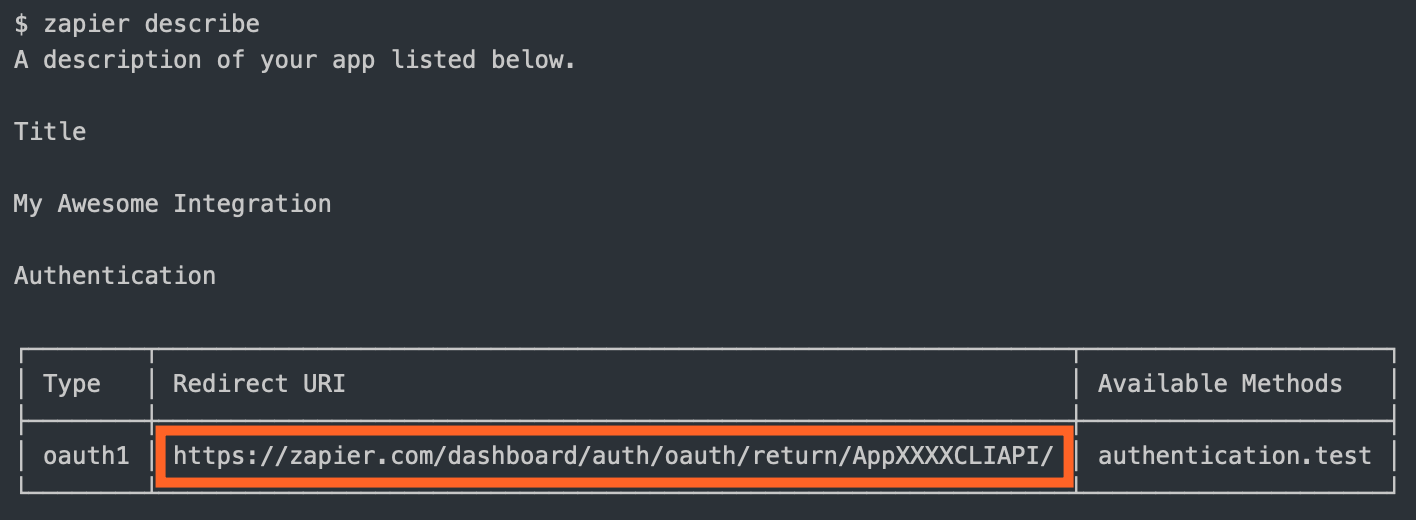
3. Once authorized, your website sends the user to the `redirect_uri` Zapier provided. Use `zapier-platform describe` command to find out what it is:
4. Zapier makes a backend call to your API to exchange the request token for an "access token" (also known as "long-lived credentials").
5. Zapier stores the `access_token` and uses it to make calls on behalf of the user.
You are required to define:
* `getRequestToken`: The API call to fetch the request token
* `authorizeUrl`: The authorization URL
* `getAccessToken`: The API call to fetch the access token
You'll also likely need to set your `CLIENT_ID` and `CLIENT_SECRET` as environment variables. These are the consumer key and secret in OAuth1 terminology.
```bash theme={null}
# setting the environment variables on Zapier.com
$ zapier-platform env:set 1.0.0 CLIENT_ID=1234
$ zapier-platform env:set 1.0.0 CLIENT_SECRET=abcd
# and when running tests locally, don't forget to define them in .env or in the command!
$ CLIENT_ID=1234 CLIENT_SECRET=abcd zapier test
```
Your auth definition would look something like this:
```js theme={null}
const _ = require("lodash");
const authentication = {
type: "oauth1",
oauth1Config: {
getRequestToken: {
url: "https://{{bundle.inputData.subdomain}}.example.com/request-token",
method: "POST",
auth: {
oauth_consumer_key: "{{process.env.CLIENT_ID}}",
oauth_consumer_secret: "{{process.env.CLIENT_SECRET}}",
// 'HMAC-SHA1' is used by default if not specified.
// 'HMAC-SHA256', 'RSA-SHA1', 'PLAINTEXT' are also supported.
oauth_signature_method: "HMAC-SHA1",
oauth_callback: "{{bundle.inputData.redirect_uri}}",
},
},
authorizeUrl: {
url: "https://{{bundle.inputData.subdomain}}.example.com/authorize",
params: {
oauth_token: "{{bundle.inputData.oauth_token}}",
},
},
getAccessToken: {
url: "https://{{bundle.inputData.subdomain}}.example.com/access-token",
method: "POST",
auth: {
oauth_consumer_key: "{{process.env.CLIENT_ID}}",
oauth_consumer_secret: "{{process.env.CLIENT_SECRET}}",
oauth_token: "{{bundle.inputData.oauth_token}}",
oauth_token_secret: "{{bundle.inputData.oauth_token_secret}}",
oauth_verifier: "{{bundle.inputData.oauth_verifier}}",
},
},
},
test: {
url: "https://{{bundle.authData.subdomain}}.example.com/me",
},
// If you need any fields upfront, put them here
fields: [
{ key: "subdomain", type: "string", required: true, default: "app" },
// For OAuth1 we store `oauth_token` and `oauth_token_secret` automatically
// in `bundle.authData` for future use. If you need to save/use something
// that the user shouldn't need to type/choose, add a "computed" field, like:
// {key: 'user_id': type: 'string', required: false, computed: true}
// And remember to return it in oauth1Config.getAccessToken
],
};
// A middleware that is run before z.request() actually makes the request. Here we're
// adding necessary OAuth1 parameters to `auth` property of the request object.
const includeAccessToken = (req, z, bundle) => {
if (
bundle.authData &&
bundle.authData.oauth_token &&
bundle.authData.oauth_token_secret
) {
// Just put your OAuth1 credentials in req.auth, Zapier will sign the request for
// you.
req.auth = req.auth || {};
_.defaults(req.auth, {
oauth_consumer_key: process.env.CLIENT_ID,
oauth_consumer_secret: process.env.CLIENT_SECRET,
oauth_token: bundle.authData.oauth_token,
oauth_token_secret: bundle.authData.oauth_token_secret,
});
}
return req;
};
const App = {
// ...
authentication,
beforeRequest: [includeAccessToken],
// ...
};
module.exports = App;
```
For OAuth1, `authentication.oauth1Config.getRequestToken`, `authentication.oauth1Config.authorizeUrl`, and `authentication.oauth1Config.getAccessToken` have fields like `redirect_uri` and the temporary credentials in `bundle.inputData`. After `getAccessToken` runs, the resulting token value(s) will be stored in `bundle.authData` for the connection.
Also, `authentication.oauth1Config.getAccessToken` has access to the additional return values in `rawRequest` and `cleanedRequest` should you need to extract other values (for example, from the query string).
### OAuth2
Zapier's [OAuth2](https://oauth.net/2/) implementation is based on the `authorization_code` flow, similar to [GitHub](https://docs.github.com/en/apps/oauth-apps/building-oauth-apps/authorizing-oauth-apps) and [Facebook](https://developers.facebook.com/docs/facebook-login/guides/advanced/manual-flow).
To create a new integration with OAuth2, run `zapier init [your integration
name] --template oauth2`. You can also check out [our working example
integration](https://github.com/zapier/zapier-platform/tree/main/example-apps/oauth2).
If your integration's OAuth2 flow uses a different grant type, such as `client_credentials`, try using [Session auth](#session) instead.
The OAuth2 flow looks like this:
1. Zapier sends the user to the authorization URL defined by your integration.
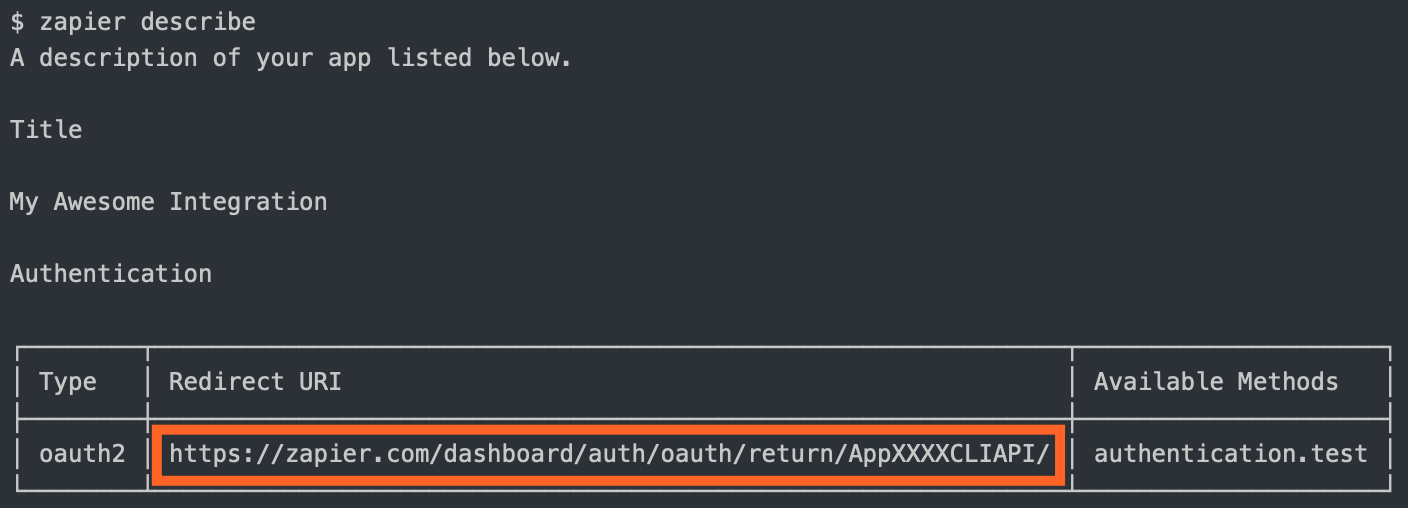
2. Once authorized, your website sends the user to the `redirect_uri` Zapier provided. Use the `zapier-platform describe` command to find out what it is:
3. Zapier makes a backend call to your API to exchange the `code` for an `access_token`.
4. Zapier stores the `access_token` and uses it to make calls on behalf of the user.
5. (Optionally) Zapier can refresh the token if it expires.
You are required to define:
* `authorizeUrl`: The authorization URL
* `getAccessToken`: The API call to fetch the access token
If the access token has a limited life and you want to refresh the token when it expires, you'll also need to define the API call to perform that refresh (`refreshAccessToken`). You can choose to set `autoRefresh: true`, as in the example integration, if you want Zapier to automatically make a call to refresh the token after receiving a 401. See [Stale Authentication Credentials](#stale-authentication-credentials) for more details on handling auth refresh.
You'll also likely want to set your `CLIENT_ID` and `CLIENT_SECRET` as environment variables:
```bash theme={null}
# setting the environment variables on Zapier.com
$ zapier-platform env:set 1.0.0 CLIENT_ID=1234
$ zapier-platform env:set 1.0.0 CLIENT_SECRET=abcd
# and when running tests locally, don't forget to define them in .env or in the command!
$ CLIENT_ID=1234 CLIENT_SECRET=abcd zapier test
```
Your auth definition would look something like this:
```js theme={null}
const authentication = {
type: "oauth2",
test: {
url: "https://{{bundle.authData.subdomain}}.example.com/api/accounts/me.json",
},
// you can provide additional fields for inclusion in authData
oauth2Config: {
// "authorizeUrl" could also be a function returning a string url
authorizeUrl: {
method: "GET",
url: "https://{{bundle.inputData.subdomain}}.example.com/api/oauth2/authorize",
params: {
client_id: "{{process.env.CLIENT_ID}}",
state: "{{bundle.inputData.state}}",
redirect_uri: "{{bundle.inputData.redirect_uri}}",
response_type: "code",
},
},
// Zapier expects a response providing {access_token: 'abcd'}
// "getAccessToken" could also be a function returning an object
getAccessToken: {
method: "POST",
url: "https://{{bundle.inputData.subdomain}}.example.com/api/v2/oauth2/token",
body: {
code: "{{bundle.inputData.code}}",
client_id: "{{process.env.CLIENT_ID}}",
client_secret: "{{process.env.CLIENT_SECRET}}",
redirect_uri: "{{bundle.inputData.redirect_uri}}",
grant_type: "authorization_code",
},
headers: {
"Content-Type": "application/x-www-form-urlencoded",
},
},
scope: "read,write",
},
// If you need any fields upfront, put them here
fields: [
{ key: "subdomain", type: "string", required: true, default: "app" },
// For OAuth2 we store `access_token` and `refresh_token` automatically
// in `bundle.authData` for future use. If you need to save/use something
// that the user shouldn't need to type/choose, add a "computed" field, like:
// {key: 'user_id': type: 'string', required: false, computed: true}
// And remember to return it in oauth2Config.getAccessToken/refreshAccessToken
],
};
const addBearerHeader = (request, z, bundle) => {
if (bundle.authData && bundle.authData.access_token) {
request.headers.Authorization = `Bearer ${bundle.authData.access_token}`;
}
return request;
};
const App = {
// ...
authentication,
beforeRequest: [addBearerHeader],
// ...
};
module.exports = App;
```
For OAuth2, `authentication.oauth2Config.authorizeUrl`, `authentication.oauth2Config.getAccessToken`, and `authentication.oauth2Config.refreshAccessToken` have fields like `redirect_uri` and `state` in `bundle.inputData`. After the code is exchanged for an access token and/or refresh token, those tokens are stored in `bundle.authData` for the connection.
Also, `authentication.oauth2Config.getAccessToken` has access to the additional return values in `rawRequest` and `cleanedRequest` should you need to extract other values (for example, from the query string).
If you define `fields` to collect additional details from the user, please note that `client_id` and `client_secret` are reserved keys and cannot be used as keys for input form fields.
The OAuth2 `state` param is a [standard security feature](https://auth0.com/docs/secure/attack-protection/state-parameters) that helps ensure that authorization requests are only coming from your servers. Most OAuth clients have support for this and will send back the `state` query param that the user brings to your app. The Zapier Platform performs this check and this required field cannot be disabled. The state parameter is automatically generated by Zapier in the background, and can be accessed at `bundle.inputData.state`.
Since Zapier uses the `state` to verify that GET requests to your redirect URL truly come from your integration, it needs to be generated by Zapier so that it can be validated later (once the user confirms that they'd like to grant Zapier permission to access their account in your app).
### OAuth2 with PKCE
*Added in v14.0.0.*
Zapier's OAuth2 implementation also supports [PKCE](https://oauth.net/2/pkce/). This implementation is an extension of the OAuth2 `authorization_code` flow described above.
To use PKCE in your OAuth2 flow, you'll need to set the following variables:
1. `enablePkce: true`
2. `getAccessToken.body` to include `code_verifier: "{{bundle.inputData.code_verifier}}"`
The OAuth2 PKCE flow uses the same flow as OAuth2 but adds a few extra parameters:
1. Zapier computes a `code_verifier` and `code_challenge` internally and stores the `code_verifier` in the Zapier bundle.
2. Zapier sends the user to the authorization URL defined by your integration. We automatically include the computed `code_challenge` and `code_challenge_method` in the authorization request.
3. Once authorized, your website sends the user to the `redirect_uri` Zapier provided.
4. Zapier makes a call to your API to exchange the code but you must include the computed `code_verifier` in the request for an `access_token`.
5. Zapier stores the `access_token` and uses it to make calls on behalf of the user.
Your auth definition would look something like this:
```js theme={null}
const authentication = {
type: "oauth2",
test: {
url: "https://{{bundle.authData.subdomain}}.example.com/api/accounts/me.json",
},
// you can provide additional fields for inclusion in authData
oauth2Config: {
// "authorizeUrl" could also be a function returning a string url
authorizeUrl: {
method: "GET",
url: "https://{{bundle.inputData.subdomain}}.example.com/api/oauth2/authorize",
params: {
client_id: "{{process.env.CLIENT_ID}}",
state: "{{bundle.inputData.state}}",
redirect_uri: "{{bundle.inputData.redirect_uri}}",
response_type: "code",
},
},
// Zapier expects a response providing {access_token: 'abcd'}
// "getAccessToken" could also be a function returning an object
getAccessToken: {
method: "POST",
url: "https://{{bundle.inputData.subdomain}}.example.com/api/v2/oauth2/token",
body: {
code: "{{bundle.inputData.code}}",
client_id: "{{process.env.CLIENT_ID}}",
client_secret: "{{process.env.CLIENT_SECRET}}",
redirect_uri: "{{bundle.inputData.redirect_uri}}",
grant_type: "authorization_code",
code_verifier: "{{bundle.inputData.code_verifier}}", // Added for PKCE
},
headers: {
"Content-Type": "application/x-www-form-urlencoded",
},
},
scope: "read,write",
enablePkce: true, // Added for PKCE
},
// If you need any fields upfront, put them here
fields: [
{ key: "subdomain", type: "string", required: true, default: "app" },
// For OAuth2 we store `access_token` and `refresh_token` automatically
// in `bundle.authData` for future use. If you need to save/use something
// that the user shouldn't need to type/choose, add a "computed" field, like:
// {key: 'user_id': type: 'string', required: false, computed: true}
// And remember to return it in oauth2Config.getAccessToken/refreshAccessToken
],
};
const addBearerHeader = (request, z, bundle) => {
if (bundle.authData && bundle.authData.access_token) {
request.headers.Authorization = `Bearer ${bundle.authData.access_token}`;
}
return request;
};
const App = {
// ...
authentication,
beforeRequest: [addBearerHeader],
// ...
};
module.exports = App;
```
The computed `code_verifier` uses this standard: [RFC 7636 Code Verifier](https://www.rfc-editor.org/rfc/rfc7636#section-4.1)
The computed `code_challenge` uses this standard: [RFC 7636 Code Challenge](https://www.rfc-editor.org/rfc/rfc7636#section-4.2)
### Connection Label
When a user connects to your app via Zapier and a connection is created to hold the related data in `bundle.authData`, the connection is automatically labeled with the integration name. You also have the option of setting a connection label (`connectionLabel`), which can be extremely helpful to identify information like which user is connected or what instance of your app they are connected to. That way, users don't get confused if they have multiple connections to your app.
When setting a connection label, you can use either a string with variable references (as shown in [Basic Auth](#basic)) or a function (as shown in [Digest Auth](#digest)).
When using a string, you have access to the information in `bundle.authData` and the information returned from the test request in `bundle.inputData`, all at the top level. So in Basic auth, if `connectionLabel` is `{{username}}`, that refers to the username used for authentication.
When using a function, this "hoisting" of data to the top level is skipped, and you must refer to data items by their fully qualified name, as shown in the line `return bundle.inputData.username;` in the Digest Auth snippet. `return username;` would not work in this context.
**NOTE:** Do not use sensitive authentication data such as passwords or API keys in the connection label. It's visible in plain text on Zapier. The purpose of the label is to identify the connection for the user, so stick with data such as username or instance identifier that is meaningful but not sensitive.
### Domain and subdomain validation
When adding a subdomain input field, commonly used in OAuth implementations, additional validation is strongly recommended to prevent a potential security vulnerability. If not taken into account, an attacker could utilize a maliciously constructed subdomain field (like `attacker-domain.com/`) in order to redirect OAuth connection requests to that attacker-controlled domain (because `attacker-domain.com/.your-domain.com` resolves to the attacker’s domain instead of the expected one).
This vulnerability presents itself when:
* The authentication method uses pre-configured tokens or secret values (for example, OAuth v2)
* User is able to input a domain or subdomain when authenticating within Zapier
* Integration stores sensitive authentication details (in environment variables, for example) which are used as part of the authentication process
Taking the following steps prevents the potential for an attacker to access your integration’s sensitive authentication information, such as the OAuth client ID or secret.
1. If your integration allows for the user to provide a domain, validate the input against an allow-list of trusted domains.
2. If your integration allows for the user to provide a subdomain, add conditional validation for the subdomain string whenever you include the value in your OAuth HTTP requests. This change will prevent potential exploitation of the subdomain vulnerability.
* If you’re using OAuth-based authentications, update the `getAccessToken` and optional `refreshAccessToken` configuration methods. If the integration uses [shorthand HTTP requests](/integrations/build-cli/overview#shorthand-http-requests), switching to [manual HTTP requests](/integrations/build-cli/overview#manual-http-requests) will allow you to perform this manual subdomain validation.
Example code for handling subdomain validation:
```js theme={null}
const refreshAccessToken = async (z, bundle) => {
// --- UPDATE: add your validation for the subdomain field before using it ---
if (!/^[a-z0-9-]+$/.test(bundle.authData.yourSubdomainField)) {
throw new Error(
"Subdomain can only contain letters, numbers and dashes (-).",
);
}
const response = await z.request({
url: `https://${bundle.authData.yourSubdomainField}.mydomain.com/oauth/token`,
method: "POST",
body: {
client_id: process.env.CLIENT_ID,
client_secret: process.env.CLIENT_SECRET,
grant_type: "refresh_token",
refresh_token: bundle.authData.refresh_token,
redirect_uri: bundle.inputData.redirect_uri,
},
});
return {
access_token: response.data.access_token,
refresh_token: response.data.refresh_token,
};
};
```
## Resources
A `resource` is a representation (as a JavaScript object) of one of the REST resources of your API. Say you have a `/recipes`
endpoint for working with recipes; you can define a recipe resource in your integration that will tell Zapier how to do create,
read, and search operations on that resource.
```js theme={null}
const Recipe = {
// `key` is the unique identifier the Zapier backend references
key: "recipe",
// `noun` is the user-friendly name displayed in the Zapier UI
noun: "Recipe",
// `list` and `create` are just a couple of the methods you can define
list: {
// ...
},
create: {
// ...
},
};
```
The quickest way to create a resource is with the `zapier-platform scaffold` command:
```bash theme={null}
zapier scaffold resource "Recipe"
```
This will generate the resource file and add the necessary statements to the `index.js` file to import it.
### Resource Definition
A resource has a few basic properties. The first is the `key`, which allows Zapier to identify the resource on our backend.
The second is the `noun`, the user-friendly name of the resource that is presented to users throughout the Zapier UI.
Check out [this working example
integration](https://github.com/zapier/zapier-platform/tree/main/example-apps/resource)
to see resources in action.
After those, there is a set of optional properties that tell Zapier what methods can be performed on the resource.
The complete list of available methods can be found in the [Resource Schema Docs](https://github.com/zapier/zapier-platform/blob/main/packages/schema/docs/build/schema.md#resourceschema).
For now, let's focus on two:
* `list` - Tells Zapier how to fetch a set of this resource. This becomes a Trigger in the Zapier Editor.
* `create` - Tells Zapier how to create a new instance of the resource. This becomes an Action in the Zapier Editor.
Here is a complete example of what the list method might look like
```js theme={null}
const Recipe = {
key: "recipe",
// ...
list: {
display: {
label: "New Recipe",
description: "Triggers when a new recipe is added.",
},
operation: {
perform: {
url: "https://example.com/recipes",
},
},
},
};
```
The method is made up of two properties, a `display` and an `operation`. The `display` property ([schema](https://github.com/zapier/zapier-platform/blob/main/packages/schema/docs/build/schema.md#basicdisplayschema)) holds the info needed to present the method as an available Trigger in the Zapier Editor. The `operation` ([schema](https://github.com/zapier/zapier-platform/blob/main/packages/schema/docs/build/schema.md#resourceschema)) provides the implementation to make the API call.
Adding a create method looks very similar.
```js theme={null}
const Recipe = {
key: "recipe",
// ...
list: {
// ...
},
create: {
display: {
label: "Add Recipe",
description: "Adds a new recipe to our cookbook.",
},
operation: {
perform: {
method: "POST",
url: "https://example.com/recipes",
body: {
name: "Baked Falafel",
style: "mediterranean",
},
},
},
},
};
```
Every method you define on a `resource` Zapier converts to the appropriate Trigger, Create, or Search. Our examples
above would result in an integration with a New Recipe Trigger and an Add Recipe Create.
Note the keys for the Trigger, Create, Search, and Search or Create are automatically generated (in case you want to use them in a dynamic dropdown), like: `{resourceName}List`, `{resourceName}Create`, `{resourceName}Search`, and `{resourceName}SearchOrCreate`; in the examples above, `{resourceName}` would be `recipe`.
## Triggers/Searches/Creates
Triggers, Searches, and Creates are the way an integration defines what it is able to do. Triggers read
data into Zapier (i.e. watch for new recipes). Searches locate individual records (find recipe by title). Creates create
new records in your system (add a recipe to the catalog).
The definition for each of these follows the same structure. Here is an example of a trigger:
```js theme={null}
const App = {
// ...
triggers: {
new_recipe: {
key: "new_recipe", // uniquely identifies the trigger
noun: "Recipe", // user-friendly word that is used to refer to the resource
// `display` controls the presentation in the Zapier Editor
display: {
label: "New Recipe",
description: "Triggers when a new recipe is added.",
},
// `operation` implements the API call used to fetch the data
operation: {
perform: {
url: "https://example.com/recipes",
},
},
},
another_trigger: {
// Another trigger definition...
},
},
};
```
You can find more details on the definition for each by looking at the [Trigger Schema](https://github.com/zapier/zapier-platform/blob/main/packages/schema/docs/build/schema.md#triggerschema),
[Search Schema](https://github.com/zapier/zapier-platform/blob/main/packages/schema/docs/build/schema.md#searchschema), and [Create Schema](https://github.com/zapier/zapier-platform/blob/main/packages/schema/docs/build/schema.md#createschema).
To create a new integration with a premade trigger, search, or create, run
`zapier init [your_integration_name]` and select from the list that appears.
You can also check out our working example integrations
[here](https://github.com/zapier/zapier-platform/tree/main/example-apps).
To add a trigger, search, or create to an existing integration, run `zapier
scaffold [trigger|search|create] [noun]` to create the necessary files to your
project. For example, `zapier scaffold trigger post` will create a new trigger
called "New Post".
### Return Types
Each of the 3 types of function should return a certain data type for use by the platform. There are automated checks to let you know when you're trying to pass the wrong type back. For reference, each expects:
| Method | Return Type | Notes |
| ------- | ----------- | ---------------------------------------------------------------------------------------------------- |
| Trigger | Array | 0 or more objects; passed to the [deduper](/integrations/build/deduplication) if polling |
| Search | Array | 0 or more objects. Put the best match first, but don't limit to a single result or group them as one |
| Create | Object | Return values are evaluated by [`isPlainObject`](https://lodash.com/docs#isPlainObject) |
When a trigger function returns an empty array, the Zap will not trigger. For REST Hook triggers, this can be used to filter data if the available subscription options are not specific enough for the Zap's needs.
### Fallback Sample
In cases where Zapier needs to show an example record to the user, but we are unable to get a live example from the API, Zapier will fallback to this hard-coded sample. This should reflect the data structure of the Trigger's perform method, and have dummy values that we can show to any user.
```js theme={null}
,sample: {
dummydata_field1: 'This will be compared against your perform method output'
style: 'mediterranean'
}
```
## Input Fields
Moved to [Input Fields](/integrations/build-cli/input-fields).
## Output Fields
On each trigger, search, or create in the operation directive - you can provide an array of objects as fields under the `outputFields`. Output Fields are what users see when they select a field provided by your trigger, search or create to map it to another.
Output Fields are optional, but can be used to:
* Define friendly labels for the returned fields. By default, we will *humanize* for example `my_key` as *My Key*.
* Make sure that custom fields that may not be found in every live sample and - since they're custom to the connected account - cannot be defined in the static sample, can still be mapped.
* (Added in v15.6.0) Define what field(s) can be used to uniquely identify and [deduplicate](/integrations/build-cli/faqs#how-does-deduplication-work) items returned by a polling trigger call.
The [schema](https://github.com/zapier/zapier-platform/blob/main/packages/schema/docs/build/schema.md#fieldschema) for `outputFields` is shared with `inputFields` but only these properties are relevant:
* `key` - includes the field when not present in the live sample. When no `label` property is provided, `key` will be *humanized* and displayed as the field name.
* `label` - defines the field name displayed to users.
* `type` - defines the type for static sample data. A [validation warning](/integrations/publish/integration-checks-reference#d024-static-sample-respects-output-field-definition) will be displayed if the static sample does not match the specified type.
* `required` - defines whether the field is required in static sample data. A [validation warning](/integrations/publish/integration-checks-reference#d024-static-sample-respects-output-field-definition) will be displayed if the value is true and the static sample does not contain the field.
* `primary` - defines whether the field is part of the primary key for polling trigger [deduplication](/integrations/build-cli/faqs#how-does-deduplication-work).
Custom/Dynamic Output Fields are defined in the same way as [Custom/Dynamic Input Fields](/integrations/build-cli/input-fields#custom-dynamic-fields).
### Nested & Children (Line Item) Fields
To define an Output Field for a nested field use `{{parent}}__{{key}}`. For children (line item) fields use `{{parent}}[]{{key}}`.
```js theme={null}
const recipeOutputFields = async (z, bundle) => {
const response = await z.request("https://example.com/api/v2/fields.json");
// response.throwForStatus() if you're using core v9 or older
// Should return an array like [{"key":"field_1","label":"Label for Custom Field"}]
return response.data; // or response.json if you're on core v9 or older
};
const App = {
// ...
triggers: {
new_recipe: {
// ...
operation: {
perform: () => {},
sample: {
id: 1,
title: "Pancake",
author: {
id: 1,
name: "Amy",
},
ingredients: [
{
name: "Egg",
amount: 1,
},
{
name: "Milk",
amount: 60,
unit: "g",
},
{
name: "Flour",
amount: 30,
unit: "g",
},
],
},
// an array of objects is the simplest way
outputFields: [
{
key: "id",
label: "Recipe ID",
type: "integer",
},
{
key: "title",
label: "Recipe Title",
type: "string",
},
{
key: "author__id",
label: "Author User ID",
type: "integer",
},
{
key: "author__name",
label: "Author Name",
type: "string",
},
{
key: "ingredients[]name",
label: "Ingredient Name",
type: "string",
},
{
key: "ingredients[]amount",
label: "Ingredient Amount",
type: "number",
},
{
key: "ingredients[]unit",
label: "Ingredient Unit",
type: "string",
},
recipeOutputFields, // provide a function inline - we'll merge the results!
],
},
},
},
};
```
## Buffered Create Actions
***Added in v15.15.0. This feature is currently internal-only.***
A Buffered Create allows you to create objects in bulk with a single or fewer API request(s). This is useful when you want to reduce the number of requests made to your server. When enabled, Zapier holds the data until the buffer reaches a size limit or a certain time has passed, then sends the buffered data using the `performBuffer` function you define.
To implement a Buffered Create, you define a [`buffer`](https://github.com/zapier/zapier-platform/blob/main/packages/schema/docs/build/schema.md#bufferconfigschema) configuration object and a `performBuffer` function in the `operation` object. In the `buffer` config object, you specify how you want to group the buffered data using the `groupedBy` setting and the maximum number of items to buffer using the `limit` setting.
The `performBuffer` function should replace the `perform` function. Note that `perform` cannot be defined along with `performBuffer`. Check out the [`create action operation schema`](https://github.com/zapier/zapier-platform/blob/main/packages/schema/docs/build/schema.md#basiccreateactionoperationschema) for details.
Similar to the general `perform` function accepting two arguments, [`z`](/integrations/build-cli/core#z-object) and [`bundle`](/integrations/build-cli/core#bundle-object) objects, the `performBuffer` function accepts [`z`](/integrations/build-cli/core#z-object) and [`bufferedBundle`](/integrations/build-cli/core#bufferedbundle-object) objects. They share the same `z` object, but the `bufferedBundle` object is different from the `bundle` object. The `bufferedBundle` object has an idempotency ID set at `bufferedBundle.buffer[].meta.id` for each object in the buffer. `performBuffer` would have to return the idempotency IDs to tell Zapier which objects were successfully written. Find the details about the `bufferedBundle` object [here](/integrations/build-cli/core#bufferedbundle-object).
Here is an example of a Buffered Create action:
```js theme={null}
const performBuffer = async (z, bufferedBundle) => {
// Grab the line items, preserving the order
const rows = bufferedBundle.buffer.map(({ inputData }) => {
return { title: inputData.title, year: inputData.year };
});
// Make the bulk-create API request
const response = await z.request({
method: "POST",
url: "https://api.example.com/add_rows",
body: {
spreadsheet: bufferedBundle.groupedBy.spreadsheet,
worksheet: bufferedBundle.groupedBy.worksheet,
rows,
},
});
// Create a matching result using the idempotency ID for each buffered invocation run.
// The returned IDs will tell Zapier backend which items were successfully written.
const result = {};
bufferedBundle.buffer.forEach(({ inputData, meta }, index) => {
let error = "";
let outputData = {};
// assuming request order matches response and
// response.data = {
// "rows": [
// {"id": "12910"},
// {"id": "92830"},
// {"error": "Not Created"},
// ...
// ]
// }
if (response.data.rows.length > index) {
// assuming an error is returned with an "error" key in the response data
if (response.data.rows[index].error) {
error = response.data.rows[index].error;
} else {
outputData = response.data.rows[index];
}
}
// the performBuffer method must return a data just like this
// {
// "idempotency ID 1": {
// "outputData": {"id": "12910"},
// "error": ""
// },
// "idempotency ID 2": {
// "outputData": {"id": "92830"},
// "error": ""
// },
// "idempotency ID 3": {
// "outputData": {},
// "error": "Not Created"
// },
// ...
// }
result[meta.id] = { outputData, error };
});
return result;
};
module.exports = {
key: "add_rows",
noun: "Rows",
display: {
label: "Add Rows",
description: "Add rows to a worksheet.",
},
operation: {
buffer: {
groupedBy: ["spreadsheet", "worksheet"],
limit: 3,
},
performBuffer,
inputFields: [
{
key: "spreadsheet",
type: "string",
required: true,
},
{
key: "worksheet",
type: "string",
required: true,
},
{
key: "title",
type: "string",
},
{
key: "year",
type: "string",
},
],
outputFields: [{ key: "id", type: "string" }],
sample: { id: "12345" },
},
};
```
## Deploying an Integration Version
An Integration Version is related to a specific Integration but is an "immutable" implementation of your integration. This makes it easy to run multiple versions for multiple users concurrently. The Integration Version is pulled from the version within the `package.json`. To create a new Integration Version, update the version number in that file. By default, **every Integration Version is private** but you can `zapier-platform promote` it to production for use by over 1 million Zapier users.
```bash theme={null}
# push your integration version to Zapier
zapier push
# list your versions
zapier versions
```
If you'd like to manage your **Version**, use these commands:
* `zapier-platform versions` - list the versions for the current directory's integration
* `zapier-platform push` - push the current version of current directory's integration & version (read from `package.json`)
* `zapier promote 1.0.0` - mark a version as the "production" version
* `zapier migrate 1.0.0 1.0.1 [100%]` - move users between versions within the same major version, regardless of deployment status
* `zapier deprecate 1.0.0 2020-06-01` - mark a version as deprecated, but let users continue to use it (we'll email them)
* `zapier env:set 1.0.0 KEY=VALUE` - set an environment variable to some value
* `zapier delete:version 1.0.0` - delete a version entirely. This is mostly for clearing out old test apps you used personally. It will fail if there are any users. You probably want `deprecate` instead.
* `zapier pull` - pull the latest version from Zapier server. This is used in the event that Zapier made an update since your last version.
To see the changes that were just pushed reflected in the browser, you have to
manually refresh the browser each time you push.
### Private Integration Version (default)
A simple `zapier-platform push` will only create the Integration Version in your editor. No one else using Zapier can see it or use it.
### Sharing an Integration Version
This is how you would share your integration with friends, co-workers or clients. This is perfect for quality assurance, testing with active users or just sharing any app you like.
```bash theme={null}
# sends an email this user to let them view the integration version 1.0.0 in the UI privately
zapier-platform users:add user@example.com 1.0.0
# sends an email this user to let them admin the integration (make changes just like you)
zapier-platform team:add user@example.com
```
You can also invite anyone on the internet to your integration by using the links from `zapier users:links`. The link should look something like [`https://zapier.com/platform/public-invite/1/222dcd03aed943a8676dc80e2427a40d/.`](https://zapier.com/platform/public-invite/1/222dcd03aed943a8676dc80e2427a40d/.) You can put this in your help docs, post it to Twitter, add it to your email campaign, etc. You can choose an invite link specific to an integration version or for the entire integration (i.e. all integration versions).
### Promoting an Integration Version
Promotion is how you would share your integration with every one of the 1 million+ Zapier users. If this is your first time promoting - you may have to wait for the Zapier team to review and approve your integration.
If this isn't the first time you've promoted your integration - you might have users on older versions. You can `zapier-platform migrate` to move users between versions that share the same major version (cross-major migrations are not supported). Or, you can `zapier-platform deprecate` to give users some time to move over themselves when you ship a new major version.
```bash theme={null}
# promote your integration version to all Zapier users
zapier promote 1.0.1
# OPTIONAL - migrate your users between one integration version to another
zapier migrate 1.0.0 1.0.1
# OR - mark the old version as deprecated
zapier deprecate 1.0.0 2020-06-01
```
### Pulling Latest Version from Zapier
Zapier may fix bugs or add new features to your integration and release a new version. If you attempt to use `zapier-platform push` and we've released a newer version, you will be prevented from pushing until you run `zapier pull` to update your local files with the latest version.
Any destructive file changes will prompt you with a confirmation dialog before continuing.
## Environment
Integrations can define environment variables that are available when the integration's code executes. They work just like environment
variables defined on the command line. They are useful when you have data like an OAuth client ID and secret that you
don't want to commit to source control. Environment variables can also be used as a quick way to toggle between
a staging and production environment during integration development.
It is important to note that **variables are defined on a per-version basis!** When you push a new version, the
existing variables from the previous version are copied, so you don't have to manually add them. However, edits
made to one version's environment will not affect the other versions.
### Defining Environment Variables
To define an environment variable, use the `env` command:
```bash theme={null}
# Will set the environment variable on Zapier.com
zapier env:set 1.0.0 MY_SECRET_VALUE=1234
# Use quotes around the value to ensure special characters are properly captured
zapier env:set 1.0.0 MY_OTHER_VALUE='the_$ecret'
```
You will likely also want to set the value locally for testing.
```bash theme={null}
export MY_SECRET_VALUE=1234
```
Alternatively, we provide some extra tooling to work with an `.env` (or `.environment`, see below note) that looks like this:
```
MY_SECRET_VALUE=1234
```
`.env` is the new recommended name for the environment file since v5.1.0. The
old name `.environment` is deprecated but will continue to work for backward
compatibility.
And then in your `test/basic.js` file:
```js theme={null}
const zapier = require("zapier-platform-core");
should("some tests", () => {
zapier.tools.env.inject(); // testing only!
console.log(process.env.MY_SECRET_VALUE);
// should print '1234'
});
```
This is a popular way to provide `process.env.ACCESS_TOKEN ||
bundle.authData.access_token` for convenient testing.
Variables defined via `zapier-platform env:set` will *always* be uppercased.
For example, you would access the variable defined by `zapier env:set 1.0.0
foo_bar=1234` with `process.env.FOO_BAR`.
### Accessing Environment Variables
To view existing environment variables, use the `env` command.
```bash theme={null}
# Will print a table listing the variables for this version
zapier env:get 1.0.0
```
Within your integration, you can access the environment via the standard `process.env` - any values set via local `export` or `zapier-platform env:set` will be there.
For example, you can access the `process.env` in your perform functions and in templates:
```js theme={null}
const listExample = async (z, bundle) => {
const httpOptions = {
headers: {
"my-header": process.env.MY_SECRET_VALUE,
},
};
const response = await z.request(
"https://example.com/api/v2/recipes.json",
httpOptions,
);
// response.throwForStatus() if you're using core v9 or older
return response.data; // or response.json if you're using core v9 or older
};
const App = {
// ...
triggers: {
example: {
noun: "{{process.env.MY_NOUN}}",
operation: {
// ...
perform: listExample,
},
},
},
};
```
Be sure to lazily access your environment variables using `{{ curlies }}`. See
[When to use placeholders or
curlies?](/integrations/build-cli/faqs#when-to-use-placeholders-or-curlies%3F)
## Adding Throttle Configuration
*Added in v15.4.0.*
When a throttle configuration is set for an action, Zapier uses it to apply throttling when the limit for the timeframe window is exceeded. It can be set at the root level and/or on an action. When set at the root level, it is the default throttle configuration used on each action of the integration. And when set in an action's operation object, the root-level default is overwritten for that action only. Note that the throttle limit is not shared across actions unless for those with the same key, window, limit, and scope when "action" is not in the scope.
To throttle an action, you need to set a `throttle` object with the following variables:
1. `window [integer]`: The timeframe, in seconds, within which the system tracks the number of invocations for an action. The number of invocations begins at zero at the start of each window.
2. `limit [integer]`: The maximum number of invocations for an action, allowed within the timeframe window.
3. `key [string]` (*added in v15.6.0*): The key to throttle with in combination with the scope. User data provided for the input fields can be used in the key with the use of the curly braces referencing. For example, to access the user data provided for the input field "test\_field", use `{{bundle.inputData.test_field}}`. Note that a required input field should be referenced to get user data always.
4. `retry [boolean]` (*added in v15.8.0*): The effect of throttling on the tasks of the action. `true` means throttled tasks are automatically retried after some delay, while `false` means tasks are held without retry. It defaults to `true`. NOTE that it has no effect on polling triggers and should not be set.
5. `filter [string]` (*added in v15.8.0*): EXPERIMENTAL: Account-based attribute to override the throttle by. You can set to one of the following: "free", "trial", "paid". Therefore, the throttle scope would be automatically set to "account" and ONLY the accounts based on the specified filter will have their requests throttled based on the throttle overrides while the rest are throttled based on the original configuration.
6. `scope [array]`: The granularity to throttle by. You can set the scope to one or more of the following options;
* 'user' - Throttles based on user ids.
* 'auth' - Throttles based on auth ids.
* 'account' - Throttles based on account ids for all users under a single account.
* 'action' - Throttles the action it is set on separately from other actions.
7. `overrides [array[object]]` (*added in v15.6.0*): EXPERIMENTAL: Overrides the original throttle configuration based on a Zapier account attribute;
* `window [integer]`: Same description as above.
* `limit [integer]`: Same description as above.
* `filter [string]`: Account-based attribute to override the throttle by. You can set to one of the following: "free", "trial", "paid". Therefore, the throttle scope would be automatically set to "account" and ONLY the accounts based on the specified filter will have their requests throttled based on the throttle overrides while the rest are throttled based on the original configuration.
* `retry [boolean]` (*added in v15.6.1*): The effect of throttling on the tasks of the action. `true` means throttled tasks are automatically retried after some delay, while `false` means tasks are held without retry. It defaults to `true`. NOTE that it has no effect on polling triggers and should not be set.
Both `window` and `limit` are required and others are optional. By default, throttling is scoped to the action and account.
Here is a typical usage of the throttle configuration:
```js theme={null}
const App = {
version: require("./package.json").version,
platformVersion: require("zapier-platform-core").version,
// default throttle used for each action
throttle: {
window: 600,
limit: 50,
scope: ["account"],
},
creates: {
upload_video: {
noun: "Video",
display: {
label: "Upload Video",
description: "Upload a video.",
},
operation: {
perform: () => {},
inputFields: [{ key: "name", required: true, type: "string" }],
// overwrites the default, for this action
throttle: {
window: 600,
limit: 5,
key: "test-key-{{bundle.inputData.name}}",
retry: false,
scope: ["account"],
overrides: [
{
window: 600,
limit: 10,
filter: "free",
retry: false,
},
{
window: 600,
limit: 100,
filter: "trial",
retry: false,
},
{
window: 0,
limit: 0,
filter: "paid",
retry: true,
},
],
},
},
},
},
};
module.exports = App;
```
## Making HTTP Requests
Moved to [Making HTTP Requests](/integrations/build-cli/making-http-requests).
## Dehydration
Dehydration, and its counterpart Hydration, is a tool that can lazily load data that might be otherwise expensive to retrieve aggressively.
* **Dehydration** - think of this as "make a pointer", you control the creation of pointers with `z.dehydrate(func, inputData, cacheExpiration)` (or `z.dehydrateFile(func, inputData, cacheExpiration)` for files). This usually happens in a trigger step.
* **Hydration** - think of this as an automatic step that "consumes a pointer" and "returns some data", Zapier does this automatically behind the scenes. This usually happens in an action step.
This is very common when [Stashing Files](#stashing-files)—but that isn't
their only use!
The method `z.dehydrate(func, inputData, cacheExpiration)` has two required arguments and one optional argument:
* `func` - the function to call to fetch the extra data. Can be any raw `function`, defined in the file doing the dehydration or imported from another part of your integration. You must also register the function in the integration's `hydrators` property. Note that since v13.0.0, the maximum payload size to pass to `z.dehydrate` / `z.dehydrateFile` is 12KB.
* `inputData` - this is an object that contains things like a `path` or `id` - whatever you need to load data on the other side
* `cacheExpiration` (optional) - this is an integer that specifies how long in seconds the response of an hydration call with a specific `inputData` would be cached for. If not specified, a default of 300 seconds (5 minutes) is used. The maximum allowed value for cacheExpiration is 86400 seconds (24 hours). After the first hydration call, subsequent ones with identical `inputData` within this timeframe would use the cached response of the first hydration call until the cache expires. To workaround this cache for records triggering hydration in close succession, include a unique value in the `inputData`, for example a `timestamp` in addition to the record `id`. **Note:** It was added in **v15.19.0**.
**Why do I need to register my functions?** Because of how JavaScript works
with its module system, we need an explicit handle on the function that can be
accessed from the App definition without trying to "automagically" (and
sometimes incorrectly) infer code locations.
Here is an example that pulls in extra data for a movie:
```js theme={null}
const getMovieDetails = async (z, bundle) => {
const url = `https://example.com/movies/${bundle.inputData.id}.json`;
const response = await z.request(url);
// reponse.throwForStatus() if you're using core v9 or older
return response.data; // or response.json if you're using core v9 or older
};
const movieList = async (z, bundle) => {
const response = await z.request("https://example.com/movies.json");
// response.throwForStatus() if you're using core v9 or older
return response.data.map((movie) => {
// so maybe /movies.json is thin content but /movies/:id.json has more
// details we want...
movie.details = z.dehydrate(getMovieDetails, { id: movie.id }, 3600);
return movie;
});
};
const App = {
version: require("./package.json").version,
platformVersion: require("zapier-platform-core").version,
// don't forget to register hydrators here!
// it can be imported from any module
hydrators: {
getMovieDetails,
},
triggers: {
new_movie: {
noun: "Movie",
display: {
label: "New Movie",
description: "Triggers when a new Movie is added.",
},
operation: {
perform: movieList,
},
},
},
};
module.exports = App;
```
And in future steps of the Zap - if Zapier encounters a pointer as returned by `z.dehydrate(func, inputData, cacheExpiration)` - Zapier will tie it back to your integration and pull in the data lazily.
**Why can't I just load the data immediately?** Isn't it easier? In some cases
it can be - but imagine an API that returns 100 records when polling - doing
100x `GET /id.json` aggressive inline HTTP calls when 99% of the time Zapier
doesn't *need* the data yet is wasteful.
### Merging Hydrated Data
As you've seen, the usual call to dehydrate will assign the result to an object property:
```js theme={null}
movie.details = z.dehydrate(getMovieDetails, { id: movie.id }, 3600);
```
In this example, all of the movie details will be located in the `details` property (e.g. `details.releaseDate`) after hydration occurs. But what if you want these results available at the top-level (e.g. `releaseDate`)? Zapier supports a specific keyword for this scenario:
```js theme={null}
movie.$HOIST$ = z.dehydrate(getMovieDetails, { id: movie.id }, 3600);
```
Using `$HOIST$` as the key will signal to Zapier that the results should be merged into the object containing the `$HOIST$` key. You can also use this to merge your hydrated data into a property containing "partial" data that exists before dehydration occurs:
```js theme={null}
movie.details = {
title: movie.title,
$HOIST$: z.dehydrate(getMovieDetails, { id: movie.id }, 3600),
};
```
### File Dehydration
The method `z.dehydrateFile(func, inputData, cacheExpiration)` allows you to download a file lazily. It takes the same arguments as `z.dehydrate(func, inputData, cacheExpiration)` does, but is recommended when the data is a file.
An example can be found in the [Stashing Files](#stashing-files) section.
What makes `z.dehydrateFile` different from `z.dehydrate` has to do with efficiency and when Zapier chooses to hydrate data. Knowing which pointers give us back files helps us delay downloading files until it's absolutely necessary. Not only will it help avoid unnecessary file downloads, it can also prevent errors if the file has a limited availability. (Stashing files, described below, can also help with that situation.)
A good example is when users are creating Zaps in the Zap Editor. If a pointer is made by `z.dehydrate`, the Zap Editor will hydrate the data immediately after pulling in samples. This allows users to map fields from the hydrated data into the subsequent steps of the Zap. If, however, the pointer is made by `z.dehydrateFile`, the Zap Editor will wait to hydrate the file, and will display a placeholder instead. There's nothing inside binary file data for users to map in the subsequent steps.
`z.dehydrateFile` was added in **v7.3.0**. We used to recommend using
`z.dehydrate` for files, but we now recommend changing it to `z.dehydrateFile`
for a better user experience.
Optional `cacheExpiration` argument was added in **v15.19.0**.
## Stashing Files
It can be expensive to download and stream files or they can require complex handshakes to authorize downloads - so we provide a helpful stash routine that will take any `String`, `Buffer` or `Stream` and return a URL file pointer suitable for returning from triggers, searches, creates, etc.
The interface `z.stashFile(bufferStringStream, [knownLength], [filename], [contentType])` takes a single required argument - the extra three arguments will be automatically populated in most cases. Here's a full example:
```js theme={null}
const content = "Hello world!";
const url = await z.stashFile(
content,
content.length,
"hello.txt",
"text/plain",
);
z.console.log(url);
// https://zapier-dev-files.s3.amazonaws.com/cli-platform/f75e2819-05e2-41d0-b70e-9f8272f9eebf
```
Most likely you'd want to stream from another URL - note the usage of `z.request({raw: true})`:
```js theme={null}
const fileRequest = z.request({
url: "https://example.com/file.pdf",
raw: true,
});
const url = await z.stashFile(fileRequest); // knownLength and filename will be sniffed from the request. contentType will be binary/octet-stream
z.console.log(url);
// https://zapier-dev-files.s3.amazonaws.com/cli-platform/74bc623c-d94d-4cac-81f1-f71d7d517bc7
```
You should only be using `z.stashFile()` in a hydration method or a hook
trigger's `perform` if you're sending over a short-lived URL to a file.
Otherwise, it can be very expensive to stash dozens of files in a polling call
* for example!
See a full example with dehydration/hydration wired in correctly:
```js theme={null}
const stashPDFfunction = (z, bundle) => {
// use standard auth to request the file
const filePromise = z.request({
url: bundle.inputData.downloadUrl,
raw: true,
});
// and swap it for a stashed URL
return z.stashFile(filePromise);
};
const pdfList = async (z, bundle) => {
const response = await z.request("https://example.com/pdfs.json");
// response.throwForStatus() if you're using core v9 or older
// response.json.map if you're using core v9 or older
return response.data.map((pdf) => {
// Lazily convert a secret_download_url to a stashed url
// zapier won't do this until we need it
pdf.file = z.dehydrateFile(stashPDFfunction, {
downloadUrl: pdf.secret_download_url,
});
delete pdf.secret_download_url;
return pdf;
});
};
const App = {
version: require("./package.json").version,
platformVersion: require("zapier-platform-core").version,
hydrators: {
stashPDF: stashPDFfunction,
},
triggers: {
new_pdf: {
noun: "PDF",
display: {
label: "New PDF",
description: "Triggers when a new PDF is added.",
},
operation: {
perform: pdfList,
},
},
},
};
module.exports = App;
```
To create a new integration for handling files, run `zapier init [your
integration name] --template files`. You can also check out our working
example integration
[here](https://github.com/zapier/zapier-platform/tree/main/example-apps/files).
## Logging
To view the logs for your integration, use the `zapier-platform logs` command.
There are three types of logs for a Zapier integration:
* `http`: logged automatically by Zapier on HTTP requests
* `bundle`: logged automatically on every method execution
* `console`: manual logs via `z.console.log()` statements ([see below for details](#console-logging))
Note that by default, this command will only fetch logs associated to your user.
For advanced logging options, including the option to fetch logs for other users or specific integration versions, look at the help for the logs command:
```bash theme={null}
zapier help logs
```
### Console Logging
To manually print a log statement in your code, use `z.console.log`:
```js theme={null}
z.console.log("Here are the input fields", bundle.inputData);
```
The `z.console` object has all the same methods and works just like the Node.js [`Console`](https://nodejs.org/docs/latest-v14.x/api/console.html) class - the only difference is we'll log to our distributed datastore and you can view the logs via `zapier-platform logs` (more below).
### Viewing Console Logs
To see your `z.console.log` logs, do:
```bash theme={null}
zapier logs --type=console
```
### Viewing Bundle Logs
To see the bundle logs, do:
```bash theme={null}
zapier logs --type=bundle
```
### HTTP Logging
If you are using [shorthand HTTP requests](/integrations/build-cli/making-http-requests#shorthand-http-requests) or the `z.request()` method that we provide, HTTP logging is handled automatically for you. For example:
```js theme={null}
z.request("https://57b20fb546b57d1100a3c405.mockapi.io/api/recipes").then(
(res) => {
// do whatever you like, this request is already getting logged! :-D
return res;
},
);
```
HTTP logging will often work with other methods of making requests as well, but if you're using another method and having trouble seeing logs, try using `z.request()`.
### Viewing HTTP Logs
To see the HTTP logs, do:
```bash theme={null}
zapier logs --type=http
```
To see detailed HTTP logs, including data such as headers and request and response bodies, do:
```bash theme={null}
zapier logs --type=http --detailed
```
## Error Handling
APIs are not always available. Users do not always input data correctly to
formulate valid requests. Thus, it is a good idea to write integrations defensively and
plan for 4xx and 5xx responses from APIs. Without proper handling, errors often
have incomprehensible messages for end users, or possibly go uncaught.
While it might feel natural to throw a standard JavaScript `Error`, this will
not work as expected in Zapier integrations. You must use the appropriate
error in the `z.errors` class provided by the platform.
Zapier provides a couple of tools to help with error handling. First is the
`afterResponse` middleware ([docs](/integrations/build-cli/making-http-requests#using-http-middleware)), which provides a hook for
processing all responses from HTTP calls. Second is `response.throwForStatus()`
([docs](/integrations/build-cli/making-http-requests#http-response-object)), which throws an error if the response status indicates
an error (status >= 400). Since v10.0.0, we automatically call this method before returning the
response, unless you set `skipThrowForStatus` on the request or response object. The
last tool is the collection of errors in `z.errors` ([docs](/integrations/build-cli/core#z-errors)), which control
the behavior of Zaps when various kinds of errors occur.
### General Errors
Errors due to a misconfiguration in a user's Zap should be handled in your integration
by throwing `z.errors.Error` with a user-friendly message and optional error and
status code. Typically, this will be prettifying 4xx responses or APIs that return
errors as 200s with a payload that describes the error.
Example: `throw new z.errors.Error('Contact name is too long.', 'InvalidData', 400);`
`z.errors.Error` was added in v9.3.0. If you're on an older version of
`zapier-platform-core`, throw a standard JavaScript `Error` instead, such as
`throw new Error('A user-friendly message')`.
A couple best practices to keep in mind:
* Elaborate on terse messages. "not\_authenticated" -> "Your API Key is invalid. Please reconnect your account."
* If the error calls out a specific field, surface that information to the user. "Provided data is invalid" -> "Contact name is invalid"
* If the error provides details about why a field is invalid, add that in too! "Contact name is invalid" -> "Contact name is too long"
* The second, optional argument should be a code that a computer could use to identify the type of error.
* The last, optional argument should be the HTTP status code, if any.
The code and status can be used by us to provide relevant troubleshooting to the
user when we communicate the error.
Note that if a Zap raises too many error messages it will be automatically
turned off, so only use these if the scenario is truly an error that needs to
be fixed.
### Halting Execution
Any operation can be interrupted or "halted" (not success, not error, but
stopped for some specific reason) with a `HaltedError`. You might find yourself
using this error in cases where a required pre-condition is not met. For instance,
in a create to add an email address to a list where duplicates are not allowed,
you would want to throw a `HaltedError` if the Zap attempted to add a duplicate.
This would indicate failure, but it would be treated as a soft failure.
Unlike throwing `z.errors.Error`, a Zap will never be turned off when this error is thrown
(even if it is raised more often than not) and the associated task with the error cannot be replayed.
Example: `throw new z.errors.HaltedError('Your reason.');`
### Stale Authentication Credentials
For integrations that require manual refresh of authorization on a regular basis, Zapier
provides a mechanism to notify users of expired credentials. With the
`ExpiredAuthError`, the current operation is interrupted and a predefined email
is sent out asking the user to refresh the credentials. While the auth is
disconnected, Zap runs will not be executed, to prevent more calls with expired
credentials. (The runs will be
[Held](https://help.zapier.com/hc/en-us/articles/8496291148685-View-and-manage-your-Zap-history#held-0-3),
and the user will be able to replay them after reconnecting.)
Example: `throw new z.errors.ExpiredAuthError('You must manually reconnect this auth.');`
For integrations that use OAuth2 with `autoRefresh: true` or Session Auth, `core` injects
a built-in `afterResponse` middleware that throws an error when the response status
is 401. The error will signal Zapier to refresh the credentials and then retry the
failed operation. You can also throw this error manually if your server doesn't use the 401 status or you want to trigger an auth refresh even if the credentials aren't stale.
Example: `throw new z.errors.RefreshAuthError();`
### Handling Throttled Requests
Since v11.2.0, there are two types of errors that can cause Zapier to throttle an operation and retry at a later time.
This is useful if the API you're interfacing with reports it is receiving too many requests, often indicated by
receiving a response status code of 429.
If a response receives a status code of 429 and is not caught, Zapier will re-attempt the operation after a delay.
The delay can be customized by the server response containing a specific
[Retry-After](https://developer.mozilla.org/en-US/docs/Web/HTTP/Headers/Retry-After) header in your error response or with a specified time delay in seconds using a `ThrottledError`:
```js theme={null}
const yourAfterResponse = (resp) => {
if (resp.status === 429) {
throw new z.errors.ThrottledError("message here", 60); // Zapier will retry in 60 seconds
}
return resp;
};
```
Instead of a user’s Zap erroring and halting, the request will be repeatedly retried at the specified time.
For throttled requests that occur during processing of a webhook trigger's perform, before results are produced; there is a max retry delay of 300 seconds and a default delay of 60 seconds if none is specified. For webhook processing only, if a request during the retry attempt is also throttled, it will not be re-attempted again.
## Paging
Paging is **only used when a trigger is part of a dynamic dropdown**. Depending on how many items exist and how many are returned in the first poll, it's possible that the resource the user is looking for isn't in the initial poll. If they hit the "see more" button, we'll increment the value of `bundle.meta.page` and poll again.
Paging is a lot like a regular trigger except the range of items returned is dynamic. The most common example of this is when you can pass a `offset` parameter:
```js theme={null}
const perform = async (z, bundle) => {
const response = await z.request({
url: "https://example.com/api/list.json",
params: {
limit: 100,
offset: 100 * bundle.meta.page,
},
});
return response.data; // or response.json you're using core v9 or older
};
```
If your API uses cursor-based paging instead of an offset, you can use `z.cursor.get` and `z.cursor.set`:
```js theme={null}
const perform = async (z, bundle) => {
let cursor;
// if fetching a page other than the first (first page is 0),
// get the cursor stored after fetching the previous page.
if (bundle.meta.page > 0) {
cursor = await z.cursor.get();
// if the previous page was the last one and cursor is empty/null,
// return an empty array.
if (!cursor) {
return [];
}
}
const response = await z.request(
"https://5ae7ad3547436a00143e104d.mockapi.io/api/recipes",
{
// cursor typically is a param to pass along to the next request,
// or the full URL for the next page of items.
params: { cursor },
},
);
// after fetching a page, set the returned cursor for the next page,
// or an empty string if the cursor is null
await z.cursor.set(response.nextPage ?? "");
return response.items;
};
```
Cursors are stored per-zap and last about an hour. Per the above, make sure to only include the cursor if `bundle.meta.page > 0`, so you don't accidentally reuse a cursor from a previous poll.
Lastly, you need to set `canPaginate` to `true` in your polling definition (per the [schema](https://github.com/zapier/zapier-platform/blob/main/packages/schema/docs/build/schema.md#basicpollingoperationschema)) for the `z.cursor` methods to work as expected.
### Iterate over pages in a polling trigger
You can iterate over pages in a polling trigger, though there are caveats. Your entire function only gets 30 seconds to run. HTTP requests are costly, so paging through a list may time out (which you should avoid at all costs).
```js theme={null}
// some async call
const makeCall = (z, start, limit) => {
return z.request({
url: "https://jsonplaceholder.typicode.com/posts",
params: {
_start: start,
_limit: limit,
},
});
};
// triggers on paging with a certain tag
const performPaging = async (z, bundle) => {
// array of promises
const promises = [];
// 5 requests with page size = 3
let start = 0;
const limit = 3;
for (let i = 0; i < 5; i++) {
promises.push(makeCall(z, start, limit));
start += limit;
}
// send requests concurrently
const responses = await Promise.all(promises);
return responses.map((res) => res.data);
};
module.exports = {
key: "paging",
noun: "Paging",
display: {
label: "Get Paging",
description: "Triggers on a new paging.",
},
operation: {
inputFields: [],
perform: performPaging,
},
};
```
If you need to do more requests conditionally based on the results of an HTTP call (such as the "next URL" param or similar value), using `async/await` (as shown in the example below) is a good way to go. If you go this route, only page as far as you need to. Keep an eye on the polling [guidelines](/integrations/build/deduplication), namely the part about only iterating until you hit items that have probably been seen in a previous poll.
```js theme={null}
// a hypothetical API where payloads are big so we want to heavily limit how much comes back
// we want to only return items created in the last hour
const asyncExample = async (z, bundle) => {
const limit = 3;
let start = 0;
const twoHourMilliseconds = 60 * 60 * 2 * 1000;
const hoursAgo = new Date() - twoHourMilliseconds;
let response = await z.request({
url: "https://jsonplaceholder.typicode.com/posts",
params: {
_start: start,
_limit: limit,
},
});
let results = response.data; // response.json if you're using core v9 or older
// keep paging until the last item was created over two hours ago
// then we know we almost certainly haven't missed anything and can let
// deduper handle the rest
while (new Date(results[results.length - 1].createdAt) > hoursAgo) {
start += limit; // next page
response = await z.request({
url: "https://jsonplaceholder.typicode.com/posts",
params: {
_start: start,
_limit: limit,
},
});
results = results.concat(response.data);
}
return results;
};
```
## Testing
Moved to [Testing and Debugging](/integrations/build-cli/testing-and-debugging).
## Using `npm` Modules
Use `npm` [modules](https://docs.npmjs.com/) just like you would use them in any other node app, for example:
```bash theme={null}
npm install --save jwt
```
And then `package.json` will be updated, and you can use them like anything else:
```js theme={null}
const jwt = require("jwt");
```
During the `zapier-platform build` or `zapier-platform push` step, we'll copy all your code to a temporary folder and do a fresh re-install of modules.
If your package isn't being pushed correctly (IE: you get "Error: Cannot find module 'whatever'" in production), try adding the `--disable-dependency-detection` flag to `zapier-platform push`.
You can also try adding a `includeInBuild` array property (with paths to include, which will be evaluated to RegExp, with a case insensitive flag) to your `.zapierapprc` file, to make it look like:
```json theme={null}
{
"id": 1,
"key": "App1",
"includeInBuild": ["test.txt", "testing.json"]
}
```
Since v17.3.1, `zapier-platform build` and `zapier-platform push` provide a
`--skip-npm-install` flag to skip the `npm install` step and build directly
from the current project directory without copying files to a temporary
folder. Try `zapier build --skip-npm-install` or `zapier push --skip-npm-install` to build faster.
Do not use compiled libraries unless you're sure they're runnable in AWS
Lambda Node.js runtime. Or you could follow the Docker instructions below to
build on the AWS AMI `ami-4fffc834`.
## Building Native Packages with Docker
Unfortunately if you are developing on a macOS or Windows box you won't be able to build native libraries locally. If you try and push locally build native modules, you'll get runtime errors during usage. However, you can use Docker and Docker Compose to do this in a pinch. Make sure you have all the necessary Docker programs installed and follow along.
First, create your `Dockerfile`:
```Dockerfile theme={null}
FROM amazonlinux:2017.03.1.20170812
RUN yum install zip findutils wget gcc44 gcc-c++ libgcc44 cmake -y
RUN wget https://nodejs.org/dist/v8.10.0/node-v8.10.0.tar.gz && \
tar -zxvf node-v8.10.0.tar.gz && \
cd node-v8.10.0 && \
./configure && \
make && \
make install && \
cd .. && \
rm -rf node-v8.10.0 node-v8.10.0.tar.gz
RUN npm i -g zapier-platform-cli
WORKDIR /app
```
And finally, create your `docker-compose.yml` file:
```yml theme={null}
version: "3.4"
services:
pusher:
build: .
volumes:
- .:/app
- node_modules:/app/node_modules:delegated
- ~/.zapierrc:/root/.zapierrc
command: 'bash -c "npm i && zapier push"'
environment:
ZAPIER_DEPLOY_KEY: ${ZAPIER_DEPLOY_KEY}
volumes:
node_modules:
```
Watch out for your `package-lock.json` file, if it exists for local install it
might incorrectly pin a native version.
Now you should be able to run `docker-compose run pusher` and see the build and push successfully complete!
## Using Transpilers
If you would like to use a transpiler like `babel`, you can add a script named `_zapier-build` to your `package.json`, which will be run during `zapier-platform build`,
`zapier-platform push`, and `zapier upload`. See the following example:
```json theme={null}
{
"scripts": {
"zapier-dev": "babel src --out-dir lib --watch",
"_zapier-build": "babel src --out-dir lib"
}
}
```
Then, you can have your fancy ES7 code in `src/*` and a root `index.js` like this:
```js theme={null}
module.exports = require("./lib");
```
And work with commands like this:
```bash theme={null}
# watch and recompile
npm run zapier-dev
# tests should work fine
zapier test
# every build ensures a fresh build
zapier push
```
There are a lot of details left out - check out the full example integration [here](https://github.com/zapier/zapier-platform/tree/main/example-apps/babel).
We recommend using `zapier init .` to create an integration - you’ll be
presented with a list of currently available example templates to start with.
## Command Line Tab Completion
Introduced in v9.1.0, the `zapier autocomplete` command shows instructions for generating command line autocomplete.
Follow those instructions to enable completion for `zapier` commands and flags!
## The Zapier Platform Packages
The Zapier Platform consists of 3 npm packages that are released simultaneously.
* [`zapier-platform-cli`](https://github.com/zapier/zapier-platform/tree/main/packages/cli) is the code that powers the `zapier-platform` command. You use it most commonly with the `test`, `scaffold`, and `push` commands. It's installed with `npm install -g zapier-platform-cli` and does not correspond to a particular integration.
* [`zapier-platform-core`](https://github.com/zapier/zapier-platform/tree/main/packages/core) is what allows your integration to interact with Zapier. It holds the `z` object and integration tester code. Your integration depends on a specific version of `zapier-platform-core` in the `package.json` file. It's installed via `npm install` along with the rest of your integrations's dependencies.
* [`zapier-platform-schema`](https://github.com/zapier/zapier-platform/tree/main/packages/schema) enforces integration structure behind the scenes. It's a dependency of `core`, so it will be installed automatically.
To learn more about the structure of the code (especially if you're interested in contributing), check out the `ARCHITECTURE.md` file(s).
### Updating These Packages
The Zapier platform and its tools are under active development. While you don't need to install every release, we release new versions because they are better than the last. We do our best to adhere to [Semantic Versioning](https://semver.org/) wherein we won't break your code unless there's a `major` release. Otherwise, we're just fixing bugs (`patch`) and adding features (`minor`).
Broadly speaking, all releases will continue to work indefinitely. While you never *have* to upgrade your integration's `zapier-platform-core` dependency, we recommend keeping an eye on [Platform News](/integrations/news) to see what new features and bug fixes are available.
For more info about which Node versions are supported, see [the faq](/integrations/build-cli/faqs#how-do-i-manually-set-the-node-js-version-to-run-my-integration-with).
The most recently released version of `cli` and `core` is **18.5.1**. You can see the versions you're working with by running `zapier -v`.
To update `cli`, run `npm install -g zapier-platform-cli@latest`.
To update the version of `core` your integration depends on, set the `zapier-platform-core` dependency in your `package.json` to a version listed [here](https://www.npmjs.com/package/zapier-platform-core?activeTab=versions) and reinstall your dependencies (either `yarn` or `npm install`).
For maximum compatibility, keep the versions of `cli` and `core` in sync.