> ## Documentation Index
> Fetch the complete documentation index at: https://docs.zapier.com/llms.txt
> Use this file to discover all available pages before exploring further.
# Add line item group field to actions
> Input fields in Zapier add one item each time the Zap runs. But, if you want users to be able to add multiple items in a single Zap run, then this can be achieved by using a line item group. This group takes line items, which are comma-separated values, and adds each instance of the values to the app in a single Zap run.
**Tip**: Learn more about line items from Zapier's
[guide](https://zapier.com/blog/formatter-line-item-automation/) and [help
documentation](https://help.zapier.com/hc/en-us/articles/8496277737997).
Line items can be challenging for users to work with as a concept, so make sure to consider what a user would be inputting and do not add line item group fields unless there is a clear use case for them.
## Before adding a line item group
Before adding a line item group to an action:
* You should have already added an [action](/integrations/build/action) where this line item group would be added.
* Your app's API should be able to accept and work with line item values.
## Add a line item group
To add a line item group to an action:
1. Log into the [Platform UI](https://zapier.com/app/developer).
2. Select your **integration**.
3. In the *Build* section in the left sidebar, click the **name of your action**.
4. Click the Input Designer tab
5. Click **Add** to display the dropdown menu and select **Line Item Group**.
6. In the **Line Item Group Label** field, add a name for the Line Item Group. This should be something users would recognize as being a set of values where each one would be added individually.
7. In the **Line Item Group Key** field, add a key for the Line Item Group. This will let Zapier identify this group internally.
8. Click the **Add Line Item** button.
9. Add in the relevant fields as you would for an [input field](/integrations/build/field-definitions#add-fields). Each field that you add here will be received as line item values. Note that the *Allows Multiples* and *Alters Dynamic Field* options will not appear, as those options cannot be used in line item fields, as they are mutually exclusive.
10. After adding all the line item fields, click **Save**.
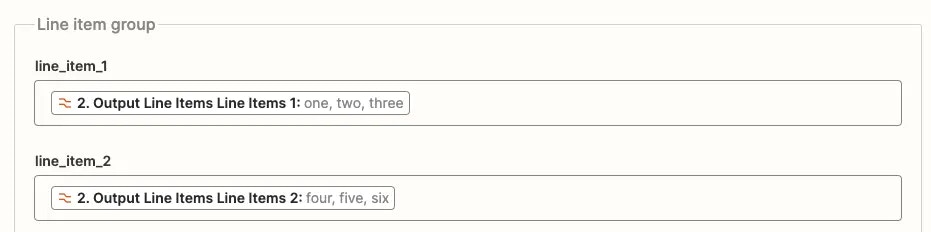
Your new Line Item groups will show up in the Zap editor as a separate block with the different line item input fields within:
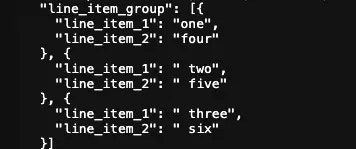
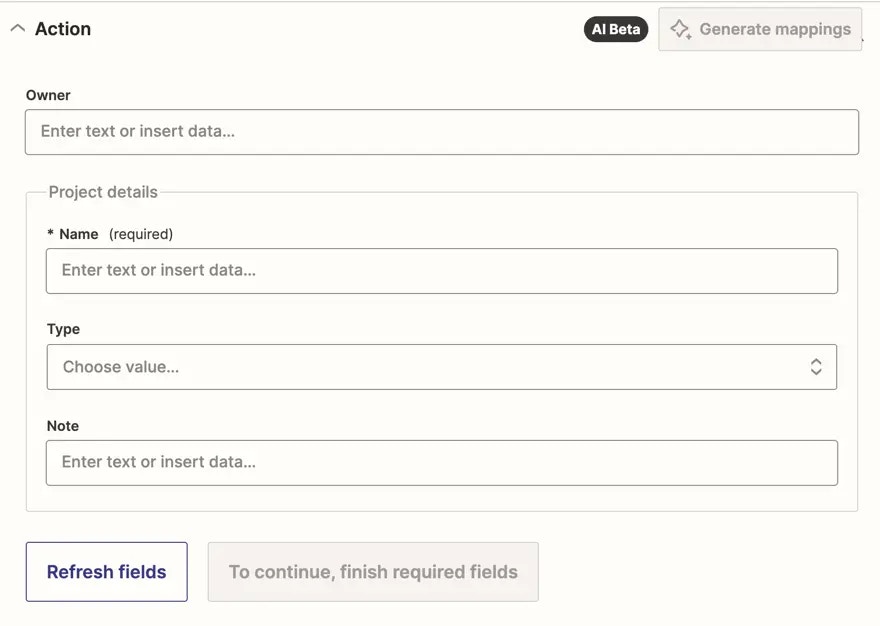 Users will need to map line item values from earlier steps in their Zap into the fields within the line item group. They would be sent to your API as an array of individual objects. Users cannot input comma separated values into a line item field, they need to be provided from the trigger or a prior action in line item format for them to be sent this way.
 ## Testing the Line Item Group
Once you've added a line item group to your action, you can test how it works in a Zap. To do this, send line items from a previous step in the Zap into the line item fields in your integration.
If you don’t have an app that outputs line items, you can use the Formatter by Zapier integration to [create line items](https://help.zapier.com/hc/en-us/articles/8496275165709-Create-line-items-in-Zaps#h_01JAFJE6KV6AKW36BQ63YJ40W3). Then, map the output fields from the Formatter step into the line item group fields in your action.
You can use the [Monitoring](https://docs.zapier.com/integrations/build/test-monitoring#monitoring) page on the Platform UI to view the API request. This helps you verify that values are passed as expected in the API request.
***
*Need help? [Tell us about your problem](https://developer.zapier.com/contact) and we'll connect you with the right resource or contact support.*
## Testing the Line Item Group
Once you've added a line item group to your action, you can test how it works in a Zap. To do this, send line items from a previous step in the Zap into the line item fields in your integration.
If you don’t have an app that outputs line items, you can use the Formatter by Zapier integration to [create line items](https://help.zapier.com/hc/en-us/articles/8496275165709-Create-line-items-in-Zaps#h_01JAFJE6KV6AKW36BQ63YJ40W3). Then, map the output fields from the Formatter step into the line item group fields in your action.
You can use the [Monitoring](https://docs.zapier.com/integrations/build/test-monitoring#monitoring) page on the Platform UI to view the API request. This helps you verify that values are passed as expected in the API request.
***
*Need help? [Tell us about your problem](https://developer.zapier.com/contact) and we'll connect you with the right resource or contact support.*