> ## Documentation Index
> Fetch the complete documentation index at: https://docs.zapier.com/llms.txt
> Use this file to discover all available pages before exploring further.
# Use pagination in triggers
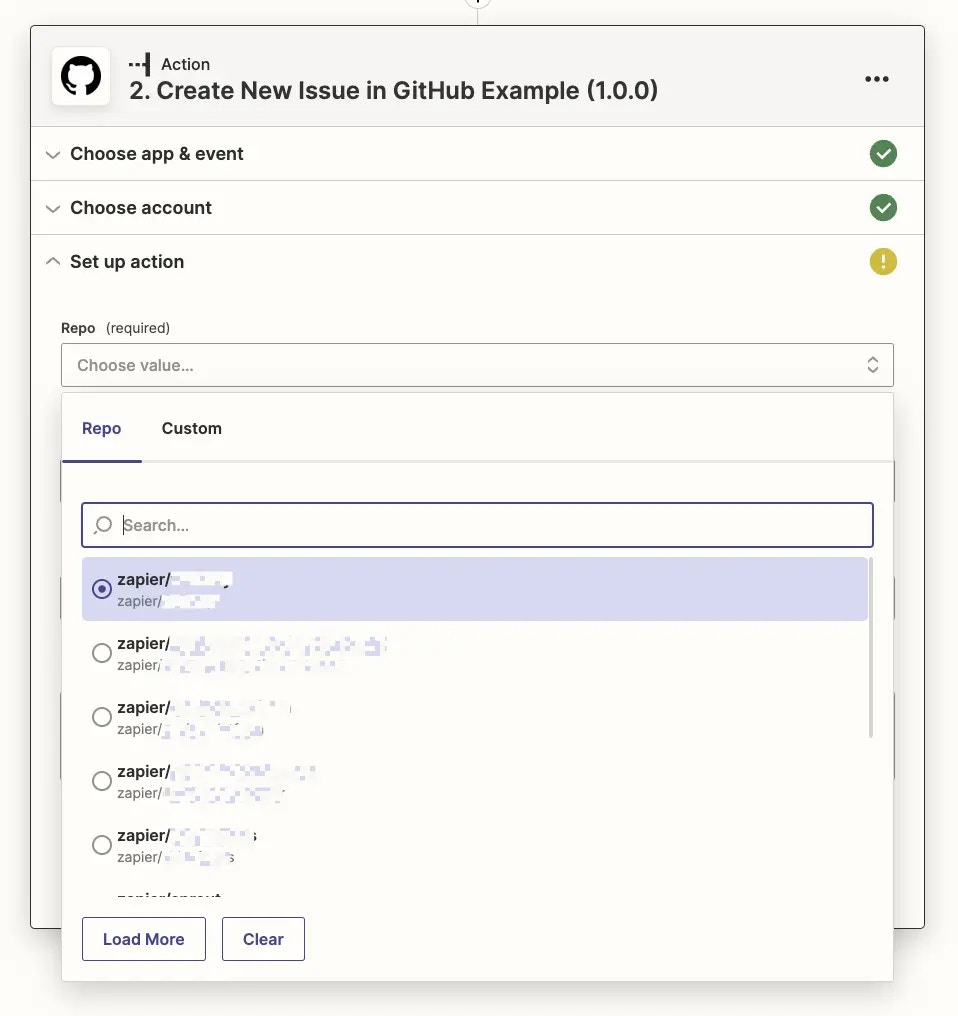
> By default, Zapier triggers fetch new or recently updated data to start Zaps, and only need to find the most recently added items. Triggers can also be used to populate [dynamic dropdown fields](/integrations/build/add-fields#dynamic-dropdown), and there they need to find all possible items to populate the field.
These triggers used for populating dynamic dropdown fields will often find dozens or hundreds of items. Many APIs let you split the results into pages. The first API call will return the first set of results — often 20 to 100. The items from this result would be seen as options in the dynamic dropdown field. If you want additional entries, you can make a new API call requesting page 2 and get the next set of results, iterating through the pages until the API has sent every possible option.
{" "}
 {" "}
## 1. Enable pagination
* Log into the [Platform UI](https://zapier.com/app/developer).
* Select your **integration**.
* In the *Build* section in the left sidebar, click on the trigger that should power the dynamic dropdown field. This can be an existing trigger or a new trigger you set as *Hidden* if its only purpose is to power the dynamic dropdown.
* Go to the **API Configuration** tab
* In the **Configure your API Request** section, select the **Support Paging** checkbox, which should only be applied to triggers built to power dynamic dropdown menus. This enables Zapier's `bundle.meta.page` value which tracks the pages Zapier has loaded, along with a Load more option in the user-facing Zapier editor's dropdown menus.
{" "}
{" "}
## 1. Enable pagination
* Log into the [Platform UI](https://zapier.com/app/developer).
* Select your **integration**.
* In the *Build* section in the left sidebar, click on the trigger that should power the dynamic dropdown field. This can be an existing trigger or a new trigger you set as *Hidden* if its only purpose is to power the dynamic dropdown.
* Go to the **API Configuration** tab
* In the **Configure your API Request** section, select the **Support Paging** checkbox, which should only be applied to triggers built to power dynamic dropdown menus. This enables Zapier's `bundle.meta.page` value which tracks the pages Zapier has loaded, along with a Load more option in the user-facing Zapier editor's dropdown menus.
{" "}
 {" "}
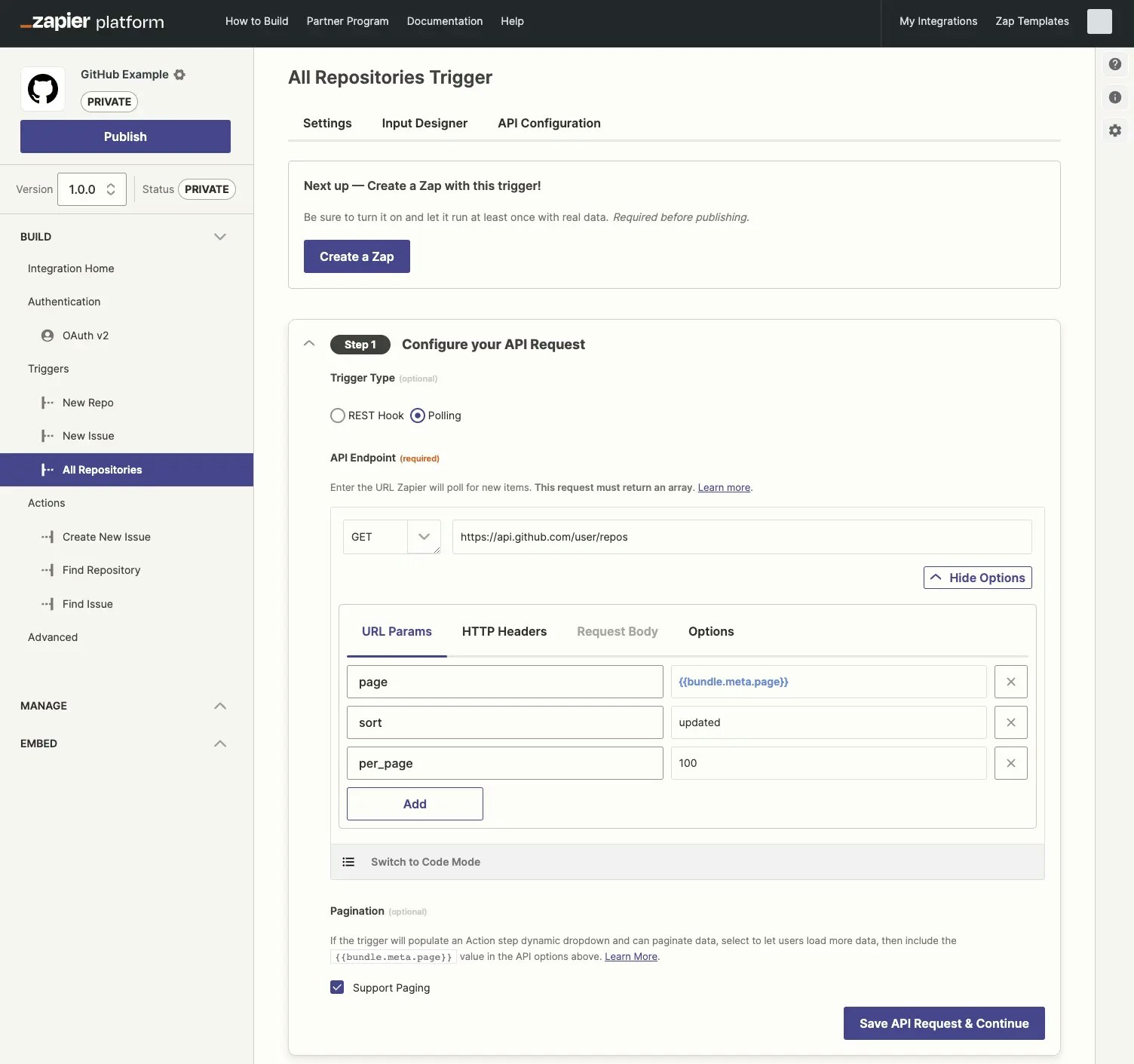
* In the API Endpoint section, click *Show Options* to include `bundle.meta.page` in your API call as Zapier does not include that automatically, then add a new URL Param for your API's paging option (or optionally add it to your HTTP Headers if your API expects the paging value there). Use the page request field name from your API on the left, and `{{bundle.meta.page}}` on the right to have Zapier pull in the correct page value.
{" "}
{" "}
* In the API Endpoint section, click *Show Options* to include `bundle.meta.page` in your API call as Zapier does not include that automatically, then add a new URL Param for your API's paging option (or optionally add it to your HTTP Headers if your API expects the paging value there). Use the page request field name from your API on the left, and `{{bundle.meta.page}}` on the right to have Zapier pull in the correct page value.
{" "}
 {" "}
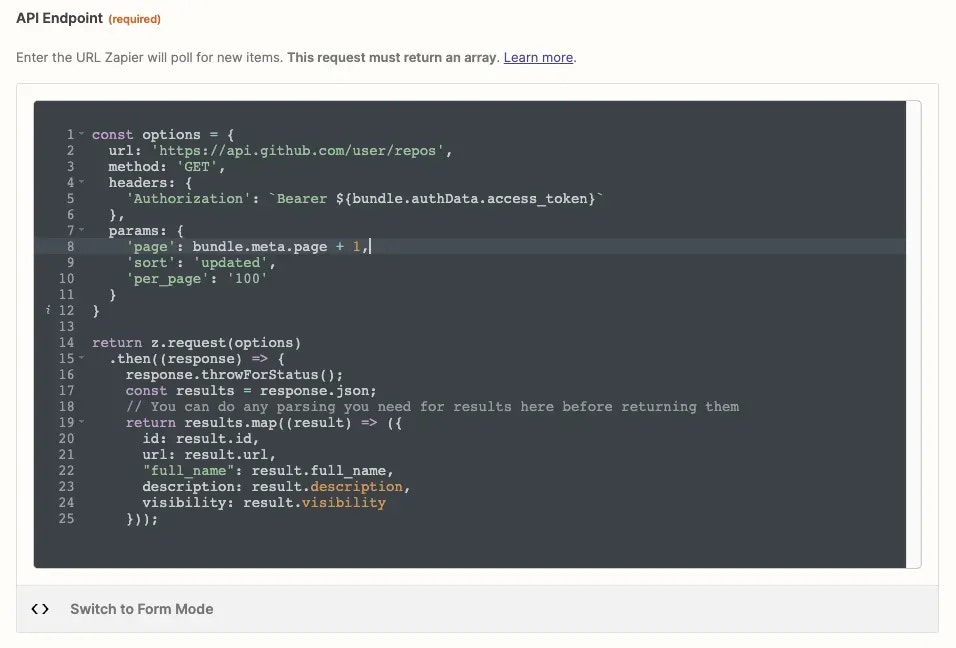
Note that Zapier's `bundle.meta.page` value uses zero-based numbering. The first time Zapier fetches data from your API, it uses a page value of 0, followed by 1 the second time, and so on. If your API expects the first API call to request page 1, with 2 for the second page and so on, you'll need to [switch to code mode](/integrations/build/code-mode) and add `+ 1` to `bundle.meta.page`. So pagination in the code would look like the below (substituting `page` with the correct field name your API uses for pagination):
`'page': bundle.meta.page + 1`
{" "}
Note that Zapier's `bundle.meta.page` value uses zero-based numbering. The first time Zapier fetches data from your API, it uses a page value of 0, followed by 1 the second time, and so on. If your API expects the first API call to request page 1, with 2 for the second page and so on, you'll need to [switch to code mode](/integrations/build/code-mode) and add `+ 1` to `bundle.meta.page`. So pagination in the code would look like the below (substituting `page` with the correct field name your API uses for pagination):
`'page': bundle.meta.page + 1`
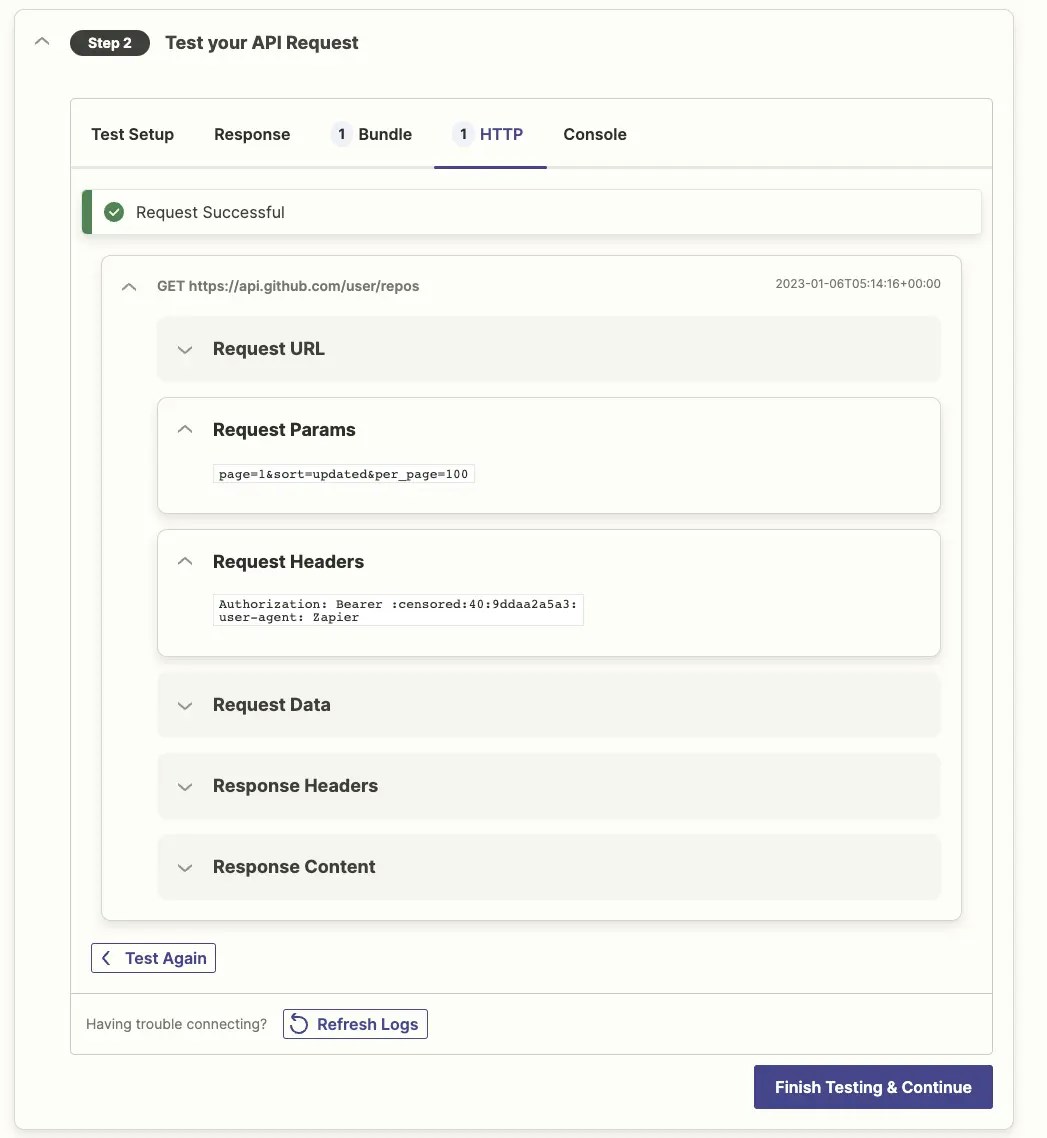
 * Test the API Request in the Platform UI and check the HTTP tab to see the request Zapier sent your app. Zapier should show a `page=0` value (or the correct term for pages in your API) under the Request Params header by default, or `page=1` if you're customizing the page requests to start at 1.
{" "}
* Test the API Request in the Platform UI and check the HTTP tab to see the request Zapier sent your app. Zapier should show a `page=0` value (or the correct term for pages in your API) under the Request Params header by default, or `page=1` if you're customizing the page requests to start at 1.
{" "}
 {" "}
## 2. Test pagination
To test your paginating trigger:
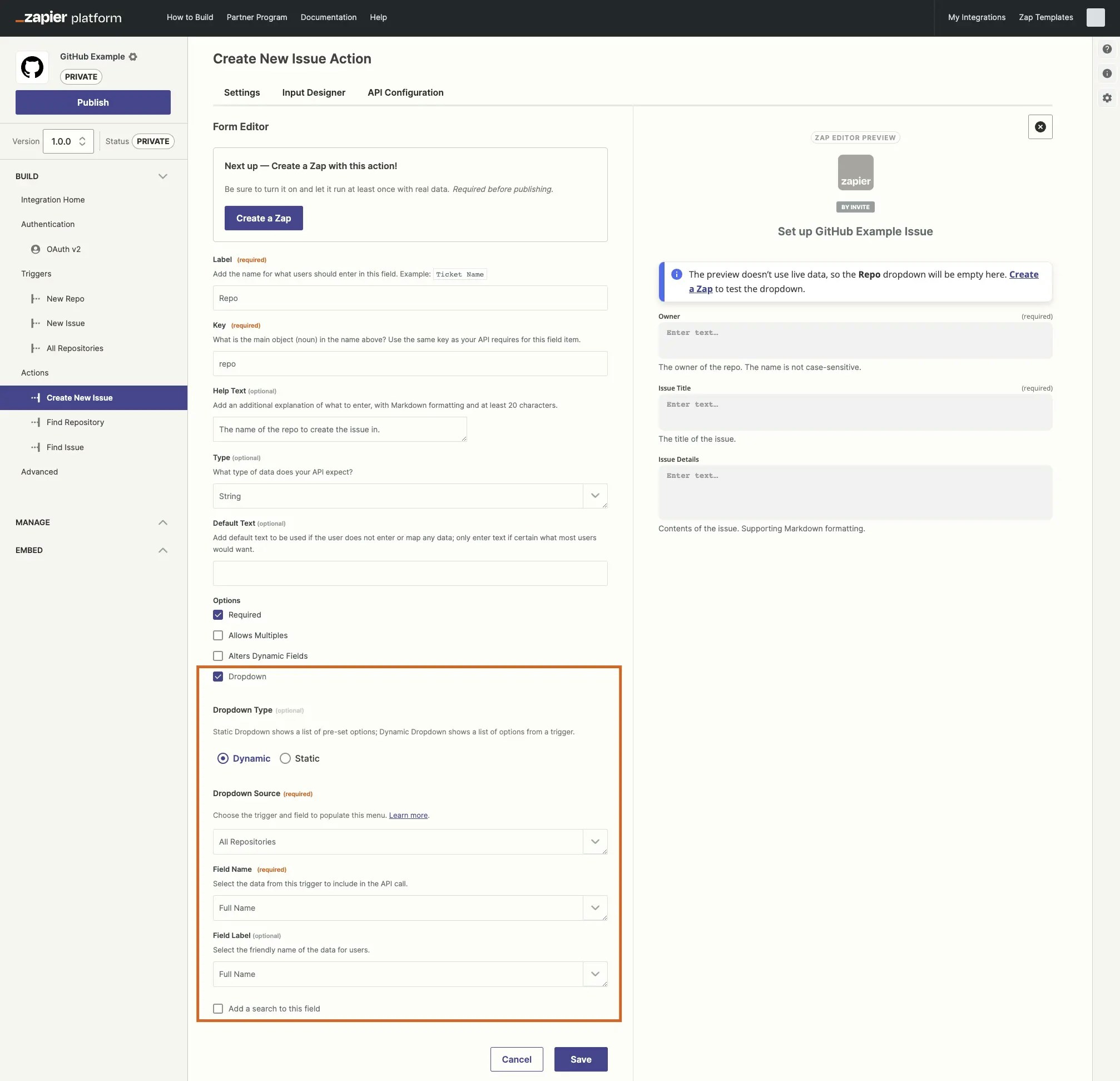
* Build an action in the Platform UI that uses this trigger in a dynamic dropdown.
{" "}
{" "}
## 2. Test pagination
To test your paginating trigger:
* Build an action in the Platform UI that uses this trigger in a dynamic dropdown.
{" "}
 {" "}
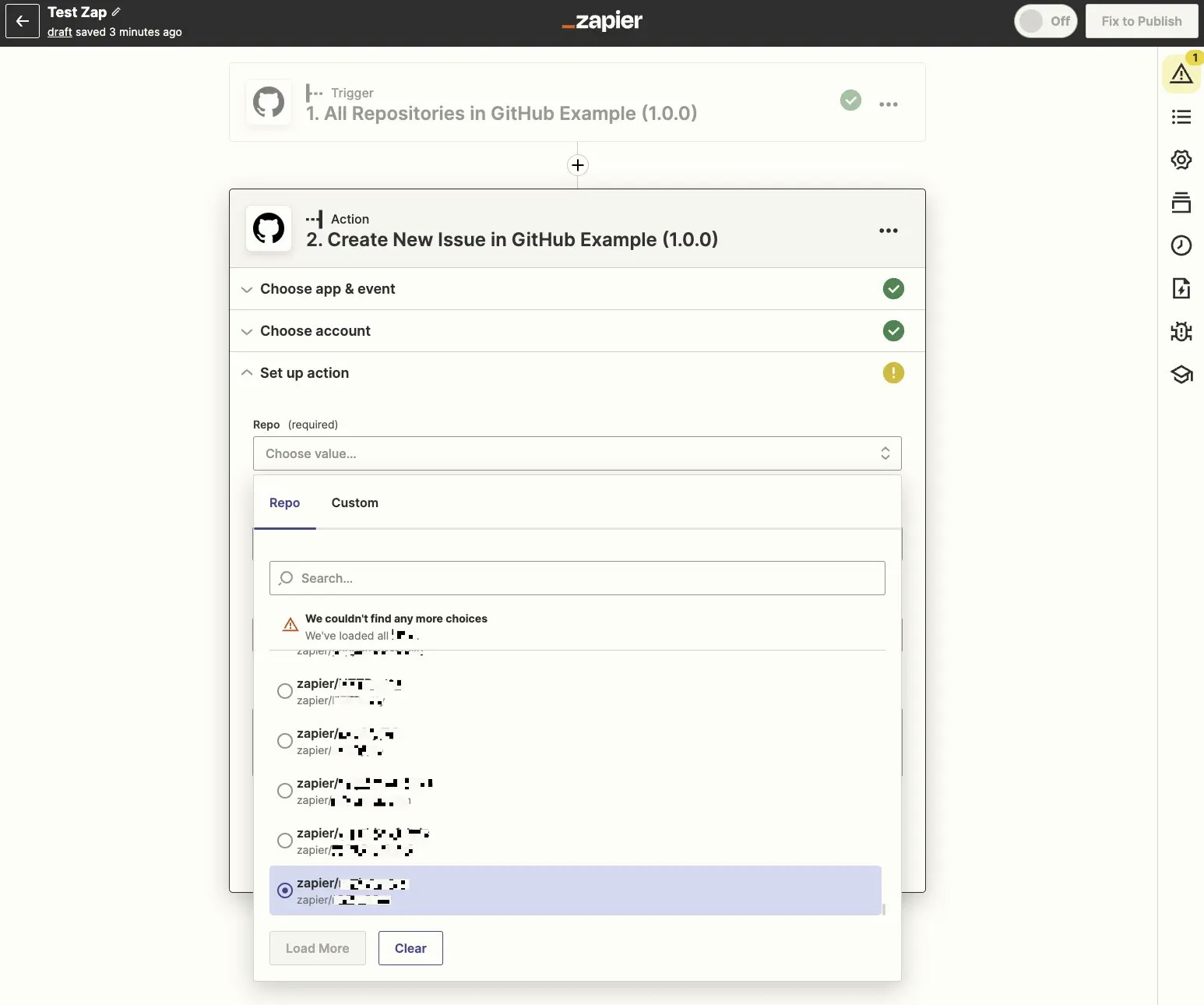
* Make a new Zap in the user-facing Zap editor that uses your action with the dynamic dropdown field. Click the dropdown field, scroll to the end, and click the **Load More** button. Repeat until it loads the last options, which will show a *We couldn't find any more choices* prompt.
{" "}
{" "}
* Make a new Zap in the user-facing Zap editor that uses your action with the dynamic dropdown field. Click the dropdown field, scroll to the end, and click the **Load More** button. Repeat until it loads the last options, which will show a *We couldn't find any more choices* prompt.
{" "}
 {" "}
***
*Need help? [Tell us about your problem](https://developer.zapier.com/contact) and we'll connect you with the right resource or contact support.*
{" "}
***
*Need help? [Tell us about your problem](https://developer.zapier.com/contact) and we'll connect you with the right resource or contact support.*