> ## Documentation Index
> Fetch the complete documentation index at: https://docs.zapier.com/llms.txt
> Use this file to discover all available pages before exploring further.
# Promote a version
> After your integration has entered the beta or public status, you can set a new default version for public use. This process is called promoting a version.
Prior to promoting a version, run the [automated validation checks](/integrations/publish/integration-checks-reference). All Errors and Publishing Tasks must be validated. Warnings are non-blocking and not strictly required to proceed as they would not prevent you from promoting a version, though we do recommend you review them for usability of your integration.
## Promote a version with Platform UI
1. Log into the [Platform UI](https://zapier.com/app/developer).
2. Select your **integration**.
3. In the *Manage* section in the left sidebar, click your **Versions**.
4. On the version you want to promote, click the **three dots icon**
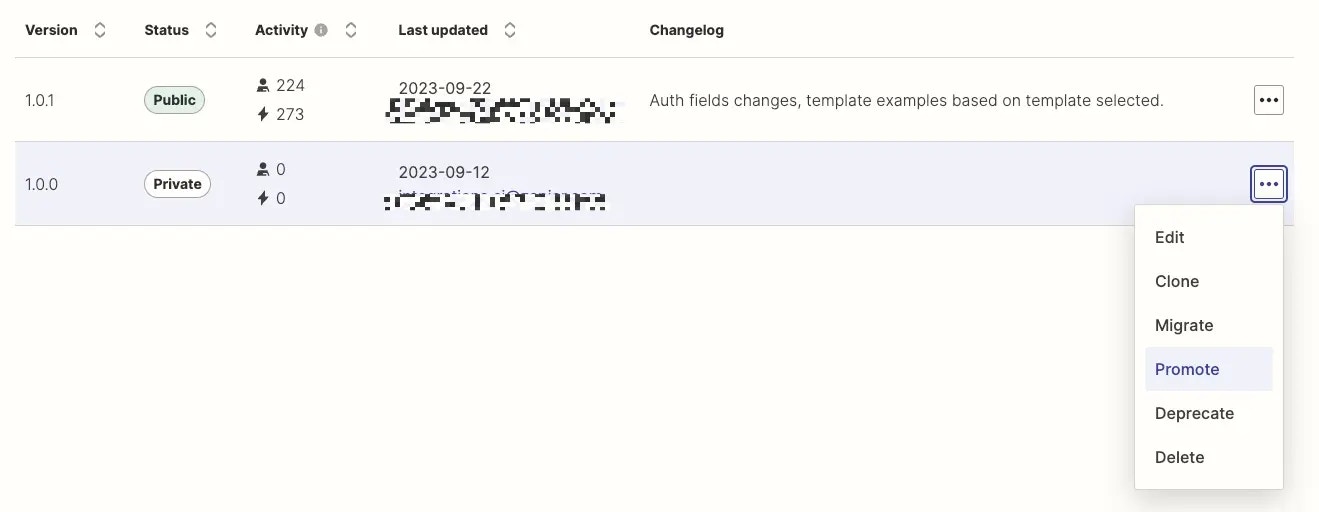 and **Promote**.
5. Fill in the [changelog form](/integrations/manage/user-feedback#3-close-resolved-issues) and click **Promote**. Selecting specific features added and bugs fixed will automatically queue up the issue(s) to be reviewed by our internal team for closure.
> **Note**: If you have a private integration, you will not see the *Promote* option. Instead, you can [share your new version](/integrations/manage/sharing) with users.
> **Note**: Labeled versions are not eligible for promotion and will not show the *Promote* option. Clone to a non-labeled version instead, then promote that.
## Promote a version with Platform CLI
In the Platform CLI, you can run `zapier-platform promote [version]` to make the specified version number the new public and default version. Learn more about [promoting a version using the Platform CLI](https://docs.zapier.com/integrations/reference/cli-docs#promoting-an-integration-version) .
## Breaking change protection
The platform automatically detects [breaking changes](/integrations/manage/versions#what-gets-detected-automatically) during promotion. If breaking changes are detected and the new version does **not** increment the major version number, promotion is blocked.
For example, if your current public version is `1.5.0` and the new version removes a trigger:
* Promoting as `1.6.0` → **blocked** with an error listing the breaking changes and the required major version
* Promoting as `2.0.0` → **allowed**
This ensures that breaking changes are communicated clearly through the version number. See [Version numbering](/integrations/manage/versions#version-numbering) for guidance on choosing the right version number.
## What happens after you promote a version?
After successfully promoting a version:
* **Zap templates update**: If there are no breaking changes, all Zap templates will be updated to use the new public version.
* **New triggers and actions**: Any newly added triggers or actions will be displayed on your integration's public app page.
* **User experience**: Users who select your integration for a new Zap will interact with the promoted version by default.
By following these steps, you can seamlessly promote a new version of your integration, ensuring that new users have access to the latest features and improvements.
## Video Tutorial
You can refer to this video on promoting a version:
***
*Need help? [Tell us about your problem](https://developer.zapier.com/contact) and we'll connect you with the right resource or contact support.*
and **Promote**.
5. Fill in the [changelog form](/integrations/manage/user-feedback#3-close-resolved-issues) and click **Promote**. Selecting specific features added and bugs fixed will automatically queue up the issue(s) to be reviewed by our internal team for closure.
> **Note**: If you have a private integration, you will not see the *Promote* option. Instead, you can [share your new version](/integrations/manage/sharing) with users.
> **Note**: Labeled versions are not eligible for promotion and will not show the *Promote* option. Clone to a non-labeled version instead, then promote that.
## Promote a version with Platform CLI
In the Platform CLI, you can run `zapier-platform promote [version]` to make the specified version number the new public and default version. Learn more about [promoting a version using the Platform CLI](https://docs.zapier.com/integrations/reference/cli-docs#promoting-an-integration-version) .
## Breaking change protection
The platform automatically detects [breaking changes](/integrations/manage/versions#what-gets-detected-automatically) during promotion. If breaking changes are detected and the new version does **not** increment the major version number, promotion is blocked.
For example, if your current public version is `1.5.0` and the new version removes a trigger:
* Promoting as `1.6.0` → **blocked** with an error listing the breaking changes and the required major version
* Promoting as `2.0.0` → **allowed**
This ensures that breaking changes are communicated clearly through the version number. See [Version numbering](/integrations/manage/versions#version-numbering) for guidance on choosing the right version number.
## What happens after you promote a version?
After successfully promoting a version:
* **Zap templates update**: If there are no breaking changes, all Zap templates will be updated to use the new public version.
* **New triggers and actions**: Any newly added triggers or actions will be displayed on your integration's public app page.
* **User experience**: Users who select your integration for a new Zap will interact with the promoted version by default.
By following these steps, you can seamlessly promote a new version of your integration, ensuring that new users have access to the latest features and improvements.
## Video Tutorial
You can refer to this video on promoting a version:
***
*Need help? [Tell us about your problem](https://developer.zapier.com/contact) and we'll connect you with the right resource or contact support.*