> ## Documentation Index
> Fetch the complete documentation index at: https://docs.zapier.com/llms.txt
> Use this file to discover all available pages before exploring further.
# Version lifecycle states
> Learn about the different lifecycle states an integration version can go through, including private, promoted, available, legacy, deprecating, and deprecated versions.
When you create a new integration version in Zapier, it goes through different lifecycle states. Understanding these states is crucial for managing your integration effectively. They are as follows:
* Private
* Promoted
* Available
* Legacy
* Deprecating
* Deprecated
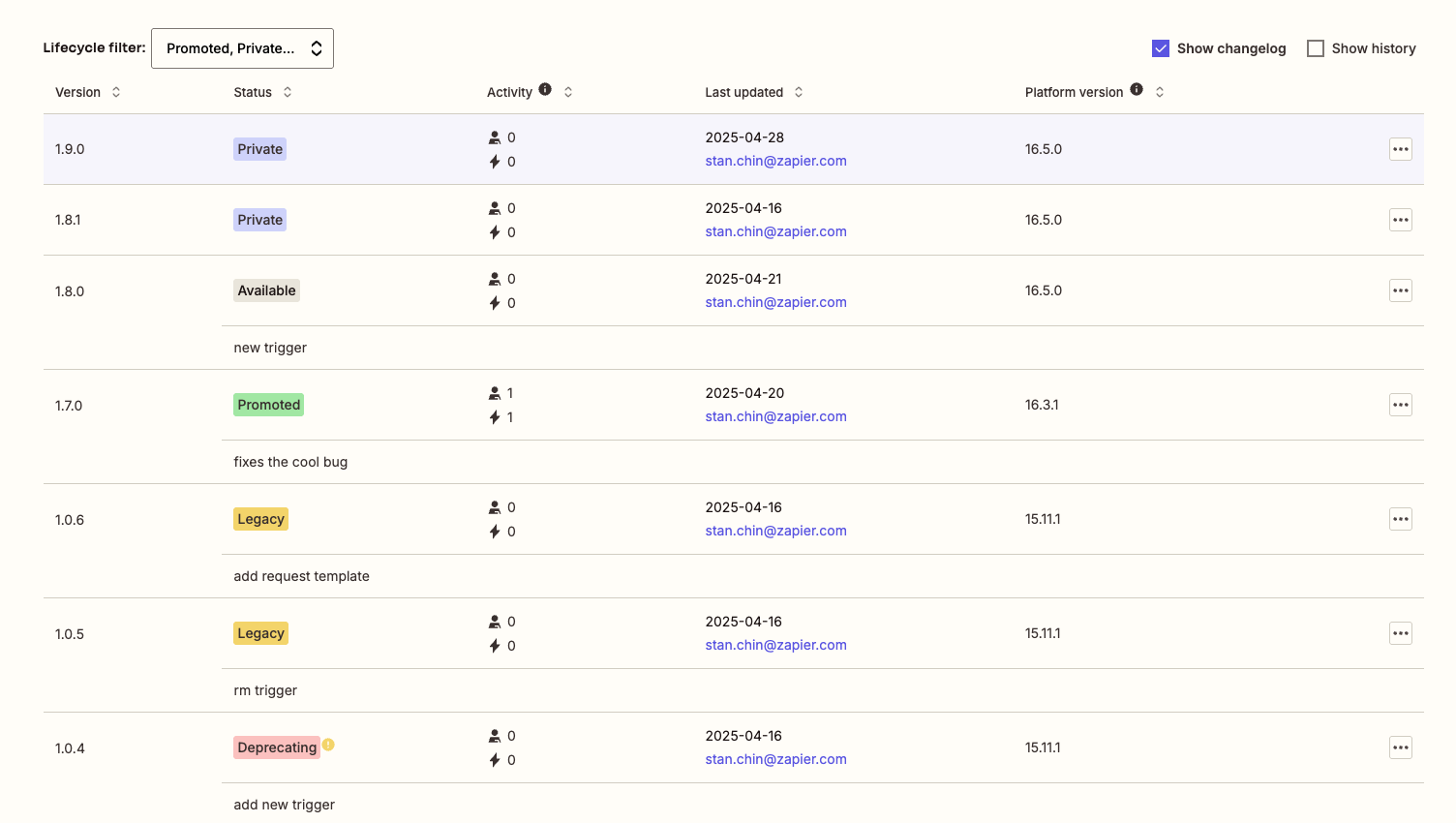 ## Private
When you first create a new integration version, it automatically starts in a **private** state. This is the default state for all new versions.
In the private state:
* Only you and your team members can access and test the version
* You can make changes and updates to this version
* You can [share the version](/integrations/manage/sharing) with specific users for testing
* The version remains private until you take further action
## Promoted
If your integration is public or intended to go public, you can promote a version to make it available to all Zapier users. When a version is promoted:
* It becomes the default version for all new automations
* It is visible in the Zapier app directory (for public integrations)
* Existing Zap templates may be automatically updated to use this version
* You must always have one promoted version for public integrations
* This version is no longer editable
Important notes for promotion:
* Only one version can be promoted at a time
* When you promote a new version, the previously promoted version will be automatically demoted and be set to "Available"
* All [validation checks](/integrations/publish/integration-checks-reference) must pass before promotion
## Available
If a version is promoted, the previous promoted version automatically becomes "Available".
Available versions continue to work for automations that use them.
## Legacy
A version can be marked as legacy when you no longer recommend it for new automations, but it is expected to continue working for any current automations. To set a version as legacy:
* The version must be in a private or available state
* You cannot mark a currently promoted version as legacy
* Legacy versions can still be used by existing automations but are not available for new automations
Important considerations for legacy versions:
* You cannot migrate automations to a legacy version
## Deprecating
When you mark a version as deprecated with a deprecation date, it will automatically be set to "Deprecating" until the deprecation date.
While a version is in the deprecating state, it will continue to work for existing automations, but it will not be available for new automations.
See [Deprecated](#deprecated) below for deprecation details.
## Deprecated
Deprecation is the final state in a version's lifecycle. When you deprecate a version:
* Users will be notified that they should migrate to a newer version
* The version will continue to work for a specified time period
* After the deprecation date, the version will no longer function
* You must deprecate a private, demoted or legacy version, not a currently promoted version
Important notes about deprecation:
* Set a future deprecation date to give users time to migrate
* Ensure you have a newer version available for users to migrate to
* Consider the impact on existing users before deprecating a version
See [Deprecate or delete a version](/integrations/manage/deprecate) for more information.
## State Transitions
Here's how versions typically move through states:
1. **Private** - Every new version starts here, allowing you to build and test without affecting users.
2. **Promoted** - When your version is ready for public use, you promote it, making it the default for all new automations. The previously promoted version automatically becomes **Available**.
3. **Legacy** - When you release a newer version with significant improvements, you may mark older versions as legacy. These versions still function for existing automations but aren't recommended or available for new ones.
4. **Deprecating/Deprecated** - When a version will no longer be supported (e.g., due to API changes from the service provider), you deprecate it with a future end date. This gives users time to migrate their automations before the version stops working.
Remember that you must always have a promoted version if your integration is public, and you should carefully plan version transitions to minimize disruption to your users' automations.
For more information on managing versions, see:
* [Promote a version](/integrations/manage/promote)
* [Migrate users to a new version](/integrations/manage/migrate)
* [Deprecate or delete a version](/integrations/manage/deprecate)
***
*Need help? [Tell us about your problem](https://developer.zapier.com/contact) and we'll connect you with the right resource or contact support.*
## Private
When you first create a new integration version, it automatically starts in a **private** state. This is the default state for all new versions.
In the private state:
* Only you and your team members can access and test the version
* You can make changes and updates to this version
* You can [share the version](/integrations/manage/sharing) with specific users for testing
* The version remains private until you take further action
## Promoted
If your integration is public or intended to go public, you can promote a version to make it available to all Zapier users. When a version is promoted:
* It becomes the default version for all new automations
* It is visible in the Zapier app directory (for public integrations)
* Existing Zap templates may be automatically updated to use this version
* You must always have one promoted version for public integrations
* This version is no longer editable
Important notes for promotion:
* Only one version can be promoted at a time
* When you promote a new version, the previously promoted version will be automatically demoted and be set to "Available"
* All [validation checks](/integrations/publish/integration-checks-reference) must pass before promotion
## Available
If a version is promoted, the previous promoted version automatically becomes "Available".
Available versions continue to work for automations that use them.
## Legacy
A version can be marked as legacy when you no longer recommend it for new automations, but it is expected to continue working for any current automations. To set a version as legacy:
* The version must be in a private or available state
* You cannot mark a currently promoted version as legacy
* Legacy versions can still be used by existing automations but are not available for new automations
Important considerations for legacy versions:
* You cannot migrate automations to a legacy version
## Deprecating
When you mark a version as deprecated with a deprecation date, it will automatically be set to "Deprecating" until the deprecation date.
While a version is in the deprecating state, it will continue to work for existing automations, but it will not be available for new automations.
See [Deprecated](#deprecated) below for deprecation details.
## Deprecated
Deprecation is the final state in a version's lifecycle. When you deprecate a version:
* Users will be notified that they should migrate to a newer version
* The version will continue to work for a specified time period
* After the deprecation date, the version will no longer function
* You must deprecate a private, demoted or legacy version, not a currently promoted version
Important notes about deprecation:
* Set a future deprecation date to give users time to migrate
* Ensure you have a newer version available for users to migrate to
* Consider the impact on existing users before deprecating a version
See [Deprecate or delete a version](/integrations/manage/deprecate) for more information.
## State Transitions
Here's how versions typically move through states:
1. **Private** - Every new version starts here, allowing you to build and test without affecting users.
2. **Promoted** - When your version is ready for public use, you promote it, making it the default for all new automations. The previously promoted version automatically becomes **Available**.
3. **Legacy** - When you release a newer version with significant improvements, you may mark older versions as legacy. These versions still function for existing automations but aren't recommended or available for new ones.
4. **Deprecating/Deprecated** - When a version will no longer be supported (e.g., due to API changes from the service provider), you deprecate it with a future end date. This gives users time to migrate their automations before the version stops working.
Remember that you must always have a promoted version if your integration is public, and you should carefully plan version transitions to minimize disruption to your users' automations.
For more information on managing versions, see:
* [Promote a version](/integrations/manage/promote)
* [Migrate users to a new version](/integrations/manage/migrate)
* [Deprecate or delete a version](/integrations/manage/deprecate)
***
*Need help? [Tell us about your problem](https://developer.zapier.com/contact) and we'll connect you with the right resource or contact support.*