> ## Documentation Index
> Fetch the complete documentation index at: https://docs.zapier.com/llms.txt
> Use this file to discover all available pages before exploring further.
# Zap templates
> Zapier empowers apps to do together what they can't on their own. With a bit of inspiration and creativity, your users can pull dozens of apps together into unique workflows to get more done with your app in far less time.
export const appCount = "9,000+";
**Note:** Only public integrations can be used in Zap templates. Zap templates do not currently support private integrations.
Zap templates are ready made Zaps with the apps and core fields pre-selected, for publicly available Zapier integrations. In a few clicks, they help people discover a use case, connect apps, and turn on the Zap. Zap templates are the fastest way for your users to automate workflows.
[Zapier Agent Templates](https://docs.google.com/document/d/1FfpmGhqE2uMX25TSKpkW8d72U4-n8rjn_ow1Xa_0kM8/edit?usp=sharing) let you build AI-powered workflows that adapt to context and goals in real time. Unlike traditional Zaps, Zapier Agents can reason, make decisions, and dynamically choose the best actions across **{appCount}** apps.
Google Drive
Gmail
Filter by Zapier
[**Use this workflow**](https://zapier.com/webintent/create-zap?template=192\&utm_source=partner\&utm_medium=embed\&utm_campaign=wfe_custom\&provider=\&entry-point-location=partner_embed\&referer=https%3A%2F%2Fplatform.zapier.com%2Fpublish%2Fzap-templates%3Futm_source%3Dpartner%26utm_medium%3Dembed%26utm_campaign%3Dwfe_custom%26referer%3Dhttps%253A%252F%252Fplatform.zapier.com%252Fpublish%252Fzap-templates\&referrer=https%3A%2F%2Fplatform.zapier.com%2Fpublish%2Fzap-templates%3Futm_source%3Dpartner%26utm_medium%3Dembed%26utm_campaign%3Dwfe_custom%26referer%3Dhttps%253A%252F%252Fplatform.zapier.com%252Fpublish%252Fzap-templates)
Typeform
Google Sheets
[**Use this workflow**](https://zapier.com/webintent/create-zap?template=111\&utm_source=partner\&utm_medium=embed\&utm_campaign=wfe_custom\&provider=\&entry-point-location=partner_embed\&referer=https%3A%2F%2Fplatform.zapier.com%2Fpublish%2Fzap-templates%3Futm_source%3Dpartner%26utm_medium%3Dembed%26utm_campaign%3Dwfe_custom%26referer%3Dhttps%253A%252F%252Fplatform.zapier.com%252Fpublish%252Fzap-templates\&referrer=https%3A%2F%2Fplatform.zapier.com%2Fpublish%2Fzap-templates%3Futm_source%3Dpartner%26utm_medium%3Dembed%26utm_campaign%3Dwfe_custom%26referer%3Dhttps%253A%252F%252Fplatform.zapier.com%252Fpublish%252Fzap-templates)
Instagram
Facebook
[**Use this workflow**](https://zapier.com/webintent/create-zap?template=162\&utm_source=partner\&utm_medium=embed\&utm_campaign=wfe_custom\&provider=\&entry-point-location=partner_embed\&referer=https%3A%2F%2Fplatform.zapier.com%2Fpublish%2Fzap-templates%3Futm_source%3Dpartner%26utm_medium%3Dembed%26utm_campaign%3Dwfe_custom%26referer%3Dhttps%253A%252F%252Fplatform.zapier.com%252Fpublish%252Fzap-templates\&referrer=https%3A%2F%2Fplatform.zapier.com%2Fpublish%2Fzap-templates%3Futm_source%3Dpartner%26utm_medium%3Dembed%26utm_campaign%3Dwfe_custom%26referer%3Dhttps%253A%252F%252Fplatform.zapier.com%252Fpublish%252Fzap-templates)
Google Calendar
Trello
[**Use this workflow**](https://zapier.com/webintent/create-zap?template=1495\&utm_source=partner\&utm_medium=embed\&utm_campaign=wfe_custom\&provider=\&entry-point-location=partner_embed\&referer=https%3A%2F%2Fplatform.zapier.com%2Fpublish%2Fzap-templates%3Futm_source%3Dpartner%26utm_medium%3Dembed%26utm_campaign%3Dwfe_custom%26referer%3Dhttps%253A%252F%252Fplatform.zapier.com%252Fpublish%252Fzap-templates\&referrer=https%3A%2F%2Fplatform.zapier.com%2Fpublish%2Fzap-templates%3Futm_source%3Dpartner%26utm_medium%3Dembed%26utm_campaign%3Dwfe_custom%26referer%3Dhttps%253A%252F%252Fplatform.zapier.com%252Fpublish%252Fzap-templates)
Typeform
Slack
[**Use this workflow**](https://zapier.com/webintent/create-zap?template=883\&utm_source=partner\&utm_medium=embed\&utm_campaign=wfe_custom\&provider=\&entry-point-location=partner_embed\&referer=https%3A%2F%2Fplatform.zapier.com%2Fpublish%2Fzap-templates%3Futm_source%3Dpartner%26utm_medium%3Dembed%26utm_campaign%3Dwfe_custom%26referer%3Dhttps%253A%252F%252Fplatform.zapier.com%252Fpublish%252Fzap-templates\&referrer=https%3A%2F%2Fplatform.zapier.com%2Fpublish%2Fzap-templates%3Futm_source%3Dpartner%26utm_medium%3Dembed%26utm_campaign%3Dwfe_custom%26referer%3Dhttps%253A%252F%252Fplatform.zapier.com%252Fpublish%252Fzap-templates)
They're also a great way to promote your app, as your Zap templates are featured in:
* Zapier's app directory
* Zapier's onboarding experience
* In many of Zapier's **{appCount}** integration partners' apps and sites
Zap templates can also be featured inside your site and content to help your users start using Zapier integrations. The more Zap templates you create and the more users they have, the more likely they are to be featured. This helps your Zapier integration gain popularity and rise the ranks of the [Zapier Partner Program](https://zapier.com/developer-platform/partner-program). To learn more about embedding Zap templates (and other experiences) into your app or website, see our dedicated [embed](https://platform.zapier.com/embed/overview) section.
> Expected time to create a Zap Template: 10 minutes.
## How to build a Zap template
Creating Zap templates is straightforward and follows the same steps as building any other Zap. Start by selecting the app and trigger to initiate the Zap. Next, choose an action app and map the fields from the trigger app to the action. You can also add optional steps to customize your Zap further. Finally, give your Zap a clear title and description to help others quickly understand its purpose and when to use it.
To get started, go to Zapier's [Zap template creator](https://zapier.com/webintent/create-template) or from the [Zap Template dashboard](https://developer.zapier.com/zap-templates), click *Create Zap Template*.
### 1. Add a Trigger Step
 Select the trigger app by selecting it from the "Top Apps" list or searching for the app by name.
> **Note:** Only Zapier integrations that have been launched publicly can be used in Zap templates. Integrations in `private` status cannot be used in a Zap template. You should also avoid selecting non-promoted versions of public integrations, that is, versions with version numbers or app tags like “Legacy” or “Deprecated”, as that would prevent the Zap template from being published.
Choose the app's trigger from the dropdown that starts your Zap.
Select the trigger app by selecting it from the "Top Apps" list or searching for the app by name.
> **Note:** Only Zapier integrations that have been launched publicly can be used in Zap templates. Integrations in `private` status cannot be used in a Zap template. You should also avoid selecting non-promoted versions of public integrations, that is, versions with version numbers or app tags like “Legacy” or “Deprecated”, as that would prevent the Zap template from being published.
Choose the app's trigger from the dropdown that starts your Zap.
 When creating Zap templates, you won’t be able to connect an account. Instead, the Zap template editor will use the sample data provided by the selected method (trigger/action/search). You can view the sample data available on the `Test` pane. If certain fields aren’t available, it’s because the integration developer didn’t include them in the integration’s sample data. While you can still use the method in the Zap template, you might not be able to pre-map fields for users in subsequent action step(s).
If there are input fields to customize the trigger, you may assign a default value or leave the input fields empty. Users will be able to input their own information when setting up the Zap. Once done, click Continue to proceed to the next step.
When creating Zap templates, you won’t be able to connect an account. Instead, the Zap template editor will use the sample data provided by the selected method (trigger/action/search). You can view the sample data available on the `Test` pane. If certain fields aren’t available, it’s because the integration developer didn’t include them in the integration’s sample data. While you can still use the method in the Zap template, you might not be able to pre-map fields for users in subsequent action step(s).
If there are input fields to customize the trigger, you may assign a default value or leave the input fields empty. Users will be able to input their own information when setting up the Zap. Once done, click Continue to proceed to the next step.
 ### 2. Add an Action Step
Select the action app by selecting it from the "Top Apps" list or searching for the app by name.
### 2. Add an Action Step
Select the action app by selecting it from the "Top Apps" list or searching for the app by name.
 > **Note:** Only Zapier integrations that have been launched publicly can be used in Zap templates. Integrations in `private` status cannot be used in a Zap template. You should also avoid selecting non-promoted versions of public integrations, that is, versions with version numbers or app tags like “Legacy” or “Deprecated”, as that would prevent the Zap template from being published.
Choose the app's action from the dropdown that you want to follow the trigger. Same as the trigger, the Zap template editor will load the sample data available for the selected action.
> **Note:** Only Zapier integrations that have been launched publicly can be used in Zap templates. Integrations in `private` status cannot be used in a Zap template. You should also avoid selecting non-promoted versions of public integrations, that is, versions with version numbers or app tags like “Legacy” or “Deprecated”, as that would prevent the Zap template from being published.
Choose the app's action from the dropdown that you want to follow the trigger. Same as the trigger, the Zap template editor will load the sample data available for the selected action.
 > **Note**: If you add a search action following the trigger, you will need to add another action step following the search. This is because Zaps cannot end with a search method (unless it's a dyanmic `find or create` action).
Now for the most crucial part of your Zap template: Where appropriate, map the output fields from the trigger to the input fields in the action. The action step will show input fields that are statically available. Dynamic input fields that populate based on the input of another field will not be available. For the best Zap template experience, add field mapping to as many input fields as possible to help users set up Zaps quickly. For example, you might map Gmail's `Attachment` field to `File` field for Google Drive, as well as `Attachments Filename` to the `File Name` field.
> **Note**: If you add a search action following the trigger, you will need to add another action step following the search. This is because Zaps cannot end with a search method (unless it's a dyanmic `find or create` action).
Now for the most crucial part of your Zap template: Where appropriate, map the output fields from the trigger to the input fields in the action. The action step will show input fields that are statically available. Dynamic input fields that populate based on the input of another field will not be available. For the best Zap template experience, add field mapping to as many input fields as possible to help users set up Zaps quickly. For example, you might map Gmail's `Attachment` field to `File` field for Google Drive, as well as `Attachments Filename` to the `File Name` field.
 > **Note**: Custom fields from apps (i.e. fields added by users) will not be available. This is because the Zap template editor is not authenticated with an app account to fetch that data. When users create a Zap from your template, they'll be able to leverage dynamic and custom fields.
> **Tip**: Use [Zapier's date and time syntax](https://help.zapier.com/hc/en-us/articles/8496275717261-Insert-the-time-your-Zap-runs-into-a-field) to modify dates and times in action form fields.
Most dropdown menus are used to select folders, projects, and other user-generated data, and should be left blank by default. You can, however, select options for dropdowns for boolean yes/no fields if you're certain which option is best for all users of this Zap template.
Zap template action forms include `required` (denoted with a red asterix) and `optional` fields. When users set up your Zap template, they are required to complete `required` fields before turning on the Zap. If you know the best data to map to those fields, add them to make sure your users' Zaps include as much detail as possible.
> **Note**: Custom fields from apps (i.e. fields added by users) will not be available. This is because the Zap template editor is not authenticated with an app account to fetch that data. When users create a Zap from your template, they'll be able to leverage dynamic and custom fields.
> **Tip**: Use [Zapier's date and time syntax](https://help.zapier.com/hc/en-us/articles/8496275717261-Insert-the-time-your-Zap-runs-into-a-field) to modify dates and times in action form fields.
Most dropdown menus are used to select folders, projects, and other user-generated data, and should be left blank by default. You can, however, select options for dropdowns for boolean yes/no fields if you're certain which option is best for all users of this Zap template.
Zap template action forms include `required` (denoted with a red asterix) and `optional` fields. When users set up your Zap template, they are required to complete `required` fields before turning on the Zap. If you know the best data to map to those fields, add them to make sure your users' Zaps include as much detail as possible.
 > **Note**: Do not enter a value into an input field unless *every* user of the Zap Template would want that value included in the action.
Zapier then shows a `Test` pane, similar to what users see when setting up Zaps. You won't be able to test your action steps when building a Zap template. The `Test` pane will call this out, and default to showing a successful test.
> **Note**: Do not enter a value into an input field unless *every* user of the Zap Template would want that value included in the action.
Zapier then shows a `Test` pane, similar to what users see when setting up Zaps. You won't be able to test your action steps when building a Zap template. The `Test` pane will call this out, and default to showing a successful test.
 ### 3. (Optional) Add filters or additional action steps
You can choose to add another step to your Zap, or finish and save this Zap template with only two steps (trigger and 1 action step).
Most Zap templates only need two steps, with a trigger to watch for new or updated data from one app, and an action to do something with that data in another app. Sometimes, though, you need more steps for advanced workflows, including:
* [Additional create actions](https://help.zapier.com/hc/en-us/articles/8496257774221-Set-up-your-Zap-action) to add additional automations to your workflow
* [Filters](https://help.zapier.com/hc/en-us/articles/8496276332557) to watch for specific items from trigger or action step(s)
* [Search actions](https://help.zapier.com/hc/en-us/articles/8496241402253) to find specific data from apps, recommended especially to find customers, tickets, projects, and more before creating new items with Zaps
To add another search or create action to your Zap, click the `+` button where you want to insert the additional step. Then repeat step 2 and set up the additional action.
For example, you could add a filter between the trigger and action step to have the action step only run when specific criteria is met. [Learn more about filters](https://help.zapier.com/hc/en-us/articles/8496276332557-Add-conditions-to-Zaps-with-filters). You can define a filter in the Zap template, or leave it blank and let users customize the filter to their needs.
> **Note**: Most Zap templates don't need filters, and most filters should be added by users later if required. However, including a filter in a Zap template can be useful if your Zap Template is only useful with a filter to remove extraneous data.
### 3. (Optional) Add filters or additional action steps
You can choose to add another step to your Zap, or finish and save this Zap template with only two steps (trigger and 1 action step).
Most Zap templates only need two steps, with a trigger to watch for new or updated data from one app, and an action to do something with that data in another app. Sometimes, though, you need more steps for advanced workflows, including:
* [Additional create actions](https://help.zapier.com/hc/en-us/articles/8496257774221-Set-up-your-Zap-action) to add additional automations to your workflow
* [Filters](https://help.zapier.com/hc/en-us/articles/8496276332557) to watch for specific items from trigger or action step(s)
* [Search actions](https://help.zapier.com/hc/en-us/articles/8496241402253) to find specific data from apps, recommended especially to find customers, tickets, projects, and more before creating new items with Zaps
To add another search or create action to your Zap, click the `+` button where you want to insert the additional step. Then repeat step 2 and set up the additional action.
For example, you could add a filter between the trigger and action step to have the action step only run when specific criteria is met. [Learn more about filters](https://help.zapier.com/hc/en-us/articles/8496276332557-Add-conditions-to-Zaps-with-filters). You can define a filter in the Zap template, or leave it blank and let users customize the filter to their needs.
> **Note**: Most Zap templates don't need filters, and most filters should be added by users later if required. However, including a filter in a Zap template can be useful if your Zap Template is only useful with a filter to remove extraneous data.
 > **Note**: Paths by Zapier, Code by Zapier, Webhooks by Zapier, Looping by Zapier, and Formatter by Zapier action steps are currently not allowed in Zap templates.
### 4. Add a title, description, and test your Zap template
Once you've finsihed building your Zap template, you can give it a title and description. Click `Submit` in the top-right corner or at the bottom of the `Test` in the last step of your Zap template.
> **Note**: Paths by Zapier, Code by Zapier, Webhooks by Zapier, Looping by Zapier, and Formatter by Zapier action steps are currently not allowed in Zap templates.
### 4. Add a title, description, and test your Zap template
Once you've finsihed building your Zap template, you can give it a title and description. Click `Submit` in the top-right corner or at the bottom of the `Test` in the last step of your Zap template.
 After clikcing `Submit`, you will be prompted to provide a title and description for the Zap template.
 Zap templates are designed to highlight specific use cases and inspire users to automate workflows with popular apps. A clear, compelling title grabs attention and conveys the core idea at a glance, whether users are browsing Zapier or exploring an embedded experience. The description provides more detail, explaining the use case and how the Zap works. Together, the title and description work to spark interest and guide users to quickly set up and activate the Zap.
#### How to write a Zap template title
The title clearly and briefly states the apps the Zap connects and the workflow it accomplishes. They include the trigger and action apps and the actions they perform. They use present tense, active voice, and sentence case.
Zap templates are designed to highlight specific use cases and inspire users to automate workflows with popular apps. A clear, compelling title grabs attention and conveys the core idea at a glance, whether users are browsing Zapier or exploring an embedded experience. The description provides more detail, explaining the use case and how the Zap works. Together, the title and description work to spark interest and guide users to quickly set up and activate the Zap.
#### How to write a Zap template title
The title clearly and briefly states the apps the Zap connects and the workflow it accomplishes. They include the trigger and action apps and the actions they perform. They use present tense, active voice, and sentence case.
 Most Zap template titles read something like this: `Add new Gmail emails to Google Sheets as rows`. The title mentions what happens in the trigger app followed by what Zapier does in the action app. Some examples of good titles:
* `Create Trello cards for new Wufoo form entries`
* `Get Slack notifications for new Google Drive files in a folder`
* `Subscribe new Gumroad customers to a MailChimp list`
* `Save new liked SoundCloud tracks to Google Drive`
> **Tip**: Use your discretion whether to mention the action or trigger app first. The trigger app works best first in most cases, but sometimes it sounds awkward — if so, go with the action app first.
Follow these rules in your Zap template titles:
* **Start with an appropriate verb**. Zap templates start with an action verb that describes what the Zap does in the action app, such as `Create`, `Add`, `Make`, `Insert`, `Update`, `Subscribe`, or `Get`. Use unique verbs when possible, and use the most appropriate verb for the action Zapier performs with the app.
* **Use sentence case**. Capitalize the first letter in the title and app names when appropriate.
* **Right:** `Create Trello cards for new Wufoo form entries`
* **Wrong:** `Create Trello Cards For New Wufoo Form Entries`
* **Use present tense and active voice**. Zaps automatically run whenever the trigger conditions are met. The title should reflect that with active present tense.
* **Right:** `Get Slack notifications for new Google Drive files`
* **Wrong:** `Slack will notify you when a new Google Drive file is saved`
* **Always specify if the trigger involves *new* or *updated* items**. Zaps typically run when a new item is created, or an existing item is updated. Be sure to include *new* or *updated* in the title before mentioning the action app name to clarify what the Zap will automate..
* **Make app items plural**. Zaps run on every new or updated item in your trigger app. Always make the trigger and action items plural to emphasize that, such as `Google Sheets rows` or `Mailchimp subscribers`.
* **Respect app name styles**. Make sure to use the same capitalization and spelling that the apps in your Zap use in their branding; double-check the app's site or [Zapier's integration list](https://zapier.com/apps).
* **Never use `sync` or `automatic` in titles**. All Zaps run automatically, and can't sync data bidirectionally. Avoid these terms in titles; sync is misleading, and automatic is redundant.
* **Don't use personal pronouns**. Never use `you`, `we`, or `I` in Zap Template titles unless the trigger or action items specifically include those words.
#### How to write a Zap template description
Zap template descriptions share more detail about what the Zap does and scenarios in which to use it in two to four sentences. They tell readers what this Zap does for them and how it works.
Start your description with the user's problem or need. Then explain how Zapier meets that need, when the Zap will run, and what the Zap does when it runs. Explain the trigger and action items in plain language that show the workflow's value. Some good examples:
> Find yourself spending too much time adding event attendees to your CRM by hand? Now with the help of Zapier, the tedious work is done for you. This integration will add every new Eventbrite attendee to Zoho CRM as a new contact, saving you time for more important work.
> After someone fills out a form on your site, you'll want to hear about it or send them a follow-up email. This Zapier automation handles both gracefully, sending an email via Gmail to you or the form respondent whenever you get a new Typeform entry. You'll never have to send the same message over and over again.
> Expedient order processing makes for happy customers. Make sure you act on every new delivery with this Zapier automation. It will capture every new order placed on your Shopify store after being set up, creating a delivery task for it on Onfleet so your team can fulfill it without delay.
Keep these guidelines in mind:
* **Use present tense and active voice** as in the Zap title.
* **1 paragraph, 2-4 sentences** is enough for most Zap Template descriptions.
* **Don't use Zapier-specific terminology** including Zap, Zap template, trigger, action, or terms that Zapier doesn't support, such as sync. Instead, use generic words, such as `integration` or `automation`, that are universally understood.
* **Use same terms as the integrations themselves**. If an app calls the results of a form an “entry” don't call it a “submission,” or if an email app uses “tags,” don't refer to “folders.”
* **Don't include links**. Do not include links of any kind, whether Zapier-owned or third-party owned.
* **Include tips at the end**. If your Zap Template requires extra setup for filters or other steps, or if it doesn't cover all use cases users may expect, include a sentence at the end to clarify. Start the tip with `Note:`, and format the entire note in italics with [Markdown](https://zapier.com/blog/beginner-ultimate-guide-markdown/) formatting. For example: `*Note: Add the tag you want to the Zap's Filter step.*`
> **Note**: Always write unique descriptions for each Zap template — Zap templates that use the same descriptions but only replace app names, or those that duplicate the Zap template title, will be rejected.
***
Once you've added your Zap template title and description, click `Save Draft`.
Now try using the Zap template to make sure it works as expected. Open your [Zap Template dashboard](https://zapier.com/zap-templates/), click the `...` icon beside the Zap template you built, and select `Create Zap`. A new window will open, creating a Zap from the Zap template. Click through each step of the Zap, validate everything works as expcted, and that you can turn the Zap on.
Most Zap template titles read something like this: `Add new Gmail emails to Google Sheets as rows`. The title mentions what happens in the trigger app followed by what Zapier does in the action app. Some examples of good titles:
* `Create Trello cards for new Wufoo form entries`
* `Get Slack notifications for new Google Drive files in a folder`
* `Subscribe new Gumroad customers to a MailChimp list`
* `Save new liked SoundCloud tracks to Google Drive`
> **Tip**: Use your discretion whether to mention the action or trigger app first. The trigger app works best first in most cases, but sometimes it sounds awkward — if so, go with the action app first.
Follow these rules in your Zap template titles:
* **Start with an appropriate verb**. Zap templates start with an action verb that describes what the Zap does in the action app, such as `Create`, `Add`, `Make`, `Insert`, `Update`, `Subscribe`, or `Get`. Use unique verbs when possible, and use the most appropriate verb for the action Zapier performs with the app.
* **Use sentence case**. Capitalize the first letter in the title and app names when appropriate.
* **Right:** `Create Trello cards for new Wufoo form entries`
* **Wrong:** `Create Trello Cards For New Wufoo Form Entries`
* **Use present tense and active voice**. Zaps automatically run whenever the trigger conditions are met. The title should reflect that with active present tense.
* **Right:** `Get Slack notifications for new Google Drive files`
* **Wrong:** `Slack will notify you when a new Google Drive file is saved`
* **Always specify if the trigger involves *new* or *updated* items**. Zaps typically run when a new item is created, or an existing item is updated. Be sure to include *new* or *updated* in the title before mentioning the action app name to clarify what the Zap will automate..
* **Make app items plural**. Zaps run on every new or updated item in your trigger app. Always make the trigger and action items plural to emphasize that, such as `Google Sheets rows` or `Mailchimp subscribers`.
* **Respect app name styles**. Make sure to use the same capitalization and spelling that the apps in your Zap use in their branding; double-check the app's site or [Zapier's integration list](https://zapier.com/apps).
* **Never use `sync` or `automatic` in titles**. All Zaps run automatically, and can't sync data bidirectionally. Avoid these terms in titles; sync is misleading, and automatic is redundant.
* **Don't use personal pronouns**. Never use `you`, `we`, or `I` in Zap Template titles unless the trigger or action items specifically include those words.
#### How to write a Zap template description
Zap template descriptions share more detail about what the Zap does and scenarios in which to use it in two to four sentences. They tell readers what this Zap does for them and how it works.
Start your description with the user's problem or need. Then explain how Zapier meets that need, when the Zap will run, and what the Zap does when it runs. Explain the trigger and action items in plain language that show the workflow's value. Some good examples:
> Find yourself spending too much time adding event attendees to your CRM by hand? Now with the help of Zapier, the tedious work is done for you. This integration will add every new Eventbrite attendee to Zoho CRM as a new contact, saving you time for more important work.
> After someone fills out a form on your site, you'll want to hear about it or send them a follow-up email. This Zapier automation handles both gracefully, sending an email via Gmail to you or the form respondent whenever you get a new Typeform entry. You'll never have to send the same message over and over again.
> Expedient order processing makes for happy customers. Make sure you act on every new delivery with this Zapier automation. It will capture every new order placed on your Shopify store after being set up, creating a delivery task for it on Onfleet so your team can fulfill it without delay.
Keep these guidelines in mind:
* **Use present tense and active voice** as in the Zap title.
* **1 paragraph, 2-4 sentences** is enough for most Zap Template descriptions.
* **Don't use Zapier-specific terminology** including Zap, Zap template, trigger, action, or terms that Zapier doesn't support, such as sync. Instead, use generic words, such as `integration` or `automation`, that are universally understood.
* **Use same terms as the integrations themselves**. If an app calls the results of a form an “entry” don't call it a “submission,” or if an email app uses “tags,” don't refer to “folders.”
* **Don't include links**. Do not include links of any kind, whether Zapier-owned or third-party owned.
* **Include tips at the end**. If your Zap Template requires extra setup for filters or other steps, or if it doesn't cover all use cases users may expect, include a sentence at the end to clarify. Start the tip with `Note:`, and format the entire note in italics with [Markdown](https://zapier.com/blog/beginner-ultimate-guide-markdown/) formatting. For example: `*Note: Add the tag you want to the Zap's Filter step.*`
> **Note**: Always write unique descriptions for each Zap template — Zap templates that use the same descriptions but only replace app names, or those that duplicate the Zap template title, will be rejected.
***
Once you've added your Zap template title and description, click `Save Draft`.
Now try using the Zap template to make sure it works as expected. Open your [Zap Template dashboard](https://zapier.com/zap-templates/), click the `...` icon beside the Zap template you built, and select `Create Zap`. A new window will open, creating a Zap from the Zap template. Click through each step of the Zap, validate everything works as expcted, and that you can turn the Zap on.
 ### 5. Submit Zap template for review
When your Zap template is ready for public release, click `Submit for Review` in the same modal where you added the title and description. This will submit the Zap template to our team to review to ensure it works as expected and meets our standards.
After your Zap template(s) have been reviewed, we'll send you an automated email with the subject *We've reviewed your Zap templates!*. Reviews are typically completed within 2 weeks. If your Zap template(s) are approved, we will publish them to have them appear on your app's directory page and in our embed solutions.
If your Zap template is rejected, the automated email will provide a reason and how the Zap template needs to be updated before re-submitting for review.
You can create and submit as many Zap templates as you like! The more you create, the easier it will be for users to discover your integration and build Zaps using it.
## Manual field mapping (custom pills)
When creating a Zap template, you typically map data between steps by selecting from a list of fields (or “pills”) that have been added as sample data by the integration developer. Field mapping is what allows data to carry from one step to another. Custom pills take this a step further by letting you map fields that you know are returned by an integration, but haven't been added as sample data. For example, if you wanted to map the field `eventType` between the trigger and step 2 of your Zap template, but `eventType` isn't available in the trigger's sample data, you could create a custom pill to pull this field dynamically. Here's how to create custom pills.
**Step 1: Identify the step position**
* The trigger is in position 1, with subsequent steps numbered sequentially
### 5. Submit Zap template for review
When your Zap template is ready for public release, click `Submit for Review` in the same modal where you added the title and description. This will submit the Zap template to our team to review to ensure it works as expected and meets our standards.
After your Zap template(s) have been reviewed, we'll send you an automated email with the subject *We've reviewed your Zap templates!*. Reviews are typically completed within 2 weeks. If your Zap template(s) are approved, we will publish them to have them appear on your app's directory page and in our embed solutions.
If your Zap template is rejected, the automated email will provide a reason and how the Zap template needs to be updated before re-submitting for review.
You can create and submit as many Zap templates as you like! The more you create, the easier it will be for users to discover your integration and build Zaps using it.
## Manual field mapping (custom pills)
When creating a Zap template, you typically map data between steps by selecting from a list of fields (or “pills”) that have been added as sample data by the integration developer. Field mapping is what allows data to carry from one step to another. Custom pills take this a step further by letting you map fields that you know are returned by an integration, but haven't been added as sample data. For example, if you wanted to map the field `eventType` between the trigger and step 2 of your Zap template, but `eventType` isn't available in the trigger's sample data, you could create a custom pill to pull this field dynamically. Here's how to create custom pills.
**Step 1: Identify the step position**
* The trigger is in position 1, with subsequent steps numbered sequentially
 **Step 2: Determine the field name**
* Because the sample data doesn't include the field you want, we suggest setting up a live Zap replicating the Zap template you want to create
* After publishing your Zap, let the Zap run live and then review its Zap history
* From the Zap history, you can identify the exact name of the field you want to pull data from
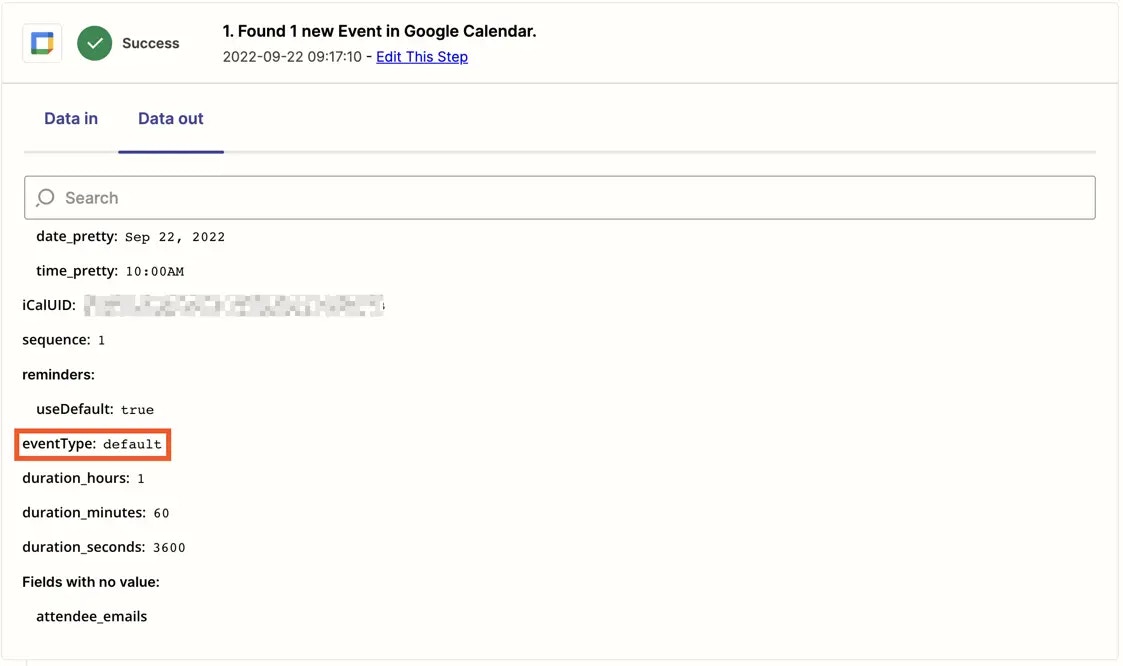
* In this example, we can see Google Calendar > New Event returns the field `eventType`
**Step 2: Determine the field name**
* Because the sample data doesn't include the field you want, we suggest setting up a live Zap replicating the Zap template you want to create
* After publishing your Zap, let the Zap run live and then review its Zap history
* From the Zap history, you can identify the exact name of the field you want to pull data from
* In this example, we can see Google Calendar > New Event returns the field `eventType`
 **Step 3: Combine step position and field name**
* Once you have both the step position and field name, you can combine them to create a custom pill
* Start with 2 open curly braces `{{`
* Add the step position folllowed by 2 underscores `__`
* Next, add the field name
* Finally, finish with 2 closed curly braces `}}`
Example: the `eventType` field isn't returned in the sample data for Google Calendar > New Event. If you want to map that field in a Zap template, you can do so using the custom pill `{{1__eventType}}`.
**Step 4: Insert custom pill**
* You can insert the custom pill into any field in any step that comes after the field that returns the data
**Additional Notes**
* Custom pills work in both Zap templates and regular Zaps. [Learn more about creating custom pills in Zaps](https://community.zapier.com/featured-articles-65/how-to-manually-map-fields-that-do-not-appear-in-the-sample-data-aka-custom-pill-mapping-9738).
* Custom pills will only work when a live Zap run returns the field used in the custom pill. If the field isn't returned during a live Zap run, fields where the custom pill has been mapped will remain empty
* The methodology described above only works for top-level fields. If a field is nested under another field (or multiple fields), each nest would be separated by double underscores.
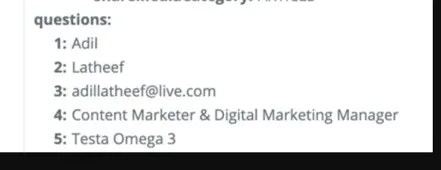
* For example, if the trigger returned the following and you wanted to retrieve the response for question 3, your custom pill would look like this: `{{1__questions__3}}`
**Step 3: Combine step position and field name**
* Once you have both the step position and field name, you can combine them to create a custom pill
* Start with 2 open curly braces `{{`
* Add the step position folllowed by 2 underscores `__`
* Next, add the field name
* Finally, finish with 2 closed curly braces `}}`
Example: the `eventType` field isn't returned in the sample data for Google Calendar > New Event. If you want to map that field in a Zap template, you can do so using the custom pill `{{1__eventType}}`.
**Step 4: Insert custom pill**
* You can insert the custom pill into any field in any step that comes after the field that returns the data
**Additional Notes**
* Custom pills work in both Zap templates and regular Zaps. [Learn more about creating custom pills in Zaps](https://community.zapier.com/featured-articles-65/how-to-manually-map-fields-that-do-not-appear-in-the-sample-data-aka-custom-pill-mapping-9738).
* Custom pills will only work when a live Zap run returns the field used in the custom pill. If the field isn't returned during a live Zap run, fields where the custom pill has been mapped will remain empty
* The methodology described above only works for top-level fields. If a field is nested under another field (or multiple fields), each nest would be separated by double underscores.
* For example, if the trigger returned the following and you wanted to retrieve the response for question 3, your custom pill would look like this: `{{1__questions__3}}`
 By following these steps, you should be able to effectively add custom pills to your Zap Templates.
## Promote your Zap templates
It's not enough to turn your ideal workflows into Zap templates. You need to get them in front of your end-users. Zapier automatically promotes your Zap templates in our SEO, app directory, and on partner sites using our embed tools (where both your and their apps are used in the template). You can promote Zap templates further by embedding them into your site (user dashboards, blog posts, help articles) using our [Zap template element](https://platform.zapier.com/embed/zap-templates).
### Zapier app directory
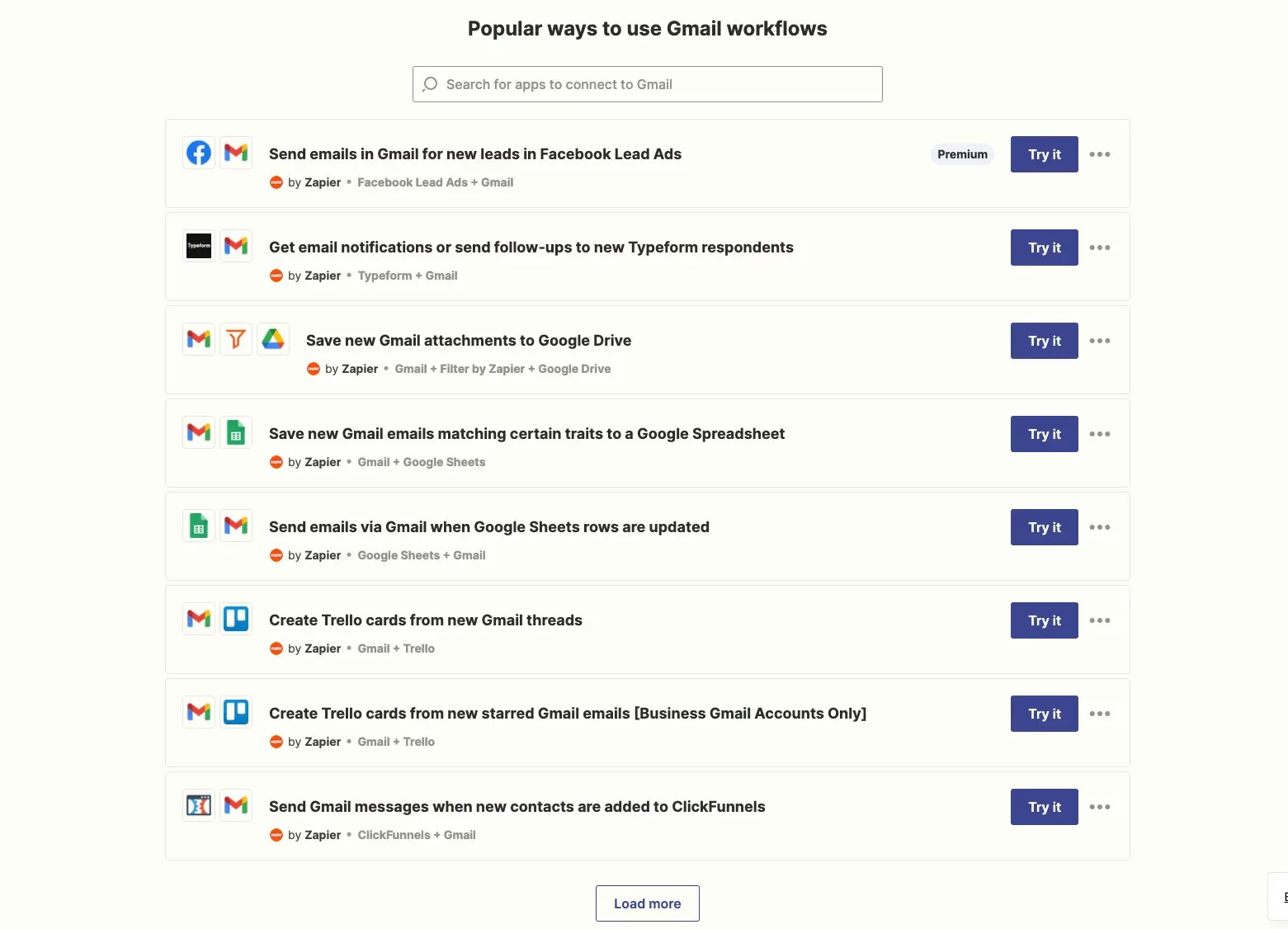
Your published Zap templates will appear on your directory page. Zap templates are loosely ordered by popularity, helping users easily discover common use-cases. Users can also search for Zap templates that connect your app with another.
By following these steps, you should be able to effectively add custom pills to your Zap Templates.
## Promote your Zap templates
It's not enough to turn your ideal workflows into Zap templates. You need to get them in front of your end-users. Zapier automatically promotes your Zap templates in our SEO, app directory, and on partner sites using our embed tools (where both your and their apps are used in the template). You can promote Zap templates further by embedding them into your site (user dashboards, blog posts, help articles) using our [Zap template element](https://platform.zapier.com/embed/zap-templates).
### Zapier app directory
Your published Zap templates will appear on your directory page. Zap templates are loosely ordered by popularity, helping users easily discover common use-cases. Users can also search for Zap templates that connect your app with another.
 ## Manage your Zap templates
Over time, you'll likely make dozens of Zap templates. You can manage them — in draft, review, or publicly available — from your [Zap templates](https://zapier.com/zap-templates/) dashboard alongside Zapier Developer Platform tools.
## Manage your Zap templates
Over time, you'll likely make dozens of Zap templates. You can manage them — in draft, review, or publicly available — from your [Zap templates](https://zapier.com/zap-templates/) dashboard alongside Zapier Developer Platform tools.
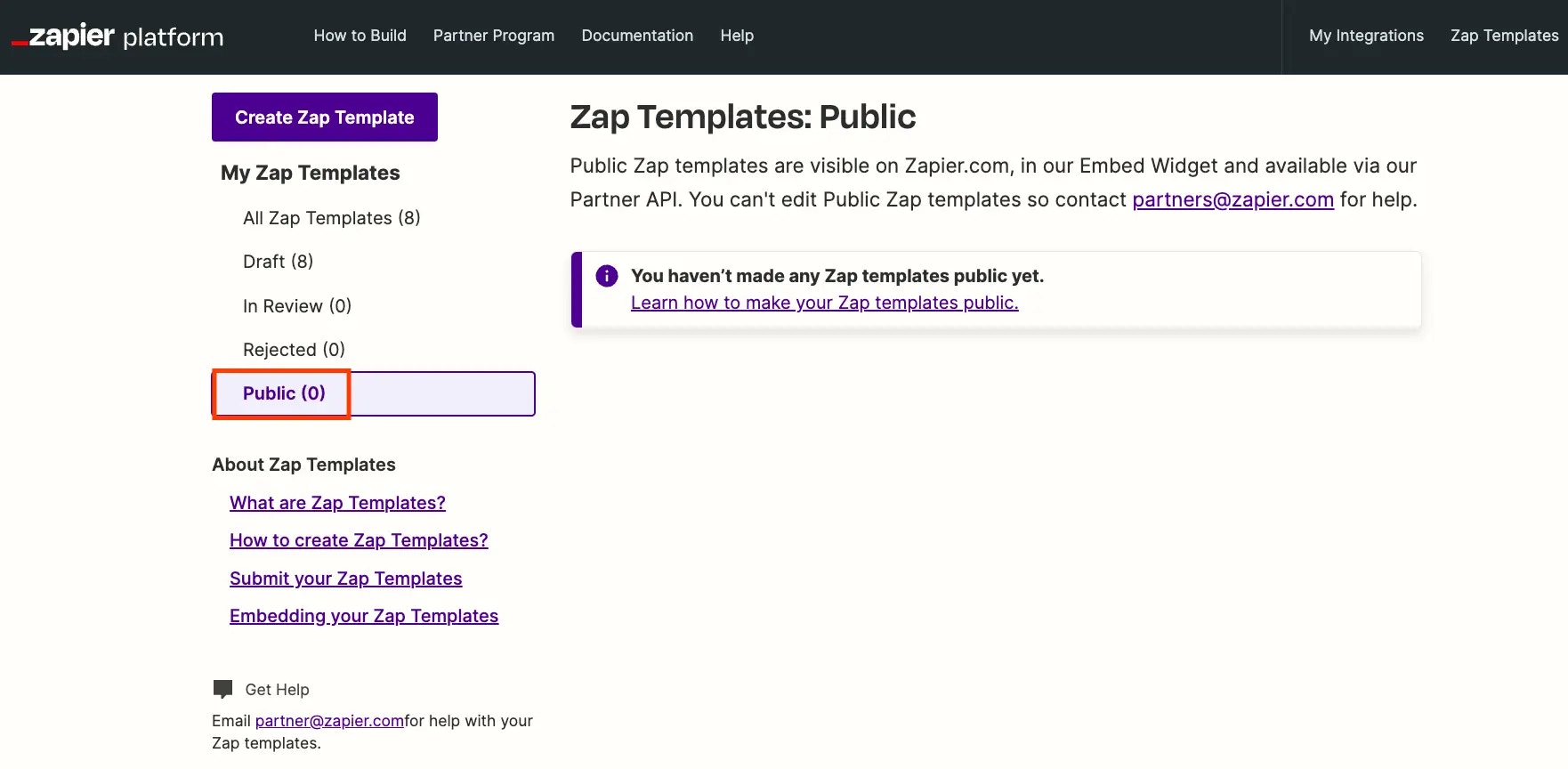 Filter through your Zap templates by status on the left sidebar, click a Zap template to edit it, or select the gear icon on the right of a Zap template to copy its public link, test it, or delete it.
If you have any Zap templates in your *Rejected* list, edit them to fix the issues then re-submit them. You cannot edit public Zap templates, but if you notice something that you need to change in your existing Zap Templates, please [submit our contact form](https://developer.zapier.com/contact) with the Zap template ID. We can set the Zap as *Draft* again so you can edit and re-submit it for review with any changes.
### Promoting new versions of your integration
When promoting a new version of your integration, all Zap templates using the integration and having no breaking changes with the existing version will be updated to use the promoted version. The following are considered breaking changes:
* A trigger/action is hidden or deleted
* A trigger/action key is changed
* A trigger/action input field key is changed or removed
* A trigger/action output field key is changed or removed
If breaking changes exist between the previous and newly promoted integration versions, existing Zap templates will not be automatically updated and will continue to use the previous version. This can result in an older version acquiring new users over time. Consider the user impacts of [changes made in new versions](/integrations/manage/planning-changes).
### Deprecating versions of your integration
When deprecating a version of your integration, any Zap templates using the integration will automatically be marked as *Invalid* within 24 hours of the deprecation.
While invalid, the Zap template will not be *Public* until it is adjusted to use a non-deprecated version, re-submitted for review and approved. This ensures users won't use deprecated and broken Zap templates to make Zaps. If you're having trouble accessing *Invalid* templates, please [submit a ticket.](https://developer.zapier.com/contact)
## Frequently Asked Questions
When contacting support about Zap templates, you'll need to provide the Zap tempalte ID you need support with. There are multiple ways to find a Zap template's ID.
From the [Zap template dashboard](https://developer.zapier.com/zap-templates), click the `...` icon beside the Zap template.
Filter through your Zap templates by status on the left sidebar, click a Zap template to edit it, or select the gear icon on the right of a Zap template to copy its public link, test it, or delete it.
If you have any Zap templates in your *Rejected* list, edit them to fix the issues then re-submit them. You cannot edit public Zap templates, but if you notice something that you need to change in your existing Zap Templates, please [submit our contact form](https://developer.zapier.com/contact) with the Zap template ID. We can set the Zap as *Draft* again so you can edit and re-submit it for review with any changes.
### Promoting new versions of your integration
When promoting a new version of your integration, all Zap templates using the integration and having no breaking changes with the existing version will be updated to use the promoted version. The following are considered breaking changes:
* A trigger/action is hidden or deleted
* A trigger/action key is changed
* A trigger/action input field key is changed or removed
* A trigger/action output field key is changed or removed
If breaking changes exist between the previous and newly promoted integration versions, existing Zap templates will not be automatically updated and will continue to use the previous version. This can result in an older version acquiring new users over time. Consider the user impacts of [changes made in new versions](/integrations/manage/planning-changes).
### Deprecating versions of your integration
When deprecating a version of your integration, any Zap templates using the integration will automatically be marked as *Invalid* within 24 hours of the deprecation.
While invalid, the Zap template will not be *Public* until it is adjusted to use a non-deprecated version, re-submitted for review and approved. This ensures users won't use deprecated and broken Zap templates to make Zaps. If you're having trouble accessing *Invalid* templates, please [submit a ticket.](https://developer.zapier.com/contact)
## Frequently Asked Questions
When contacting support about Zap templates, you'll need to provide the Zap tempalte ID you need support with. There are multiple ways to find a Zap template's ID.
From the [Zap template dashboard](https://developer.zapier.com/zap-templates), click the `...` icon beside the Zap template.
 From inside the Zap template editor, click the Zap template title at the top of the screen and click and click `Copy Template ID`.
 If you try to edit a Zap template that is pending reivew or public, the Zap template ID will be shown with a message to contact support.
 When view a Zap template on Zapier's website, the Zap template ID can be found in the URL.
 Your integration's directory page will show all published Zap templates that
use your integration. The Developer Platform will only show Zap templates
created by the currently logged in user.
Any user on Zapier is able to create and publish Zap templates using any
integration that is in beta or public status. Zapier also identifies
real-world usage and automatically generates Zap templates to help users
discover use cases, enhance integration usage, and create more engaged users
on both platforms. All Zap templates are subject to the same review process to
ensure our quality standards are met.
Currently, we do not offer the option for integrations to opt out of
Zapier-generated Zap templates. These templates are designed based on
real-world usage to enhance the end-user experience by highlighting commonly
implemented workflows. They also aim to boost adoption for both Zapier and our
integration partners.
Zap templates, once published on your integration's directory page, remain in
place to ensure our ecosystem is open, inclusive, and offers a wide range of
options to users. This includes showcasing integrations that might combine
your services with those of competitors. While direct removal of these
templates isn't aligned with our approach, we offer a proactive solution. By
leveraging our [Zap Template embed
tool](https://platform.zapier.com/embed/zap-templates), you have the power to
highlight specific Zap templates you prefer, directly within your own
platform. This empowers you to curate and showcase the integrations most
relevant to your users' needs.
Once a Zap template is published, you are unable to self-serve changes to it. To request changes, please submit our [contact form](https://developer.zapier.com/contact). When submitting the contact form, please ensure you provide the Zap template ID and the change you're requesting per Zap template. Please note the following when requesting changes:
* Zap templates should work for the broadest audience. Try to avoid requesting changes that will exclude an audience segment from successfully using a Zap template
* Every partner on Zapier has their own style and tone. We will not update titles or descriptions of Zap templates created by other partners to better accommodate your preferences. While a title and description might not match your tone and style, it could very well for the partner that published the Zap template
* If you believe you found an error with a title or description (eg the title references the wrong action), we will review and consider making the correction
* When requesting a functional change to a Zap template created by another partner, clearly state the Zap templates current behavior and the expected behavior to justify the requested change
Our current sorting system prioritizes Zap templates based on popularity and
user engagement, ensuring users who land on your integration's page on Zapier
see the most helpful examples of real workflows. The sort order cannot be
modified.
All published Zap templates that use your integration will appear on your
directory page. You are unable to exclude published Zap templates from
appearing on that page. Note when embedding Zap templates using the [Zap
Template Element](https://platform.zapier.com/embed/zap-templates), you can
specify which Zap templates to embed.
You cannot view Zap templates in the Developer Platform created by other
users, even if you're on the same integration team. If required, we can help
to transfer ownership of Zap templates created by your integration team
members to a singular account. You can [submit our contact
form](https://developer.zapier.com/contact) to learn more about this.
Zap templates are a key driver of traffic for your integration. Promoting Zap
templates is a part of our SEO strategy, and they appear throughout our embed
network. For these reasons, we err against unpublishing Zap templates where
possible. For Zap templates you own, you can unpublishing them by [deleting
them](/images/c0f9036c4b6f166b4c8289034558c201.webp). If you wish to unpublish
a Zap template without deleting it, you can request this by submitting our
[contact form](https://developer.zapier.com/contact). Be sure to include the
Zap template ID. When requesting to unpublish a Zap template created by
another partner, please justify the request (eg duplicate Zap template, Zap
template broken) for our consideration.
Zap templates can be rejected due to different reasons. The day after your Zap templates are rejected, you'll receive an email notification that will include feedback as to why a Zap template might have been rejected. Some common reasons for why Zap templates are rejected include:
* The title and/or description of the Zap template does not comply with our [style guide's](/integrations/publish/zap-templates#4-add-a-title-and-description) uniqueness requirements
* Fields in the trigger step have not been correctly mapped to corresponding fields in the action step(s)
* The use case for the Zap template is considered too narrow or specific for general use
* A Zap template with a similar use case already exists
* The Zap template title and/or description was written in a language other than English
* The Zap template includes a code, custom webhook, or custom formatter step which is currently not allowed
* The Zap template contains hardcoded values such as phone numbers, emails, or IDs which should be dynamically mapped from the trigger or another action step
* Submitting a large number of Zap templates for an integration with a low active user count can lead to rejection. We aim to ensure that our review resources are allocated fairly across all partners. When a disproportionate amount of submissions comes from a single source, it negatively impacts the review process for others. To maintain a balanced and efficient review process, we enforce limits based on the size and usage of the app
Yes, but only through our [Zap
Templates](https://platform.zapier.com/embed/zap-templates) embed solution.
You can choose between Popular Zap templates or Specific Zap templates, to
highlight to your users.
Although we don't provide specific data around how many users are using a
particular Zap template, you can track the number of active Zaps as well as
activation rates by Trigger or Action. This information is available within
your developer dashboard on the Dashboard page. You can learn more about the
insights avilable on the Dashboard page
[here](/integrations/manage/integration-insights). Zap templates are also
loosely ordered by popularity on your integration's directory page.
The more the merrier! One Zap template isn't enough—you'll want to make Zap
templates for each of your app's most popular use cases. Although there's not
a set number, we recommend adding 5 to 10 Zap templates to your integration,
for a start. Learn more about Building Zap templates
[here](/integrations/publish/zap-templates#how-to-build-a-zap-template).
Common reasons your Zap template stopped working include breaking changes,
versioning, migration, and authentication. Adding, updating, replacing, or
deleting components can have various effects. Learn more about [planning and
implementing integration changes](/integrations/manage/planning-changes).
Your triggers, actions, and searches should focus on the main use cases of
your platform. Check similar integrations in [Zapier's App
Directory](https://zapier.com/apps) and [recommended
features](/integrations/quickstart/must-have-triggers-and-actions) by app
category for ideas on which items to include in your integration.
Yes. Most Zap templates only need a trigger and two action steps. However, we
know sometimes you may need more steps for advanced workflows. Learn more
[here](/integrations/publish/zap-templates#3-optional-add-filters-or-additional-action-steps).
All users requires their own Zapier account in order to create Zaps, even if the Zap originates from a Zap template. The account the Zap is owned by will add and store authentications for each app used in the Zap. To help reduce friction for new users, you should pair your embed solution with our [Quick Account Creation](https://platform.zapier.com/embed/quick-account-creation). This seamless, accelerated sign-up feature allows first-time Zapier users to skip the standard sign-up procedure and onboarding survey.
***
*Need help?* [Tell us about your problem](https://developer.zapier.com/contact) *and we'll connect you with the right resource.*
Your integration's directory page will show all published Zap templates that
use your integration. The Developer Platform will only show Zap templates
created by the currently logged in user.
Any user on Zapier is able to create and publish Zap templates using any
integration that is in beta or public status. Zapier also identifies
real-world usage and automatically generates Zap templates to help users
discover use cases, enhance integration usage, and create more engaged users
on both platforms. All Zap templates are subject to the same review process to
ensure our quality standards are met.
Currently, we do not offer the option for integrations to opt out of
Zapier-generated Zap templates. These templates are designed based on
real-world usage to enhance the end-user experience by highlighting commonly
implemented workflows. They also aim to boost adoption for both Zapier and our
integration partners.
Zap templates, once published on your integration's directory page, remain in
place to ensure our ecosystem is open, inclusive, and offers a wide range of
options to users. This includes showcasing integrations that might combine
your services with those of competitors. While direct removal of these
templates isn't aligned with our approach, we offer a proactive solution. By
leveraging our [Zap Template embed
tool](https://platform.zapier.com/embed/zap-templates), you have the power to
highlight specific Zap templates you prefer, directly within your own
platform. This empowers you to curate and showcase the integrations most
relevant to your users' needs.
Once a Zap template is published, you are unable to self-serve changes to it. To request changes, please submit our [contact form](https://developer.zapier.com/contact). When submitting the contact form, please ensure you provide the Zap template ID and the change you're requesting per Zap template. Please note the following when requesting changes:
* Zap templates should work for the broadest audience. Try to avoid requesting changes that will exclude an audience segment from successfully using a Zap template
* Every partner on Zapier has their own style and tone. We will not update titles or descriptions of Zap templates created by other partners to better accommodate your preferences. While a title and description might not match your tone and style, it could very well for the partner that published the Zap template
* If you believe you found an error with a title or description (eg the title references the wrong action), we will review and consider making the correction
* When requesting a functional change to a Zap template created by another partner, clearly state the Zap templates current behavior and the expected behavior to justify the requested change
Our current sorting system prioritizes Zap templates based on popularity and
user engagement, ensuring users who land on your integration's page on Zapier
see the most helpful examples of real workflows. The sort order cannot be
modified.
All published Zap templates that use your integration will appear on your
directory page. You are unable to exclude published Zap templates from
appearing on that page. Note when embedding Zap templates using the [Zap
Template Element](https://platform.zapier.com/embed/zap-templates), you can
specify which Zap templates to embed.
You cannot view Zap templates in the Developer Platform created by other
users, even if you're on the same integration team. If required, we can help
to transfer ownership of Zap templates created by your integration team
members to a singular account. You can [submit our contact
form](https://developer.zapier.com/contact) to learn more about this.
Zap templates are a key driver of traffic for your integration. Promoting Zap
templates is a part of our SEO strategy, and they appear throughout our embed
network. For these reasons, we err against unpublishing Zap templates where
possible. For Zap templates you own, you can unpublishing them by [deleting
them](/images/c0f9036c4b6f166b4c8289034558c201.webp). If you wish to unpublish
a Zap template without deleting it, you can request this by submitting our
[contact form](https://developer.zapier.com/contact). Be sure to include the
Zap template ID. When requesting to unpublish a Zap template created by
another partner, please justify the request (eg duplicate Zap template, Zap
template broken) for our consideration.
Zap templates can be rejected due to different reasons. The day after your Zap templates are rejected, you'll receive an email notification that will include feedback as to why a Zap template might have been rejected. Some common reasons for why Zap templates are rejected include:
* The title and/or description of the Zap template does not comply with our [style guide's](/integrations/publish/zap-templates#4-add-a-title-and-description) uniqueness requirements
* Fields in the trigger step have not been correctly mapped to corresponding fields in the action step(s)
* The use case for the Zap template is considered too narrow or specific for general use
* A Zap template with a similar use case already exists
* The Zap template title and/or description was written in a language other than English
* The Zap template includes a code, custom webhook, or custom formatter step which is currently not allowed
* The Zap template contains hardcoded values such as phone numbers, emails, or IDs which should be dynamically mapped from the trigger or another action step
* Submitting a large number of Zap templates for an integration with a low active user count can lead to rejection. We aim to ensure that our review resources are allocated fairly across all partners. When a disproportionate amount of submissions comes from a single source, it negatively impacts the review process for others. To maintain a balanced and efficient review process, we enforce limits based on the size and usage of the app
Yes, but only through our [Zap
Templates](https://platform.zapier.com/embed/zap-templates) embed solution.
You can choose between Popular Zap templates or Specific Zap templates, to
highlight to your users.
Although we don't provide specific data around how many users are using a
particular Zap template, you can track the number of active Zaps as well as
activation rates by Trigger or Action. This information is available within
your developer dashboard on the Dashboard page. You can learn more about the
insights avilable on the Dashboard page
[here](/integrations/manage/integration-insights). Zap templates are also
loosely ordered by popularity on your integration's directory page.
The more the merrier! One Zap template isn't enough—you'll want to make Zap
templates for each of your app's most popular use cases. Although there's not
a set number, we recommend adding 5 to 10 Zap templates to your integration,
for a start. Learn more about Building Zap templates
[here](/integrations/publish/zap-templates#how-to-build-a-zap-template).
Common reasons your Zap template stopped working include breaking changes,
versioning, migration, and authentication. Adding, updating, replacing, or
deleting components can have various effects. Learn more about [planning and
implementing integration changes](/integrations/manage/planning-changes).
Your triggers, actions, and searches should focus on the main use cases of
your platform. Check similar integrations in [Zapier's App
Directory](https://zapier.com/apps) and [recommended
features](/integrations/quickstart/must-have-triggers-and-actions) by app
category for ideas on which items to include in your integration.
Yes. Most Zap templates only need a trigger and two action steps. However, we
know sometimes you may need more steps for advanced workflows. Learn more
[here](/integrations/publish/zap-templates#3-optional-add-filters-or-additional-action-steps).
All users requires their own Zapier account in order to create Zaps, even if the Zap originates from a Zap template. The account the Zap is owned by will add and store authentications for each app used in the Zap. To help reduce friction for new users, you should pair your embed solution with our [Quick Account Creation](https://platform.zapier.com/embed/quick-account-creation). This seamless, accelerated sign-up feature allows first-time Zapier users to skip the standard sign-up procedure and onboarding survey.
***
*Need help?* [Tell us about your problem](https://developer.zapier.com/contact) *and we'll connect you with the right resource.*