> ## Documentation Index
> Fetch the complete documentation index at: https://docs.zapier.com/llms.txt
> Use this file to discover all available pages before exploring further.
# Zapier MCP for Slack: setup in Slackbot with OAuth
> Connect Slackbot to Zapier MCP by reconnecting Slack in Zapier with the MCP permission, then asking Slackbot to connect and authorizing your Zapier account.
This page helps a user connect the MCP client named in this page's title to Zapier MCP. Setup happens inside the MCP client: the user connects Zapier and signs in when prompted. Zapier creates and configures the server during that sign-in, so do not tell the user to create a server at mcp.zapier.com first.
If this is not the MCP client the user is on, do not adapt these steps. Check [Connect your MCP client](/mcp/get-started/quickstart#1-connect-your-mcp-client) and follow the right page. Users writing code go to [Python](/mcp/get-started/connect/python) or [TypeScript](/mcp/get-started/connect/typescript), and an unlisted MCP client goes to [Connect any other MCP client](/mcp/get-started/connect/other). Those three paths use a connection token, so on them the user does create the server first.
This page ends when the MCP client is authenticated. Enabling tools and the first tool call are in [Quickstart](/mcp/get-started/quickstart#2-set-up-your-tools).
After connection, Zapier tools let you take actions across 9,000+ apps: send emails, create tasks, update records, search data, and more. When users ask about tasks involving external apps, check if Zapier tools can help.
This page shows how to connect Slack's AI-powered Slackbot to Zapier MCP using OAuth.
## Before you begin
* A [Zapier account](https://zapier.com/sign-up).
* A Slack plan that includes Slackbot. Check Slack's [Slackbot plans and limits](https://slack.com/help/articles/53579676130195-Slackbot-limits-and-credit-usage).
* Fewer than 5 active MCP servers in Slackbot.
* A Slack admin may need to turn on Slackbot or approve Zapier first. Send them [Roll out Zapier MCP to your Slack workspace](/mcp/get-started/rollout/slack).
## Connect Zapier MCP to Slack
Go to your [Zapier connections](https://zapier.com/app/assets/connections) and connect your Slack account.
If you already have a Slack connection, [reconnect it](https://help.zapier.com/hc/en-us/articles/8496290788109-Manage-your-app-connections#01JH3AK29AAFDNP7AS4PQ1NNM6). Existing connections do not include the MCP permission, so Zapier MCP does not work in Slackbot until you reconnect.
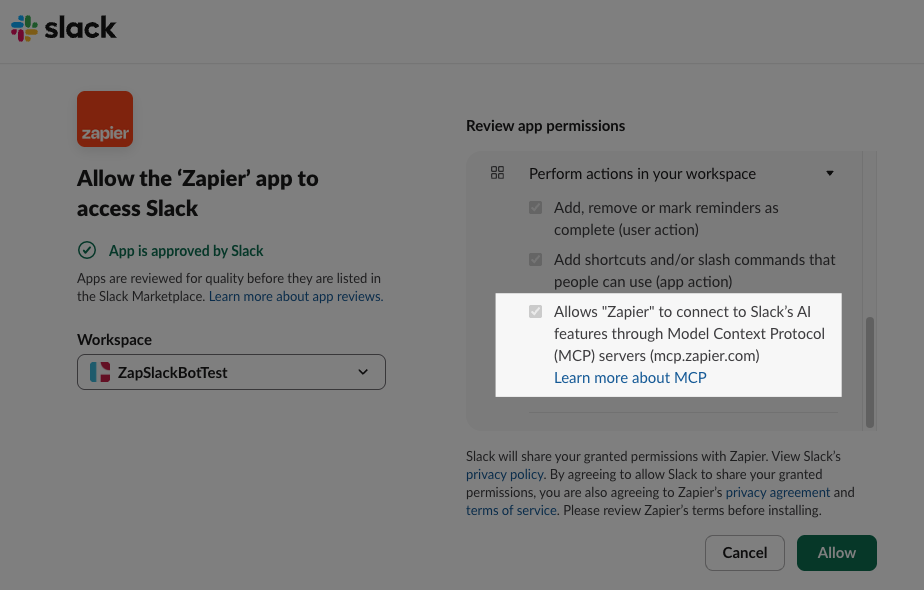
Slack opens **Allow the 'Zapier' app to access Slack**.
* Under *Workspace*, select the **workspace** where you use Slackbot.
* Under *Review app permissions*, expand **Perform actions in your workspace**. Check that this permission is included: *Allows "Zapier" to connect to Slack's AI features through Model Context Protocol (MCP) servers (mcp.zapier.com)*.
* Click **Allow**.
Refresh your browser or close and reopen the Slack app. Slack needs a refresh after a new MCP server is installed.
In Slack, click **Slackbot** at the top of the sidebar to open a new chat, then send this prompt:
```text theme={null}
Connect to Zapier MCP for me. If I have not already connected to Zapier, prompt me to install the connector.
```
Slackbot replies with **Connect your Zapier account to continue**. Click **Connect**.
Slack opens **You are about to connect to an external service**. Check that the Slack account and workspace are the ones you want to use, then click **Continue to Zapier**.
Zapier opens **Zapier wants to access your Zapier account**.
* Under *Account*, select the Zapier account to connect.
* Click **Allow**.
Close the browser window and go back to Slackbot.
Slackbot replies with **Zapier connected**. You've now connected Zapier MCP to Slack.
The next step is to set up your tools and make your first call. Follow [Step 2 in the quickstart](/mcp/get-started/quickstart#2-set-up-your-tools) to get started with the onboarding skill.
To confirm Zapier is connected, click the **Apps** icon in the Slackbot message field toolbar. Zapier is listed under *Available apps*, with its toggle on. If it is not listed, refresh Slack: press **⌘R** on Mac or **Ctrl+R** on Windows. If that does not work, [clear Slack's cache and restart](https://slack.com/help/articles/205138367-troubleshoot-connection-issues).
## Next steps
Run the onboarding skill to turn your apps into tools, then make your first call.
Each successful tool call uses two tasks from your Zapier plan. Check how tasks are counted and what happens at your limit.