

White Label is currently in limited access. Contact ryan.powell@zapier.com to learn more.
White label
Zapier White Label lets you use Zapier under your own brand, without end users needing their own Zapier accounts or a direct relationship with Zapier. White Label supports multiple product surfaces. Depending on your use case, your end users can:- Embedded triggers/actions: connect an app account (via Connect UI) and run actions/triggers via API
- AI agent connections & automations: connect an app account (via Connect UI) and call tools via Zapier MCP and Zapier SDK
- Embedded workflows: create and manage Zapier-owned trigger→action workflows via the Workflow API
Where Zapier branding shows up (and what you can control)
There are a few “surfaces” where Zapier branding is visible during authentication:-
Connect UI (Zapier-hosted)
- What users see: the hosted Connect UI where they sign in to the third-party app and grant access
- What you control: the UI can be customized to match your design system so it feels native inside your product
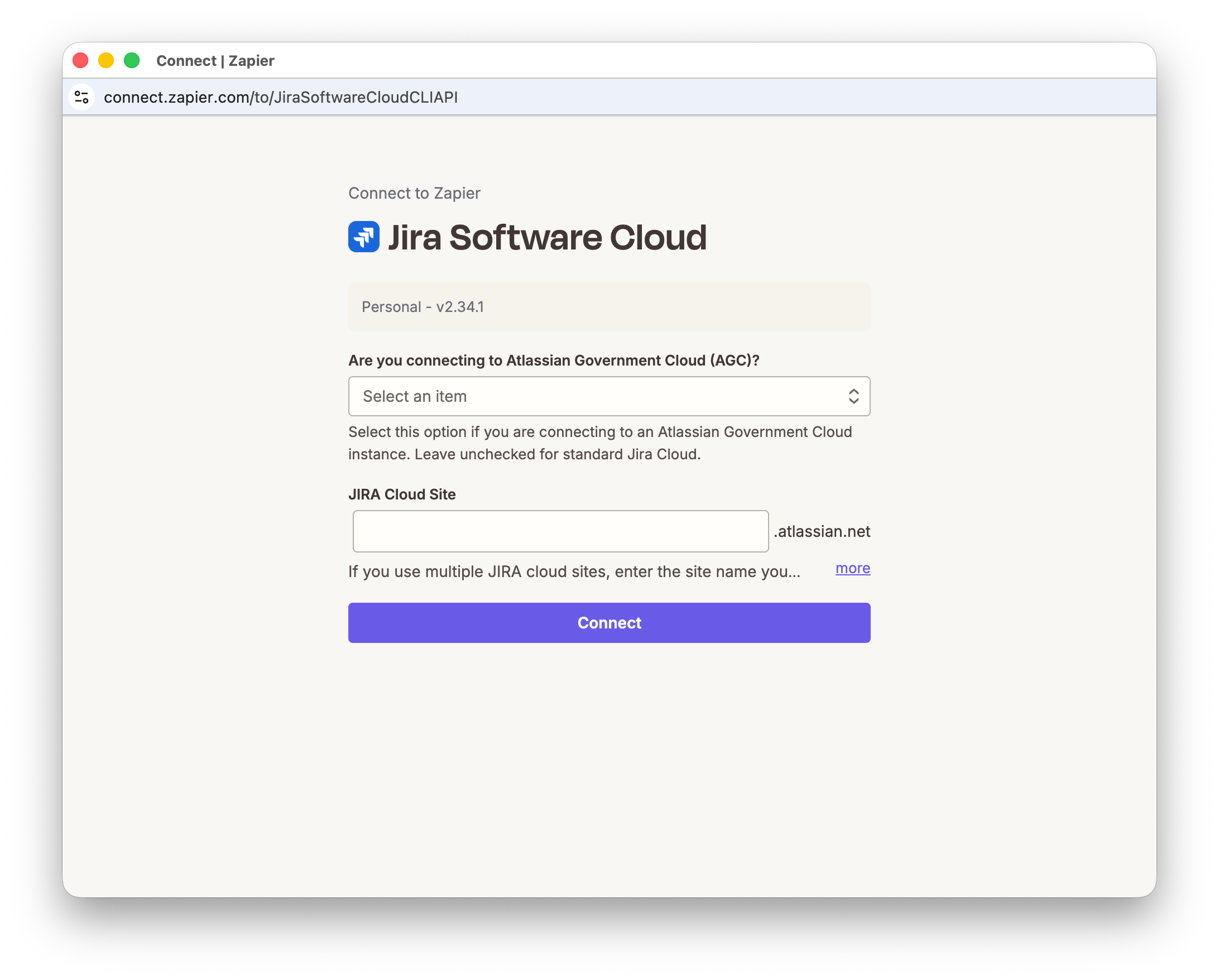 Example: the Connect UI can be styled to match your product branding (colors, typography, layout) while Zapier handles the underlying authentication flow.
-
Third-party OAuth consent screens (Google, Slack, etc.)
- What users see: the consent screen from the third-party app
- What’s important: the consent screen will show that Zapier is requesting access to the user’s third-party app account
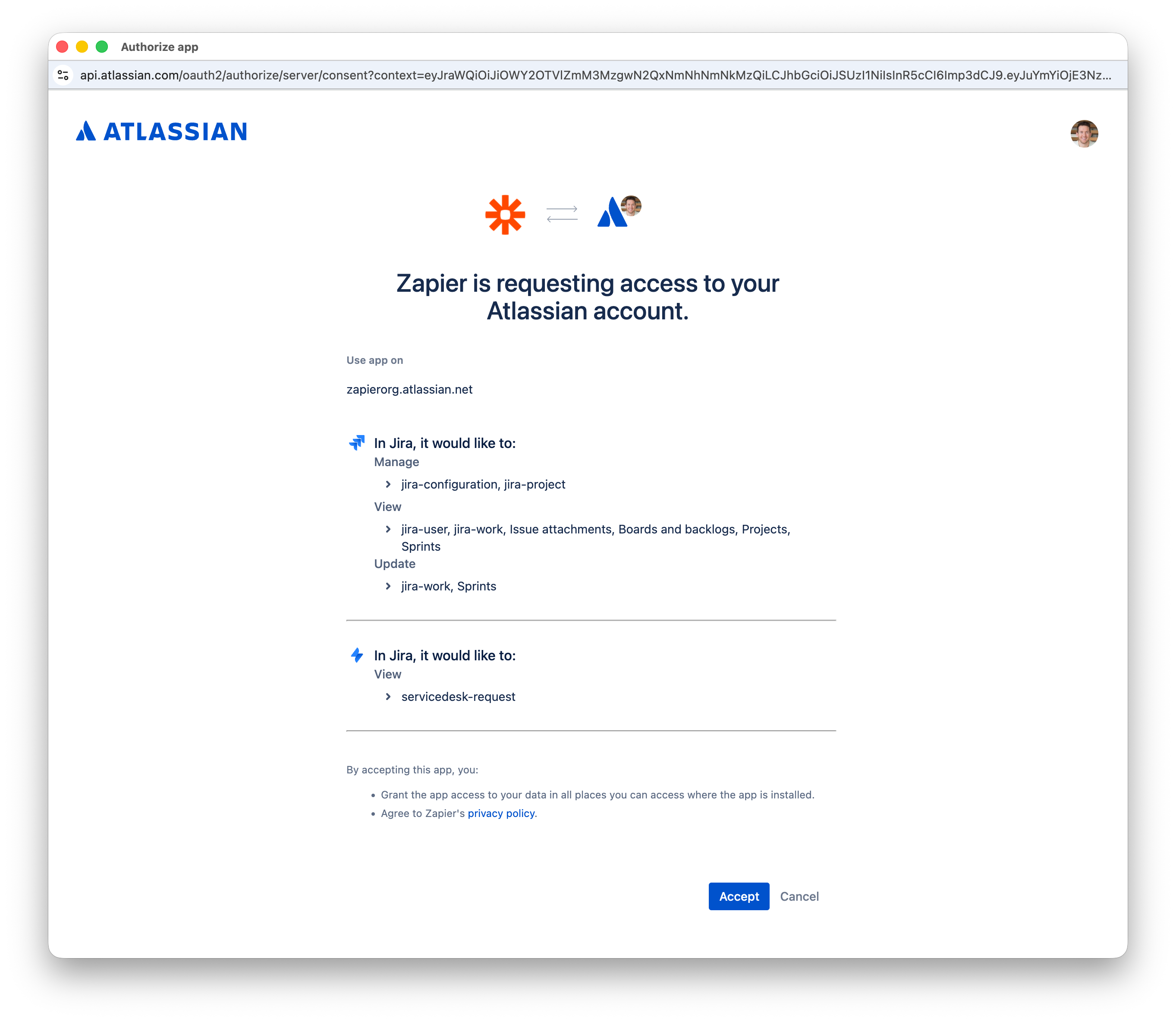 Example: this screen is owned by the third-party app (not Zapier/you), so branding and wording are not fully controllable.
Key concepts
- Partner-signed JWT: your backend’s signed assertion of “this is user X in tenant/workspace Y”.
- JWKS URL: a public endpoint where Zapier fetches your public keys to verify JWT signatures.
- Access token (Bearer): used server-side to call Zapier APIs (list connections, run actions, poll results).
- Connect token: short-lived token used client-side to open the Connect UI (often obtained by exchanging an access token).
- Connection identifier: durable ID returned after Connect completes; you store it and use it to run actions later.
Continue
- Pick your use case
- Implement the core flow