

- Seamless user experience: Existing users have uninterrupted service, while new features are being tested and deployed.
- Incremental upgrades: Developers can facilitate phased roll outs of new features, allowing for thorough testing and feedback collection before full deployment.
- Version management: Developers have a structured approach to migrate users to updated versions and deprecate older versions when applicable.
Version numbering
Zapier uses semantic versioning (semver) for integration versions. A version number has three parts:MAJOR.MINOR.PATCH (for example, 1.2.3).
Choosing the right version number communicates the impact of your changes to users, determines whether you can migrate users automatically, and controls whether the platform allows you to promote the version.
Patch versions
Format:1.0.0 → 1.0.1
Increment the patch version for backward-compatible fixes that don’t change the interface users interact with. Existing Zap workflows continue to work identically.
Minor versions
Format:1.0.3 → 1.1.0
Increment the minor version when you add new functionality that doesn’t break existing Zap workflows. Users on the previous version are unaffected, and you can migrate them automatically.
Major versions
Format:1.3.6 → 2.0.0
Increment the major version when you make changes that break compatibility with existing Zap workflows. These changes require users to take action — reconnecting accounts, reconfiguring Zap steps, or providing new information.
What gets detected automatically?
When you promote a new version, the platform compares it against the current public version at the schema level — looking at the structure of your triggers, actions, searches, and authentication. The following schema-level breaking changes are detected automatically and pause promotion when found within the same major version:- Removed triggers, actions, or searches — a key present in the current public version is missing in the new version
- Authentication type change — the auth type (e.g.,
oauth2,apiKey,session) differs between versions - Trigger type change — a trigger switched between polling and hook type
- Removed searchOrCreate keys — a searchOrCreate present in the current version is missing
- Removed input field keys — an input field key on an existing trigger/action was removed
- Optional input field made required without a default — an existing optional field is now required but has no default value, so existing Zap workflows that don’t supply it will break
- Authentication field changes — removing an auth field, adding a new required auth field, or changing an auth field’s type breaks existing connected accounts
- Input field type changes — changing the type of an input field (e.g.,
string→list) - Incompatible JSON field schema changes — backward-incompatible changes to
json-type input field schemas
These checks cover schema-level changes only. Some breaking changes happen outside the schema and are not automatically detected — for example, removing or renaming output field keys, changing the behavior of a perform function, or altering response structures. These are still your responsibility to catch. Always review the full versioning matrix before promoting.
Sequential version numbering
The platform enforces sequential version numbers — you cannot skip versions when pushing. Each new version must have a valid predecessor:
You also cannot insert an intermediate version if a higher version already exists in the same range. For example, if
1.5.0 already exists, you cannot push 1.4.0.
Migration and major versions
You can only migrate users automatically between versions that share the same major version number. For example:1.0.0→1.2.0— allowed (same major)1.9.0→2.0.0— not allowed (crosses major boundary)
Choosing the right version
When deciding which version number to use:- Are you only fixing bugs or improving internal code? → Bump the patch version.
- Are you adding new triggers, actions, or optional fields? → Bump the minor version.
- Are you removing or renaming anything, changing auth, or requiring new user input? → Bump the major version.
Labeled versions for development
In addition to semantic versions, you can use labeled versions while building features. These use a label suffix like2.0.0-beta or 0.0.0-my-feature and let you defer version number decisions until you’re ready. Learn more about working with labeled versions.
Managing versions in Platform UI
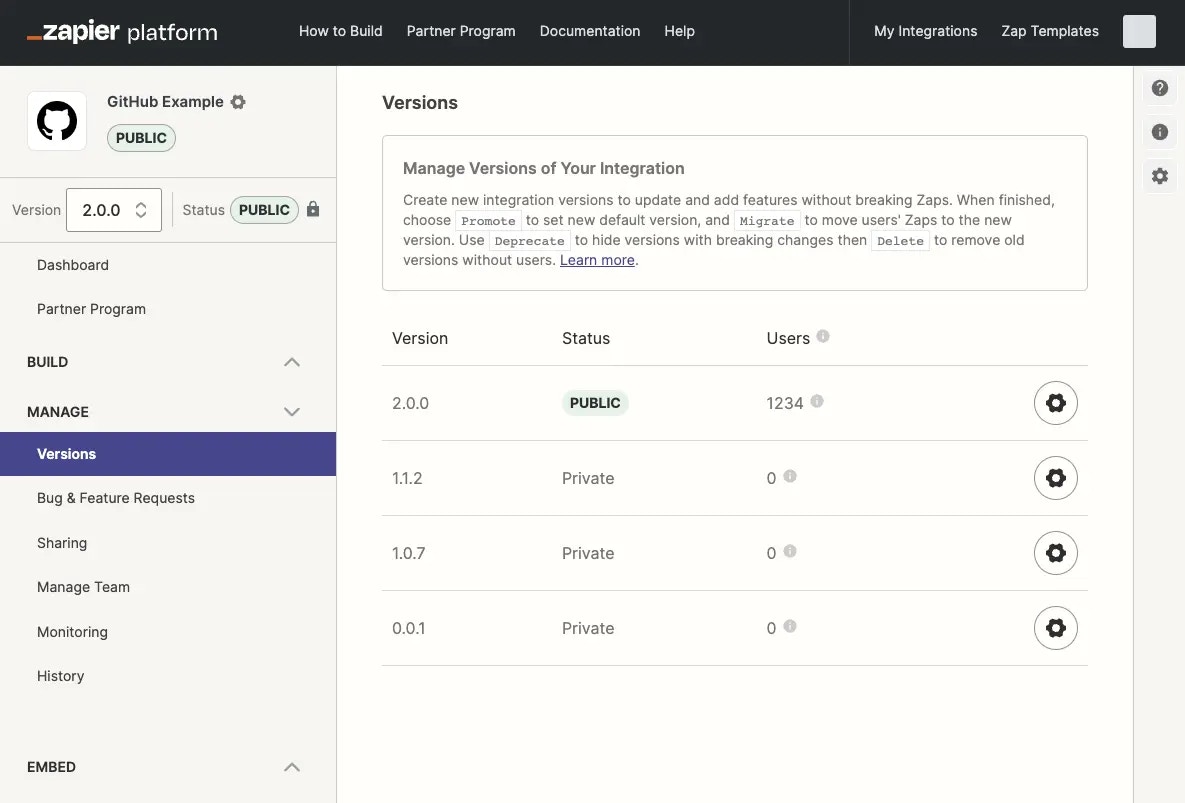
To manage your versions:- Log into the Platform UI.
- Select your integration.
- In the Manage section in the left sidebar, click your Versions.
- Work with labeled versions
- Clone a version
- Promote a version
- Migrate users to a new version
- Deprecate or delete an version
Managing versions in Platform CLI
Integrations created with the Platform CLI cannot be edited in the Platform UI, however you can view the available versions in the Platform UI. You can also run thezapier-platform versions command (or deprecated zapier versions) to see the same information in your local terminal.
What do I do if I am blocked from promoting or migrating integration versions?
Zapier may fix bugs or add new features to your integration and release these as part of a new integration version. In the event that Zapier has made changes to an integration version you own, you will be unable to do the following until you update your local files by runningzapier pull:
- push changes to the promoted version
- promote a new version
- migrate from one version to another version
zapier pull to update your local files with the latest version and remove these restrictions. Any destructive file changes will prompt you with a confirmation dialog before continuing.
Who can view your versions?
For public integrations, which are searchable in the Zap editor or in the app directory, a user who selects your integration in the Zap editor will be using the current public version by default. For both private and public integrations, only team members added to the integration, or users with whom you have shared private versions with specifically, will see those versions as well.How will my users identify a new version?
As an integration admin, you will always see all the integration versions when connecting the app, but the end user should see only the published version. For end users, the public version will be the one showing only the name of the integration, with no version number on it. For private integrations, you can either invite the users to the new version via the users’ email addresses or use the sharing link to invite the users.Editing versions
To make sure that existing Zap workflows can continue to work consistently, the Developer Platform only allows you to edit versions that have a private status and have fewer than 5 users. Versions that are public or have more than 5 users will show a warning message prompting you to clone the version instead.
Is there any way to bulk-update the API endpoints?
While there’s no automatic way to do this in the Platform UI, you might consider migrating your integration to the CLI, which can streamline the process of updating endpoints. You can find more information on how to export your integration to the Platform CLI in this guide: Export Integration to Platform CLI. If updating the base URL is your main concern, you could use environment variables to host the base URL. You can reference it using{{process.env.YOUR_KEY}}, which might make future bulk updates easier.
Need help? Tell us about your problem and we’ll connect you with the right resource or contact support.