

Promote a version with Platform UI
- Log into the Platform UI.
- Select your integration.
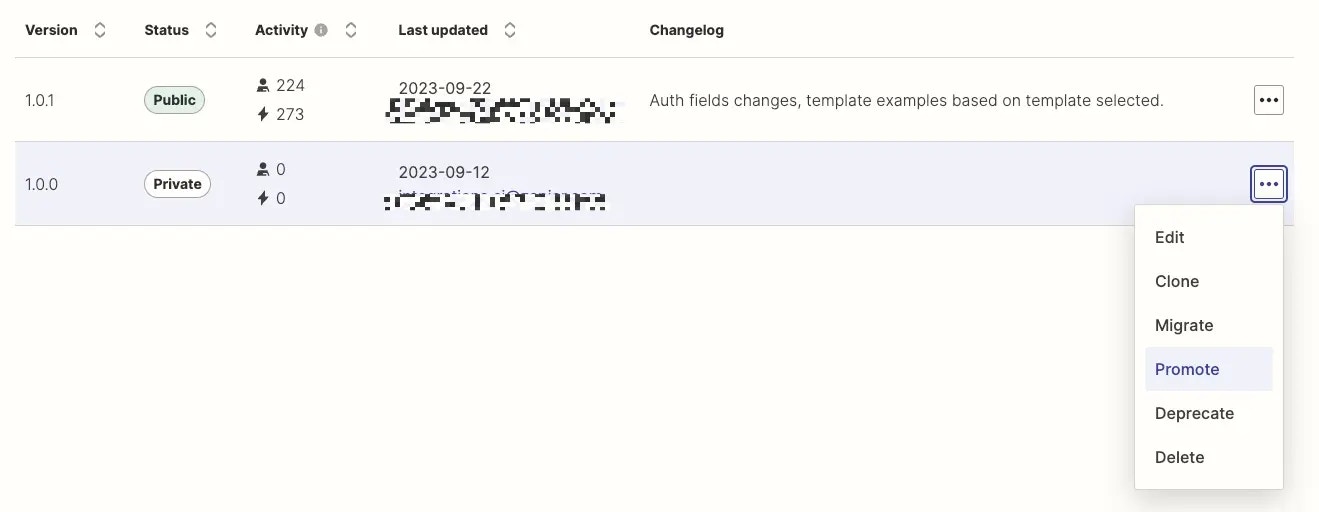
- In the Manage section in the left sidebar, click your Versions.
- On the version you want to promote, click the three dots icon
and Promote.
- Fill in the changelog form and click Promote. Selecting specific features added and bugs fixed will automatically queue up the issue(s) to be reviewed by our internal team for closure.
Note: If you have a private integration, you will not see the Promote option. Instead, you can share your new version with users.
Note: Labeled versions are not eligible for promotion and will not show the Promote option. Clone to a non-labeled version instead, then promote that.
Promote a version with Platform CLI
In the Platform CLI, you can runzapier-platform promote [version] to make the specified version number the new public and default version. Learn more about promoting a version using the Platform CLI .
Breaking change protection
The platform automatically detects breaking changes during promotion. If breaking changes are detected and the new version does not increment the major version number, promotion is blocked. For example, if your current public version is1.5.0 and the new version removes a trigger:
- Promoting as
1.6.0→ blocked with an error listing the breaking changes and the required major version - Promoting as
2.0.0→ allowed
What happens after you promote a version?
After successfully promoting a version:- Zap templates update: If there are no breaking changes, all Zap templates will be updated to use the new public version.
- New triggers and actions: Any newly added triggers or actions will be displayed on your integration’s public app page.
- User experience: Users who select your integration for a new Zap will interact with the promoted version by default.
Video tutorial
You can refer to this video on promoting a version:Need help? Tell us about your problem and we’ll connect you with the right resource or contact support.