

Overview
When your integration is enrolled in automatic migrations, Zapier handles user migrations for you based on actions you take in the Developer Platform. Instead of manually runningzapier-platform migrate after promoting a new version, the platform automatically moves users to the appropriate version in staged rollouts.
Automatic migrations only occur within the same major version (e.g. 1.4.0 → 1.5.0). Cross-major-version migrations (e.g. 1.x → 2.x) are never performed automatically. A major version increment signals a breaking change per semantic versioning. Your integration’s end users would always need to update their workflows manually if a new major version was promoted. See Migrations must stay within major version for background.
How automatic migrations are triggered
Automatic migrations are triggered by actions you take on your integration’s version lifecycle. Specifically:- Promoting a new version — When you promote a non-breaking version, eligible users on older versions within the same major version are automatically migrated to the newly promoted version.
- Marking a version as legacy — When you set an older version to legacy, remaining eligible users are migrated to the current promoted version.
- Setting a version to deprecating — When you set a deprecation date (minimum 3 weeks in the future), automatic migration begins immediately for any remaining users on that version. The platform has approximately one week to complete the migration before the standard deprecation notification email is sent (14 days prior to the deprecation date). If the migration completes in time, users are not sent deprecation emails. If it does not complete, remaining users receive the standard deprecation notice with instructions to update.
Managing multiple previously-promoted versions
If your app has multiple versions in the available state (i.e. versions that were previously promoted), we recommend marking them as legacy one at a time, starting from the oldest. This ensures users on each version are migrated forward to your current promoted version in the correct order, rather than landing on an intermediate old version. If you skip this step, you may need to verify post-migration and manually migrate any users still on older legacy versions. Alternatively, you can leave older versions as available and only mark newly demoted versions as legacy going forward.Staged rollouts
To protect users and reduce risk, automatic migrations use a staged rollout model. The Zapier Developer Platform determines groups of users to migrate. On promotion, an initial group with preference to migrate early are automatically migrated, while setting to legacy will migrate the majority. 100% of users are only migrated when a version is set to deprecating. Use with caution. Only mark a version as deprecating when it is expected to stop functioning.
This progressive approach allows thorough validation at each stage before the migration reaches your full user base, giving you time to catch and address any issues between stages.
Migration timing
Automatic migrations may take longer to complete than manually-initiated migrations due to two factors: migration speed has been intentionally reduced to protect database performance, and the platform now validates each user’s rollout stage eligibility before proceeding with their migration.Guardrails and safety
The platform includes several safeguards to prevent problematic migrations:- Major version boundary — Automatic migrations never cross major version boundaries. Breaking changes must be shipped in a new major version (e.g.
2.0.0), and users on prior major versions will not be auto-migrated. - Breaking change detection — The platform compares your new version against the current public version at the schema level during promotion. If breaking changes are detected within the same major version, promotion is blocked — which also prevents automatic migration from starting.
App history and attribution
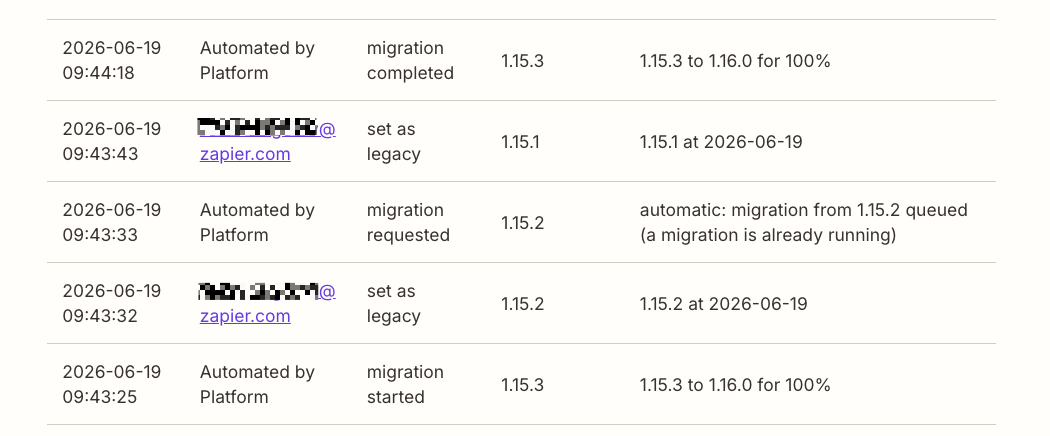
When an automatic migration occurs, you’ll see entries in your integration’s app history with the author shown as Automated by Platform. This distinguishes platform-initiated migrations from those run manually by your team which retain the user email as the Author. Log entries you may see include:- Migration started
- Migration requested
- Migration completed
Relationship to the Integration Maintenance Program
Automatic migrations are governed by your integration’s maintenance preference. If your integration is opted into the Integration Maintenance Program, it is also enrolled in automatic migrations. The maintenance preference toggle controls both:- Whether Zapier engineers may fix bugs in your integration
- Whether the platform will automatically migrate users when you manage your version lifecycle (automatic migrations)