

mcp:connect) approved for the workspace. Each member still needs to add Zapier in Slackbot and sign in to Zapier. Learn more about what an organization rollout of Zapier MCP is before using this tutorial.
Before you begin
To roll out Zapier MCP in Slackbot, you need:- Slackbot for your members. Slackbot is available on all plans, but access and limits vary by plan.
- The right Slack role. A Workspace Owner or Admin. On Enterprise plans, an Org Owner or Admin.
- Slack allowed in Zapier. If you use app access settings, make sure members can use Slack.
Install the Zapier app with the MCP permission
Zapier’s MCP server only appears in Slackbot after the Zapier app is installed with the MCP permission. Connect Slack in Zapier first, then connect from Slackbot.1
Connect Slack in Zapier
Go to your Zapier connections and connect your Slack account. If you already have a Slack connection, reconnect it to add the MCP permission.Slack opens Allow the ‘Zapier’ app to access Slack.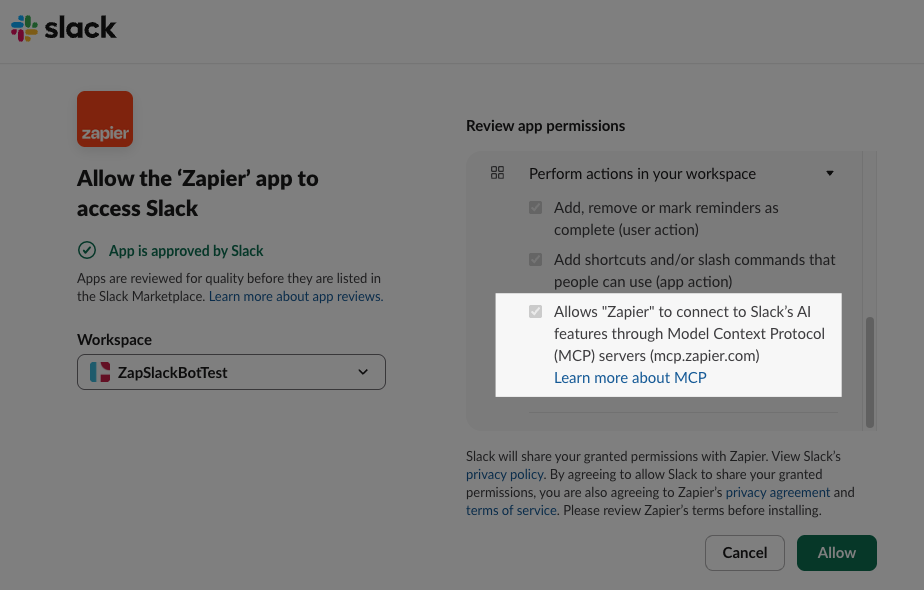
- Under Workspace, select the workspace where you use Slackbot.
- Under Review app permissions, expand Perform actions in your workspace. Check that this permission is included: Allows “Zapier” to connect to Slack’s AI features through Model Context Protocol (MCP) servers (mcp.zapier.com).
- Click Allow.
2
Refresh Slack
Refresh your browser or close and reopen the Slack app. Slack needs a refresh after a new MCP server is installed.
3
Ask Slackbot to connect to Zapier
In Slack, click Slackbot at the top of the sidebar to open a new chat, then type:
4
Click Connect
Slackbot replies with Connect your Zapier account to continue. Click Connect.
5
Continue to Zapier
Slack opens You are about to connect to an external service. Check that the Slack account and workspace are correct, then click Continue to Zapier.
6
Allow access to your Zapier account
Zapier opens Zapier wants to access your Zapier account.
- Under Account, select the Zapier account to connect.
- Click Allow.
7
Return to Slackbot
You’ll see Your account is connected. Close the browser window and go back to Slackbot. In the desktop app, Slack redirects you automatically.
Control access to Zapier’s MCP server
This section applies to Enterprise Grid and Enterprise+ plans only. On Pro, Business+, and Enterprise Select, you cannot manage MCP server or tool access in Slack. From the admin dashboard, go to Integrations → Installed apps, select Zapier, then click the Member Permissions tab. There you can:- Choose who can use the MCP server. Under MCP servers, click Edit next to Zapier’s server.
- Set defaults by tool type. Under Default MCP tool permissions, set who can use Read-only tools, Write tools, and Other tools.
- Manage one tool. Under MCP servers, click Edit next to Zapier’s server, then click Edit next to a tool.
Confirm Zapier’s MCP server is allowed
In Integrations → Installed apps, select Zapier. Under the Member Permissions tab, check that MCP servers shows who can access Zapier’s server (for example, Everyone).Tell members how to connect
Once the MCP permission is approved, each member adds Zapier in Slackbot and signs in to their own Zapier account. Their tool calls run as them. Send them the Slack connection guide.Announcement you can send to members
Announcement you can send to members
If a member cannot find Zapier
- Confirm the member has access to Slackbot.
- On Enterprise Grid and Enterprise+, confirm the member has access in Control access to Zapier’s MCP server.
Related
Roll out to your organization
The rollout model every client guide relies on, and the Zapier controls that govern it.
Slack
The member flow: connecting from Slackbot and authorizing your Zapier account.
Security
Access control, app and action restrictions, SSO, and audit logging.
Slack: Connect Slackbot to other apps with MCP
Slack’s own guide to installing apps with MCP servers and managing access.